Public Booking is built to do one thing really well: turn “I’m interested” into a paid reservation or event registration — fast, secure, and without forcing new players to download an app or create an account. Now, a few of the biggest “coming soon” items are officially live.
What’s new
- Digital Waivers in Public Booking: collect required or optional waiver signatures directly in the Public Booking flow for court reservations and event registrations.
- Apple Pay + Google Pay at checkout: Enable faster checkout for Stripe Connect users when supported on the player’s device or browser.
If you’ve been on the fence about enabling Public Booking, these updates make the case even clearer: less admin, higher conversions, better compliance, and a more modern guest experience.
Digital Waivers for Public Booking
When you open your courts and programs to the public, waivers quickly become the operational “gotcha.” You want the friction gone for guests — but you still need the right documents signed before someone steps on court.
That’s exactly what Public Booking Waivers now solve.
How it works for players
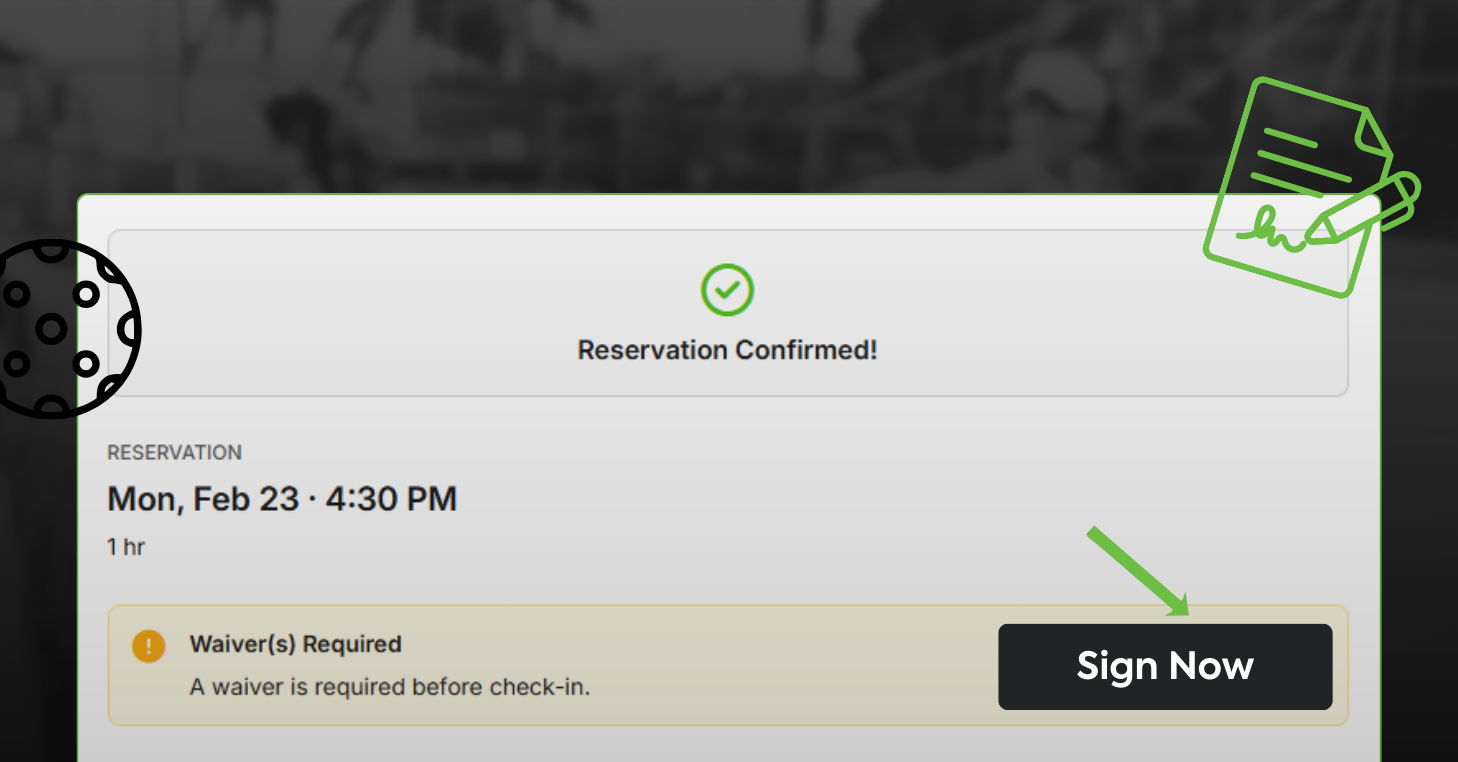
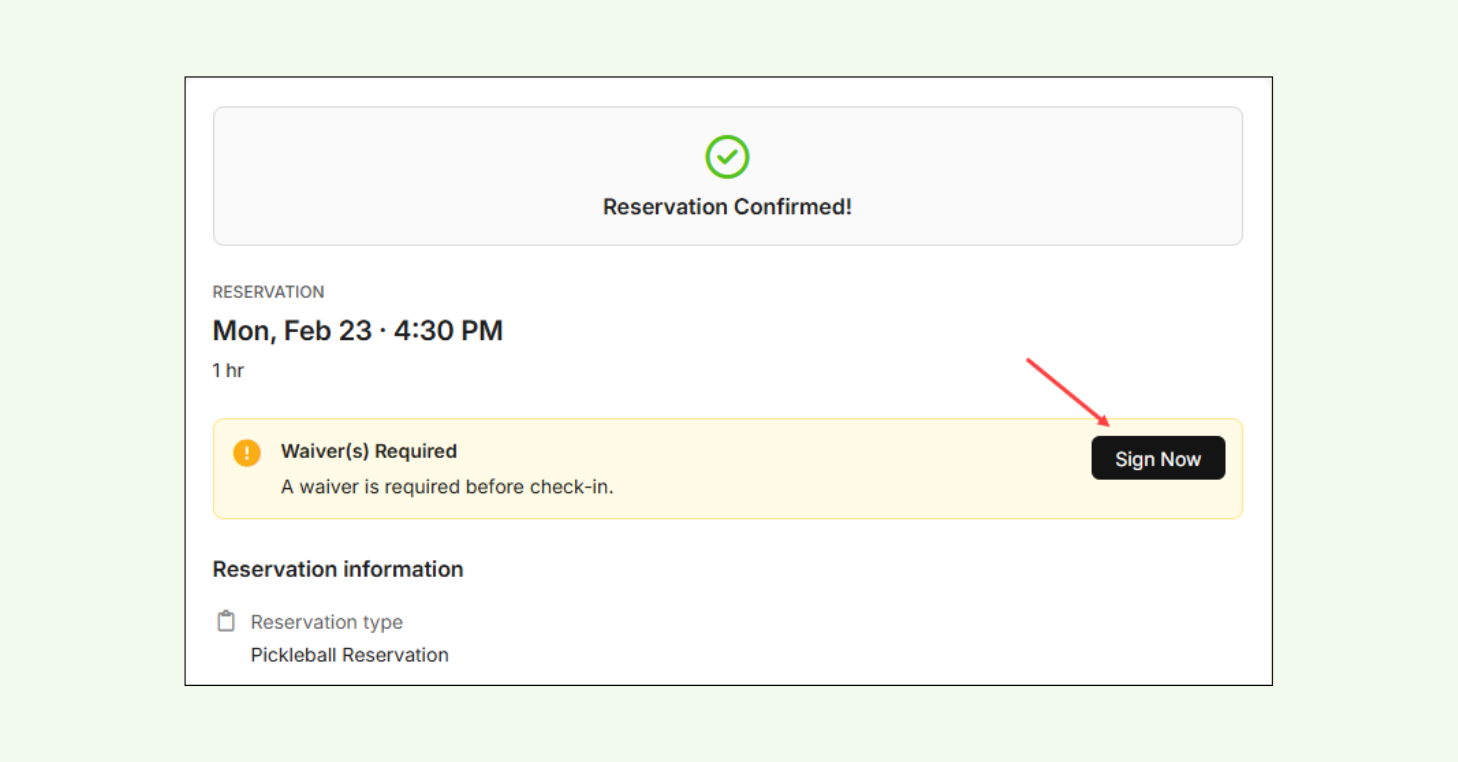
After a public user completes a booking, waivers are presented on the Confirmation page with a clear callout showing whether each waiver is Required or Optional, plus a Sign Now action to finish the process.
Players can now:
- Review the waiver details
- Acknowledge the terms
- Provide a digital signature and finalize
Required vs. Optional Digital Waivers (and the “no surprises” behavior clubs need)
Public Booking supports both:
- Required waivers (must be signed to satisfy participation requirements)
- Optional waivers (can be skipped, but the reminder remains visible until signed)
And here’s the operational kicker clubs have been asking for:
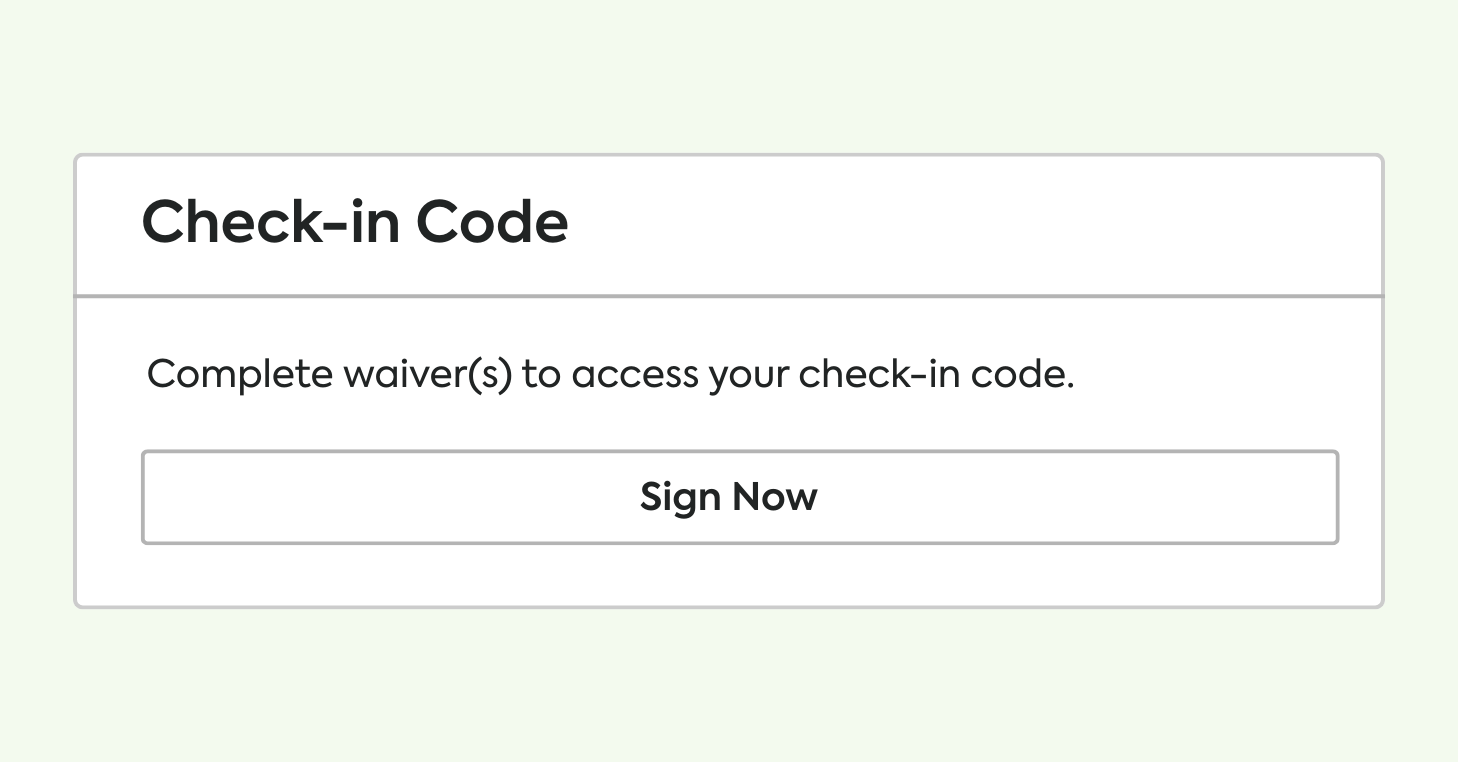
CourtReserve hides the check-in QR/code until any required waiver is signed.
Public Booking already protects revenue with required upfront payment — and now waivers ensure guests also complete the required paperwork before they ever receive check-in details. That means your staff isn’t chasing signatures at the desk and guests aren’t slipping through without the right documentation.
Admin visibility + familiar workflows
On the admin side, waiver tracking is designed to mirror the waiver experience your team already knows – so you can keep operations consistent while expanding access to non-members.
Built for real-world club use cases
Public Booking Waivers are designed specifically for how racquet and pickleball clubs run day-to-day, including:
- Requiring waivers before check-in
- Adding event-specific waivers (ex: camps, clinics)
- Capturing parent or guardian consent when minors register for age-restricted events
- Giving staff a clear visual indicator of who still needs to sign
Early impact: Public Booking delivers real results
Clubs who turned on Public Booking are already seeing results:
- Up to $1,000 in new booking revenue generated in the first 30 days
- Up to 13% of total court reservations at one facility driven entirely by Public Booking
- Even at just 1–2% of total reservations, clubs are seeing hundreds in net-new revenue
California SMASH is one club seeing it firsthand:
“Public booking through CourtReserve delivered immediate impact, streamlined operations, and helped us grow faster and smarter.” — Brett Drogmund, Founder, California SMASH
And with Apple Pay + Google Pay now live for Stripe Connect (when supported), checkout is even faster — more on that below.
Takeaway: Public Booking is already driving paid demand; Waivers + Apple/Google Pay make it even easier to convert guests while reducing front-desk admin.
Not using Public Booking yet? Watch the product walkthrough and get started:
Video Transcript
0:06
reserve lunch and learn spark series. We are so happy to have you with us today. Um I’m joined by my teammate Josh and we
0:13
are just again so excited to be here and be sharing something brand new from
0:20
Court Reserve today. Um you guys are really the first to see this other than a couple beta customers. And um we kind
0:27
of maybe plugged this a little bit in our uh new features webinar earlier this month. Um but we’re super excited for
0:34
you guys to be here today and check out this new experience that we’ve built for all of our court reserve customers.
0:40
Before we get started, just a couple housekeeping items um from our side. We are recording this session and it will
0:46
be on YouTube in the next 24 hours. So once we’re done, I’ll send it over to our marketing team and they’ll work some
0:51
magic and get it posted to YouTube in a very, very short period of time. Um, and then as you have any questions
0:57
throughout the webinar, please feel free to drop those in the Q&A section. Try not to use the chat button. The chat, we
1:02
don’t really get a record of those really well after the webinar is over, but we want to see what questions people asked. And then Josh is actually going
1:09
to be in the background answering some of those questions, too. And we’ll ask a couple of them live as we go through this presentation. Also, um, if you
1:16
can’t find the Q&A button, cuz this actually was new news to me recently. Um, if you’re in a browser window, that
1:21
Q&A button is going to be kind of behind a three dots more option within your browser window. Um, and if you’re using
1:28
the Zoom app, it should be within your Zoom app toolbar. So, we’re going to go ahead and get started with a couple of
1:33
just things that we have coming up with Court Reserve. Um, our friends over at Pickle Ball Mastermind have another
1:38
mastermind coming up in March. If you haven’t been to Mastermind, Devin Egan is the master of pickle ball setups. And
1:46
so he’s really built a master class around how to run a pickle ball facility and the formula to success. If you
1:51
haven’t checked out Pickle Ball Mastermind, you can go to this link on our um Josh is going to drop it in the
1:57
chat, but go to the club pickle ball mastermind website and learn more about Devon’s uh classes.
2:04
Court Reserve is also back in 2026 with Catalyst. Uh Josh and I did the first
2:09
one last month in January in St. Augustine. Uh this spring we are going
2:14
to be in Columbus, Ohio in April. We’re going to go to Detroit, Michigan in May. And we’ll be out in Colorado in July.
2:21
Check out Catalyst. No matter how familiar you think you are with Court Reserve, I guarantee you’re going to
2:26
take something away. We share best practices between organizations. We
2:31
share, you know, what we think as a Court Reserve uh product and setup team,
2:36
we think is valuable information as well. We want to make sure you understand how to use the software and
2:41
uh how it, you know, all of the ins and outs of it. And so, Catalyst is definitely the place to learn more about
2:47
things that you’re not using and just get to know some other customers that are also using Court Reserve.
2:54
And then finally, you can come meet some of our Court Reserve. If you’re going to be out and about at some of these industry conferences or um expos over
3:02
the next couple of months, come and see us. We go to all of these and we love to meet our customers and talk about your
3:07
experiences and how we can help. So definitely go say hey if you see a court reserve uh court reserve table our sales
3:13
team would love to see you. All right and then the last housekeeping
3:18
piece to tell you guys about is this spark series that you are already a part of and we also have a new series
3:24
starting very soon called courtside conversations and spark is just a lunch and learn opportunity for you to learn
3:31
more about court reserve. So every week we’re featuring a different topic and then the courtside conversations is
3:36
something new that Ashley’s starting. She’s doing roundts and so you can come and learn about best practices from
3:42
other facilities. So she’s kind of building panels of people asking questions and going through and teaching
3:47
you about how other clubs use court reserve too. So definitely check out courtside conversations. You can go to
3:52
courtresveerve.com/webinars. Josh dropped that in the chat as well and so you can learn more about all of
3:58
the different topics that we have coming up. All right, Josh, you ready? We’re
4:03
gonna dive in. So, I’m gonna start here with this uh just this slide and tell
4:09
you a little bit about what we’ve built. So, the title of today’s webinar is streamlining the player booking journey.
4:15
Okay, what does that mean? And I think if you read the description before you joined this webinar, it talked about
4:21
public booking. Well, in court reserve, we know very for a very long time, court reserve has always had uh kind of this
4:28
friction point. um and that is that players have to create an account in order to do anything at your facility,
4:34
right? Um they have to have a membership. If you’re a pay-to-play facility, you just you have to have some
4:39
sort of membership to unlock the keys to the kingdom, right? So, what we’ve done
4:45
is we were introduced to um a big play in the
4:52
tech a big player in the tech industry last spring. Okay. through a connection at the USA. Big shout out to the USA for
4:58
uh kind of plugging us for this opportunity. But Google approached Port Reserve last spring and said, “Hey, we
5:04
want to work with you guys.” They’d seen what we have currently within our system, what we offer, but they said,
5:10
“Hey, doesn’t really work with Google. We want you guys to be able to have your customers add a button to their Google
5:16
business profiles and allow players to book a court directly from that business profile.” So Josh and I set out to do
5:24
some work. Um, we’ve been working for the last what, Josh, we figured out a little bit earlier today. It was about
5:29
10 or 11 months now. Um, and we built a new experience inside Court Reserve to allow players to access your facilities
5:36
without having to create an account. So, we’re going to dive into that player booking journey today. I’m going to
5:42
start with an example that um we’re using at Old Coast Pickle Ball, but this
5:47
has been in beta now for oh the last we released it on January 7th in beta to a
5:53
small group of customers and we’ve been adding adding adding adding organizations over the last month. I
5:58
just ran some statistics this morning and in the first 30 days of public booking, we had almost 1,500
6:04
reservations and registrations. Works beautifully. We’re so excited to share it with you guys today and tell you
6:09
about some of the things that we have coming new with this feature. All right, so that is the end of my
6:15
slides. Now, we’re going to jump in to actually show you what’s going on. If
6:21
you visited Court Reserve today, and again, this is launched to everybody today. Um Josh and I released this at
6:26
about 11:15 this morning. Um, so if you want to learn more about public booking,
6:33
that’s what we’re calling it, Courtreserve Public Booking, um, you can go to courtreserve.com right now and our amazing marketing team has added it as a
6:40
banner on the very top of our homepage and then you can kind of learn more about what I’m talking about as as I go
6:46
through, but definitely watch the webinar, watch me go through it. It’s a brand new booking experience that you’ve
6:51
never seen before. Um, so there’s our website, but go ahead and check that out. Courtreserve.com. You can also go
6:57
to courtresveerve.com/public and that will take you to this URL as well. It’s public-booking, but public
7:04
also works as well. All right, so let’s start with Court Reserve and Old Coast
7:10
Pickle Ball. Now, if you are not familiar with our founders, Tim and Ashley Owens, they own their own pickle
7:16
ball facility in St. Augustine. It’s a beautiful twocourt facility um right on the inlet in St. Augustine. Um, but
7:23
we’ve been using public booking now at this facility for a very a while now. They were our first customer that
7:29
actually had this in beta in December. Um, but I want to show you how they’ve set up the player journey to give you an
7:35
idea about how you could do this as well. And Josh, if you also want to post, I’m not sure if you posted it yet.
7:40
If you want to make sure to post the knowledgebased article that will link players or I’m sorry, link our customers to the knowledge base to just get that
7:47
introduction article as well. If you go into that introduction article that is in the chat, there is a couple of clubs
7:54
that we have listed at the bottom of that introduction article just links to their main website. So you can see how
7:59
other clubs are using public booking as well on their websites. But this is Old Coast Pickle Ball’s main website. So as
8:07
you can see, it looks very similar to member portal. So Tim has structured the Old Coast Pickle Ball website to be
8:13
very, very familiar to customers and their member portal experience. You’ll see here he’s got a book a court button
8:19
up at the top right hand corner. And then on his hero row here right in the middle, he’s got a join our club which
8:24
is going to take you to a memberships page. This is a page that a lot of you are probably very familiar with. But
8:30
then he’s added some new buttons here. So instead of just directing all players to his member portal to start and create
8:36
an account and figure out what membership they want, we get a lot of customers that are just maybe more
8:41
transient or they don’t want to make a commitment of actually creating an account because they’re maybe coming once or twice. So how can we facilitate
8:48
that booking journey for them? So that’s what we’ve built with public booking. So behind these two buttons here, players
8:54
can now access your location with a new dedicated link. So, when you enable
9:01
public booking, you’re going to get a dedicated link, and I’ll show you that on your settings page here in a little bit, but you’ll get a new link that will
9:07
direct players to this booking experience. Now, Tim had two buttons, the um
9:13
reservation experience and then one for events. So, there are two separate links that you can use to set up your website.
9:20
We’ve got a lot of feedback already about a lot of these things, and so you might see some changes to maybe how some
9:25
of this looks in the next couple of weeks. um not big changes, but just making things a little bit easier to
9:31
find, making URLs a little bit easier to find, things like that. So, if I wanted to right now hop over and look
9:39
at um the events list, I can actually hop over and explore those activities.
9:45
This was one of the biggest points of feedback that we received from some of our customers was that activities is a
9:51
little bit hard to find. Let’s make it easier. So, we do have plans to make that button a little bit more visible for folks when they’re um on the main
9:57
site. So, you can flip back and forth. So, I want to go back to the reservation experience. As you can see, we’ve
10:04
redesigned the the player’s reservation experience to streamline finding a reservation. Okay. So, instead of
10:11
opening up like the app and having to create an account and then click book a court and then filter through all of the
10:18
options in the schedulers, we’re just going to let them pick their options up front and it’ll show them what’s
10:23
available. So, if I go through and I start booking this player, this experience,
10:29
I’m now going to get a new window that shows me what is available on what days.
10:34
And from there, I can pick when I want to play. And then I’ll show you the signup journey here in a second.
10:40
So, all of the information is then collapsed for the player and they see, you know, reserve a court and they can
10:47
continue on in that booking experience. And I’ll take you through a full booking experience here in a few minutes. This is Tim’s real organization, so I don’t
10:54
want to mess with his public data. Um, but we’ll go ahead and take a look at that. I want to also show you this event
11:01
list that we’ve built. This event list is very similar to the event list that we already have, but you know, we we I
11:08
like to say we toned it down a little bit. Um, you know, our court reserve organizations have a lot of color. We um
11:14
we we just kind of redid the experience in a way to where um it’s going to be very easy for players to look at it and
11:21
use it and navigate. Um, again, we took out a lot of the colors. Um, we simplified the navigation a little bit.
11:28
And also I want to point out that I’m showing it to you on desktop right now, but this player journey was really built
11:34
for mobile. We focused very heavily on the mobile development to make sure that navigation and choosing these pieces of
11:41
information that you wanted to learn more about within these clubs was easy to find and easy to navigate on a mobile
11:47
device because most of our customers are coming to us, we know, on phones. Um, so
11:53
as players go through, they can, and again, there’s some things I can’t just demo really well on desktop. Again, this
12:00
was built mostly for mobile, but you know, you can slide back and forth and see the different weeks up front.
12:06
Players can easily navigate back to today. I could actually go in and choose a different date in the future based on
12:13
when I’m attending. And I can also filter my options as well. So, some of
12:18
the things that um we did here too where once a player starts filtering, they’re
12:24
going to see a heat map of information that actually tells them how much
12:29
activity is on that day based on what their search options were here. So, it helps the player really navigate and
12:35
find what they’re looking for and maybe on a day that works best for them. So, um, some cool new things that we’ve
12:40
added to public booking and, um, the goal is really to make the experience frictionless for the players as well.
12:47
So, you know, they might not know a lot about your facility. So, we removed some filters, we removed a lot of choices,
12:53
um, just to kind of narrow in on that streamlined booking experience that we
12:58
really want your customers to have and removing that friction of blocking them at every turn, maybe when they try and
13:04
go register for an event or create a reservation. So, that’s really the the booking
13:10
journey as a whole. Um, I do want to jump in and actually show you this in
13:16
real time with the um with with my club here. That’s a test account in the
13:22
background. Josh, I just wanted to check, are there any questions that you wanted me to go over live before I jump into the actual like demo of uh how this
13:29
works inside my club? All good. You can keep going. All right, let’s go. Perfect. So, welcome to Wave Pickle Ball and Tennis
13:36
Club, everybody. This is my organization that I use. If you are in the app store, um, we also have a mobile app for Waves.
13:43
So, if you’ve been curious about how a branded mobile app works, a lot of times we tell people to go download Wave, a pickle ball and tennis club from the app
13:49
store. Try to keep it up to date, but sometimes you can see little things in there that maybe not every club has seen
13:54
before. Um, but anyway, if we go into Wave, I want to show you how this booking journey works for players. So,
14:00
I’m just going to start here and book a tennis court. Um, so as you can see, as I go through this experience and pick
14:06
options, the next one opens for me. So I quickly am guided through the booking
14:11
journey. If I want to find a different day, I can absolutely do that. And the options are going to update and expand
14:18
for me based on what’s available. So as you can see, we’re already past the morning, so there’s no morning slots
14:23
open, but I can still play in the afternoon today. And all of this is also built based on rules that you already
14:30
have set up in your organization. We built public booking in a way to where you don’t have to necessarily set up a
14:36
new membership if you don’t want to. So, it’s looking at the time in advance that the membership type I’ve assigned in the
14:42
background is eligible to book these reservations. It’s also looking at some of the settings that you have within
14:48
those reservation types as well. So if you have set to like here I only picked two players but within your reservation
14:56
type if you have set to split the amount between multiple players that are
15:01
playing on the court that whole fee is still going to get charged based on the number of players that are chosen and
15:08
then that person that owns the reservation myself booking this reservation is going to be uh responsible for that fee. Um, you know,
15:16
the best thing I can tell you from that point is tell players to settle up amongst themselves with a cash app or Venmo. Um, but it still collects that
15:23
full fee amount based on how you already have your organization set up. And so you don’t have to worry about really
15:29
creating additional memberships or custom costs and things like that. So, let’s go ahead and let’s pick a
15:34
court. I’m going to pick one today just for the simplicity of when I get on myuler. I want to see it when I log in.
15:40
Um, but we’re going to go through this booking journey together. Okay. So,
15:45
first thing the player is going to do here is they’re going to tell you a little bit about themselves. All right. So, we’re going to do Kim test webinar.
15:52
As you can see, first name and last name are required. Players have to give you that info. They could put in like Daffy
15:58
Duck or something like that, but hopefully people are going to be honest when they’re giving you their name because they want to own this
16:03
reservation. The next thing that you see here is phone number is also required. We are
16:08
validating every single reservation and registration that comes through your system. Excuse
16:15
me. Based on phone number. So when I put in a phone number here,
16:22
I’m going to actually get a text message that gets sent to me immediately. And I’ll show you that here in a second. So
16:29
I can validate that I own this phone number and that I can receive basically receive communications to this phone
16:34
number as well. Um, biggest question we got about this phone number and this validation process is who pays for that
16:40
text message? Because if you’re using court reserve usage or text messaging, you know about usages. Um this is a val
16:48
through this validation court reserve is going to be covering the usage. So every time a player submits their phone number
16:54
and verifies themselves that is coming from a dedicated court reserve number. It’s actually a phone number that we
16:59
created specially for public booking. It’s only being used for public booking. That way that this is maybe a phone
17:05
number that players are not already familiar with and they’ll actually get the message. We’ve had instances in the past where, you know, maybe a player
17:11
unsubscribed from another club and they stopped getting messages. So, this is a brand new phone number, so you don’t have to worry about players that have
17:17
maybe unsubscribed from your organization even in the past. All right. And then email. Right now, email
17:24
is going to be um optional for players. Again, we were trying to remove a friction point here, but we’ve found
17:30
just through our feedback that most players are inputting an email address because on most of our devices when I’m
17:36
making this reservation, um those are going to be pre-filled for us.
17:41
I know every time I go and make a reservation, actually on my phone when I’m testing everything, my phone prefills all my info for me. So, we are
17:49
seeing that most clubs are getting this email address. Um and then we’ll talk about contact and things like that with
17:54
the players actually after we get in because we have opened up some doors in as far as communicating with guests with
18:00
this um feature right now. All right. So then um if you have any additional um
18:06
custom fields within a reservation as well, those are going to be filled out here for the the player journey also. Um
18:12
so you know even if you just wanted to find out how did you find us, you know, you can ask them those questions and
18:18
they’re going to answer them. You’ll get all of that information too that you can look for in reporting. On the right side
18:23
of my screen, you’re going to see those reservation details. So, they can verify all of the choices that they made in the
18:29
previous screen. And then also like their surface, if you have multiple surfaces, those will appear here as well
18:34
along with the cost summary, which is going to break out. Right now, I’m not using taxes in this organization or
18:40
convenience fees, but if you’re charging sales tax, it’s going to break that out here as well. And then also um if you’re
18:46
using convenience fees, those will be visible for your players here as well. So they’ll clearly see the total that
18:51
they owe you today. One of the things that we also changed about public booking is that currently
18:58
in court reserve um you have the option of doing a disclosure for your reservations. Um if you’re using
19:04
disclosures for reservations, you’re familiar with the booking experience for players. They actually have to check off
19:09
that they agree to the disclosures within their reservation. here. This is just going to be an an assumed
19:16
acknowledgement. Um, so we do we did take your disclosures and put them behind this terms and conditions right
19:22
here. Um, and so any of that information that you have in your reservation disclosures, those are going to appear
19:28
here as well for your players. And then again, it’s just an by continuing I agree to the terms and they’re off and
19:35
running. All right. So now let’s continue. And here’s that validation.
19:40
Now, the phone number I used is a uh one that goes through an app on my phone.
19:46
So, just give me one second. But I do have a code here for you. One, two, four,
19:52
five, 95. Okay, so that code came through immediately. I’m off to my
19:59
payment flow. So, as far as payments go, players are going to always be required
20:04
to complete payment. Even if you’re currently not accepting upfront payments within court reserve for your guests or
20:10
at all, um players are going to be required to pay for uh these reservations in the member portal. So,
20:17
one of the things about public booking is really the only requirement for public booking, it’s available to all of our customers, legacy pricing and our
20:24
tiered pricing structure. Everybody has access to public booking. You don’t have access, however, if you are not using
20:29
integrated payments. So, if you’re currently a customer that isn’t using Stripe or Safe, uh, one of our payment
20:35
providers, unfortunately, you’re not going to be able to use public booking until you link an integrated payment
20:40
provider. Um, but once you do that, there’s really no limits for you here. You can use public booking. Um, and
20:46
again, it’s available to all of our customers once they have payments. All right. So, let’s enter the uh
20:52
sensitive information about my the credit card that I’m using
20:59
and then they’ll validate that billing zip code. Now, one of the questions we’ve Josh and I have gotten uh a little
21:05
bit frequently is where is this cancellation information coming from? Right. Well, a couple months ago, we
21:11
released a new setting or is more of an update to the um cancellation information in court reserve. So, under
21:18
your reservation general settings and under your events general settings, there is a um we we switched the setting
21:27
a little bit. So, it used to be a always players could cancel unless you actually
21:33
prevented them within a certain number of hours. So, we’ve actually added a check box to where you can say players
21:40
are not allowed to cancel at all from this from the reservation. So, you can actually uncheck it and say players
21:46
can’t can’t cancel. basically at all. Or you can, you know, check that they’re allowed to cancel and then put in an an
21:52
an amount of time. And so for events, that was a huge thing because for events, if you didn’t want players to
21:58
withdraw, like me at my old facility, I had to put in 9,999
22:03
hours within an event to make sure that players couldn’t withdraw. We didn’t like the way that that looked for public booking. So Josh and I decided to change
22:10
that within the system itself. So now you have actually like a checkbox within events that says players are allowed to
22:15
withdraw. And then it’s pulling that cancellation information and it’s displaying it here to the player before
22:20
they even pay. So if you are using, you know, telling players about your cancellation and your terms and
22:26
conditions or you are um we’re also going to tell them about that
22:32
cancellation information just based on the settings that they’re already using in court reserve. So no special things
22:37
really for them to go and set up in there. All right. So now let’s pay. Let’s get
22:43
this ball rolling and we’ll pay and we’re going to see what the next page looks like because again everything we built here is new and so we’re so
22:50
excited for you guys to see it. All right, reservation confirmed. Cool. I am off. I am running. Now what happens? So
22:57
when the reservation is confirmed, this is kind of where everything from the organization standpoint um is going to
23:03
pick up. So I actually receive a text message immediate within like I think
23:08
the service is running about every minute. So, the player should receive their confirmation text message within a minute. However, your organization does
23:15
need to make sure that you are allowing um those notifications to be sent via text. So, we are still looking at like
23:22
if you have text messages enabled for confirmations and things like that. So, if you’re not doing that, the player’s
23:28
not going to get the text, but if they enter their email, they’re going to get that information. Um I do also want to
23:33
plug that we are going to make it a setting to require email address. So before you even ask Josh about that, you
23:39
can make you’ll be able to make email required in a couple of weeks. Um we are currently working on that. All right. So
23:45
I got my text message. Super cool. Um and so the player actually when they get their text message confirmation, I’m not
23:51
going to show it to you right now cuz it’s not tied to my my computer at the moment, but when they get that text message confirmation or their
23:57
confirmation email, it’s going to have a link that takes them back to this page. So, the cool thing that we did with
24:03
public booking is that our reservation confirmation is on its own unique URL.
24:08
So, the players could actually, you know, if I’m registering for something a week in advance or a month in advance even if you allow that, um, they’re not
24:15
going to find their confirmation email, right? So, they can get that back on a text message that’s going to come to
24:20
them or that email. They can get back to this page at any time. So, this is in a unique URL for them. And so they can
24:26
come back to this page at any time. Also, even after that reservation is over, I can still get back here if I
24:33
wanted to pull my receipt or something like that. This top information is going to is um dynamic. And so if you are a
24:41
club that is requiring approvals for reservations or your clubs that are requiring approvals for events, all of
24:47
those statuses are going to reflect up here. So if this is under approval, there’s going to be a status here for approval. this reservation is declined
24:54
because you’re requiring approvals and you didn’t accept this as an admin. Um it’s going to show them declined. Um and
25:00
then same when the session is completed. When the session is completed, it’s going to give them some info at the top that says the session has passed, but
25:07
they can still access their information. Uh what else do we do here? Uh there’s a
25:12
status also for canceled. So I’ll show that to you here in a minute. But if they go and cancel their reservation or
25:17
registration, that status is going to update here for them as well. All right. So, let’s continue down the page in the
25:24
confirmation. Um, and so I can see all of the information that I input about my reservation, the reservation type that I
25:31
was assigned to, um, the time, how long it was. Um, I even can see my court
25:36
assignment here. Um, if you’re an organization that is hiding the, um, is
25:42
hiding the courts from your players, they’re not going to see court here, so don’t worry about that. Um, and then the
25:48
number of players is going to show here as well. player information, verify who I was when I actually registered and
25:53
confirm that phone number that I entered as well, and then the email address will show here. And then also the additional
26:00
information, any of those custom fields that you um had them complete, those are going to appear to them, too. They have
26:06
all of their payment info. We even gave them a check-in QR code. All right, so
26:12
um I also want to plug another feature that we released in our last January release uh cycle. We allow you to
26:18
prevent specific membership types from using a check-in kiosk. Um, so definitely go check that webinar out
26:25
from earlier this month. I think we did it. Oh, it was last week, wasn’t it, Josh? Yeah, we did it on February 12th.
26:30
Um, and so last week we did that webinar and we shared that you can actually prevent members from using a check-in
26:36
kiosk. And so that’s also going to apply to public booking. So if the membership that you’ve tied to public booking, and
26:42
we’ll get into that in a second. I’ll show you the ins and outs on the back end. Um, but if you’ve done um got a membership that you’re not allowing to
26:48
use a check-in kiosk, you want those players to go to the front desk. Um, you know, you can prevent that as well and
26:54
and they’ll just get a decline when they get to that check-in kiosk. All right. We’re also showing some location
26:59
information here. Um, so all of the location, if you have an address completed within your organization,
27:05
which I hope everybody does, that’s going to appear here as well. Org phone number will appear here too. And then
27:10
there’s some additional information. And I will get into shortly uh what this additional information is, but if they
27:16
want to see their receipt again, that is available to them. And then if you add any custom information about your
27:22
facility, that’s going to be here as well. Um so definitely I’ll I’ll show you how you can do all of this yourself,
27:28
too. Uh players can also cancel their reservation. So if you’re allowing them to cancel their reservation, all of that
27:34
logic is built in here as well. and then they can share it, which is just going to copy their their URL so they can send
27:40
it to somebody if they wanted to share the info on the reservation. And then that’s a public booking
27:46
confirmation. Um, the next piece I wanted to just show you really quickly is explore activities. Um, because
27:53
events works very much the same in the player intake, but we’ve done a couple of things for events that I’m super
28:00
excited about. Um, and I wanted to make sure that we were showing you uh so you could kind of have an understanding on
28:06
how this works at your organization. Um, I set up an event a little bit earlier
28:12
with duper, but I don’t see it here. Let me just make sure I made it visible. Give me one second everybody. Um,
28:19
so within public booking, we are also um doing some validation to player
28:25
eligibility when they do their registration. Okay. So,
28:30
what day? Give me one second. I apologize
28:35
everybody. I thought I had this set up ahead of time and I think I did it
28:40
incorrectly. So, give me one second.
28:48
Okay, let me I have an event created. I just want to make sure that it has a duper on it so I can show you the duper piece. Josh, you know what I did? I set
28:54
it up in a different organization than when I was actually going to be testing. Awesome. Okay. Friday the 19th. This
29:02
event is the one I want to show you. Perfect. All right. So, here is an event. Okay. You saw my event list.
29:09
We’ve updated again. We’ve updated the look and feel of this list. It’s very similar to what we have now. Just introduced a new UI. Um, but once
29:16
players go to actually register, they can see the details of your event.
29:22
Okay? Very similar to what you have now. So everything that you currently have in place is going to display here. Um down
29:28
to the description, you know, you have info in the description if you use and again this is very friendly to any of
29:34
the formatting that you’re doing within your description box as well. So in my description box on the admin side, I
29:40
dropped in a picture. Um I added a whole description and everything like that. So all of the info about your event is
29:46
going to be displayed here for your players as well down to those event tags that are going to show up at top of the page. So, I’m going to go in here and do
29:54
a drop in. Now, I’ll show you a full event here too in a second. But what
29:59
we’ve done is so if this is a hybrid event where there’s drop in and full session registration, you’re going to
30:04
have another box over here on the right for the full session option. So, players can still do one or the other. You can accept full session registration for
30:11
public booking. You can also accept um just dropins for your public booking registrations as well. Um so once you
30:18
start registering now this is again I wanted to show you this because within the events piece we
30:24
are doing some eligibility um for the player to ensure that they meet the restrictions and a lot of times that’s
30:30
going to come into play maybe when you’re doing a large event or a tournament or something like that. You want to make sure that these players are
30:35
the level that they’re supposed to be. Um the duper one is a pretty unique because within the duper one we’re
30:41
actually going to validate that the player is um at the level that you
30:47
require. So they’ll get a very similar login experience that they do when they
30:53
um are loading it on or are linking their duper on the member portal side. So we use the same process. Um so you
31:00
saw that I just validated my duper credentials. I logged in. Now the API is grabbing that duper information from
31:05
this player. And I’ll show you also what this is going to look like on the admin side because we give you all of this information too on the admin side. Um,
31:12
so let me just validate a date of birth here. I’m pretty sure I said I had to be at least 18 years old. So let’s hope
31:18
that is working. Perfect. You can also see here because I added my duper
31:24
information in the previous step. I’m also pulling this player’s first name and last name. And that’s super
31:29
important because we wanted to make sure that, you know, I wasn’t using anybody’s, you know, credentials. maybe
31:34
if you know the husband had a really good duper rating and was trying a wife trying to get into the event. Um we
31:40
didn’t want the person to be able to use any name that they wanted. So we’re going to pull in their name from their duper profile so we know that they are
31:46
who they say they are. And then they’re going to go through that validation process. And I’m just going to quickly
31:53
go through this. Um but I want I’m going to complete this because I want to show
31:59
you
32:05
what this looks like on the admin side when we actually get to this event. So, give me one sec. Let me just validate
32:11
really quick. Got that text message
32:20
and then we’ll look at how this confirmation looks. Josh, while I’m completing any of this information, are
32:26
there any questions that you want to throw at me? Um, no outstanding questions. I did want
32:31
to give a little reminder to please use the Q&A feature. Um, but also we are
32:37
getting a lot about waivers, Kim. So, if you could talk about where we’re at with waivers, that would be great. I’ll talk about waivers here in a
32:42
second. Um, waivers are coming. Don’t worry, we didn’t forget about waivers.
32:48
All right. So, I’m paying for this reservation now. And actually, when I get to this screen, I’ll talk about waivers. All right. So, waivers are a
32:55
huge piece of court reserve, right? We know that. And so we didn’t include it in this first release, but it has been
33:02
actively in development. I was actually QAing it right before I came onto this webinar. Um, and it’s almost complete.
33:09
Um, it’s it looks really good. I’ve got a couple of things that I tagged as bugs in our QA side of Court Reserve, but
33:15
it’s coming very very soon. I’m not going to give you an exact release date, but the what I talked about with our
33:21
developer right before this call is it will be very, very soon. So, we understand that you might not be able to
33:26
use public booking until waiverss is released. But don’t worry, it is coming in the very very short term. Um, but
33:32
also in the last webinar that we did last week, I also mentioned how to use a public signing link for your guest
33:38
waiver kiosk. So, definitely go check out the public signing link for guest waiver kiosk because uh we did that just
33:45
to make guest waiver signing a little bit easier before we released waiverss for public booking. Um, so that would be
33:51
in the webinar that we did as well. And actually, if you go to Oh, our technical
33:56
writer did put it in the welcome to public booking article that Josh pasted earlier. So, there is a little bit of
34:03
how to while we don’t have waivers today, you can use maybe the guest waiver kiosk public URL as a way to get
34:09
information or get those waivers before players come. But when waiverss is ready and released very very soon, um the
34:16
players are they’re not going to do that signature during the registration process. Why did we do it that way? We
34:22
did keep it separate because we had already had this flow that was working really great. And literally, you can
34:27
create a reservation in 90 seconds. I’m talking through this because obviously I want to show you all of the information.
34:34
But if I go to book a court, I can pick all of my options and I can enter in my payment information and I can check out
34:39
and I can be done. It’s super simple, super quick. We didn’t want to introduce a potential blocker for somebody to
34:46
question if they really wanted this reservation or not. Right? The goal is to get them in, get them into your
34:51
facility, get their reservation booked. So, and you collect the money for the reservation, right? So, we try to reduce
34:57
as much friction as possible. So, when the player gets to the confirmation page, there’s actually going to be a big
35:03
yellow box here at the very very top that says, “Hey, you have to sign a waiver for this facility.” Um, with a
35:09
big black button that says, “Sign now.” It is coming. It’s working. It works great. Um, but that is not available
35:16
today. So again, I’m sorry if you can’t use this today because we really, you know, you really need those waivers, but
35:22
um hopefully you’ll be able to use it very, very soon. But waivers, yes, very much a part of this, very much coming.
35:27
Um so stay tuned. And actually, if you turn this on, um even just have it on in your organization and you’re not using
35:33
it cuz I’ll show you how that works, too. Um you could even we’ll we’ll send out a notice to everybody that’s using
35:38
public booking that has it enabled and we’ll let you know that waiverss is up. So, um, definitely even go turn it on
35:44
and enable it even if you’re not going to use it today. All right. So, with this event confirmation, there’s a
35:50
little bit different information that’s available as well. Um, so I can actually see obviously the courts for this event.
35:56
There’s a lot of them. Um, I can act I can also view the details of this event. So, if I ever come back to this
36:02
registration confirmation, I can easily get back to the event details to maybe see how many players are registered or
36:08
who those players are. Um because with this details page again, we’re we’re just copying all of the information that
36:13
you already have out there. So registrance will show here as well. And I don’t have registrance turned on for this event. Um but I wish that I did.
36:21
Let me see if I Oh, I still have it up in my background here. So let me just turn it on. One second. That screen
36:28
is really big. Hold on.
36:38
Okay. I can’t find it. I’m just gonna keep going. Sorry. But if you do have players that are registered, oh yeah, it
36:43
is here. Registrance one. Kiml, that’s me. Um, so those are going to show here as well. So players will be able to see
36:49
who else is registered. Um, and all of that fun stuff. Back to the confirmation page though. This player is going to see
36:56
again all of the information. I entered my duper information. So my duper is going to show here as well. Um, and it’s
37:02
going to show the player their duper information based on the day that they registered. Okay. So, it’s still following the same logic that we already
37:08
have in the system. As long as you meet that registration or I’m sorry, that threshold for duper, you’re still going to be eligible for the event, even if it
37:15
drops below on the day of the event. Um, so all that info is going to show here as well, along with their check-in code,
37:21
map, all of that fun stuff I showed you before. All right, Josh, I’m gonna hop into the admin side now because I really
37:27
want to show them how this works from an admin perspective. Um, and if again, if there’s any questions after I jump in
37:32
here, just stop me and we can answer them. Okay? I know it’s already 1:37. This this webinar I’m probably going to
37:39
go the full hour, you guys. Like, there’s so much to show you. So, if you have to drop off, I’m really excited for
37:45
you to see the rest of the webinar because it will be on YouTube in the next 24 hours. So, if you’ve joined late, yes, the webinar will be posted on
37:51
YouTube if you miss the beginning. So, don’t miss that. It’ll be on our YouTube channel. uh youtube.com/courtreserve
37:58
I think is our YouTube address. All right, so let’s check out some public booking um information on myuler. Okay,
38:06
so here is a public booking that is on myuler. Okay, let me get a drink of
38:12
water real quick. I’m talking a lot. Okay, so when that player shows up on
38:18
youruler automatically it’s going to look a little bit different. We opted to not use the same G that we have
38:26
everywhere in the system for guests. So you’re going to see this P here. Okay. So it says Kim Test webinar P. That’s
38:33
the name of the player when they registered. So that’s going to show for you here as well. And I can see the information about that player from this
38:39
reservation. If I go edit the reservation, I can see that player’s
38:44
name, how many players that they’re bringing, all of that fun stuff. One of the other big pieces of feedback is
38:50
they’re bringing three players. how do I add those other those other two when they actually arrive? Um, right now you
38:56
can’t from the admin side, but that is a big piece of feedback that we’ve gotten. And so, at some point in the near
39:02
future, or short-term, I shouldn’t say near, I should say short term, uh, we’ll look at how you can add additional guest
39:08
information here. But again, we really wanted this to work somewhat quickly. So, we built it based on the information
39:13
that we already had in the system. So, they’re going to still show up here as the guests, but you know that this is a
39:18
public booking because they’ve got that P next to their name. Okay. Um, let’s jump into an event. So, here’s that
39:25
event that I was playing with. Let me go to dates so we can see what that looks like. So, from an event perspective and
39:32
this event is today is Thursday, right? So, this is Thursday right here. So,
39:37
let’s look at this event on myuler. And off the bat, again, it looks very
39:44
similar to the reservation one. Um, what we also did with events is we’re showing you that the little eye that you’ve
39:51
always seen when they have a custom field on the event. So, if they’re going to actually always you’re going to
39:57
always be able to get to that information for event for events on the player. It’s going to show you the phone number that they used, the email that
40:03
they used when they signed up. Um, and then if they entered any eligibility information about themselves when they
40:08
registered, like their duper number or their duper ID. Um, and then their age, gender would appear here as well. All of
40:15
that info that’s going to appear here for you. And then when you actually open up that modal or that info, you’re going
40:21
to see the player’s duper rating that is um set to the event. And then you’re also going to see their duper ID. So you
40:27
get their full duper picture here when they register to the event, even if they’re a guest.
40:33
And again, that’s a guest coming through this public booking avenue. All right, so that’s events. That’s kind
40:39
of just how it looks on the adminuler. Um, and this update right here that I
40:45
told you about, or I’m sorry, this I functionality, this already existed for events. So, we just kind of put it on
40:51
steroids a little bit for public booking. Um, we are going to be adding the same logic to reservations. So, all
40:56
of that information will automatically show just like it does here because we agree you need that info. And then for
41:03
admins also while I’m in here, you can notify these players as well. So these are your public booking registrants or
41:09
or um players. And so if they’ve entered an email address and they are always
41:14
entering a phone number, so you can text them too if you have texting enabled, but you’re always going to be able to communicate with this player. So one of
41:20
the the one of the big blockers that we’ve had in court reserve for a while is that you can’t communicate with guests even if a phone number was put in
41:26
there. Um, since the player did validate their phone number, um, we take that
41:31
validation as an agreement to receive communications from you. And so you can, um, text that player notices about your
41:38
event. You can email them as well. And we’re also going to be extending this capability into reservations. So that
41:44
will also be very coming very soon in um, hopefully the short term on the admin side. But you can communicate with
41:51
these players just like you do your normal members. All right, I’m going to jump around a
41:56
little bit here, Josh. Let’s actually take people to settings to see what you can look for. So, in the last 42
42:02
minutes, I’ve been talking a lot about public booking. So, if you’ve opened up that article um that we sent in the chat
42:08
earlier and um you went to just see how do I even set this up? Um the way to set
42:14
this up, so again, this is available for every court reserve customer that’s using integrated payments. So, if you have an integrated payment provider
42:20
right now, you can go to your settings page over here on the lefthand navigation and scroll down to your
42:27
portal settings row and there lives public booking. If you don’t have an integrated payment provider connected,
42:33
you’re not going to see this button. Okay? So, if you go into our support team and you’re like, I’m looking for
42:38
public booking, but I don’t see it. Um, double check that you have integrated payments, that you’re using Stripe Safe Safe, um, and that you actually have
42:45
that partner connected. If you do have it connected, then you’ll see it. Okay, so let’s click on public booking and see
42:51
what happens. Now, I already have this set up in my organization, obviously, since I was just showing it to you. But
42:58
when you first go in here, if you go in here right now, it’s going to be showing as disabled. Okay? All that’s going to
43:04
do is it’s going to hide this URL. Once you enable it, that URL is going to pop up. So, if you remember back to when we
43:11
were on Old Coast Pickle Ball at the very beginning here, he had a URL up in his um and it it’s
43:19
directing to this tab right now, but it’s basically the beginning part of this URL. So, that is going to display
43:24
to you here on the admin side. So, that’s your URL. You don’t actually have
43:30
to use public booking. Um, sorry, let me rephrase that. This link is only going
43:36
to be accessible to players until you post it somewhere. So, like you saw Tim post it on his website. Um, you could
43:43
actually turn this on and play with it today and the only people that are going to be able to use it are you because
43:49
you’re the one that’s testing it. So, you could take this URL after you’re happy with your setup. You can post it
43:55
um in, you know, you can email it to players, you can post it on your website like we saw. You can put this in a
44:00
Facebook post. You can put this in an in an email newsletter that you send out to customers that are inside and outside of
44:06
court reserve. So this the limits are endless for where you can use this link. Um and then this is the page again that
44:13
once we get this Google integration finished, I’ll get into more of that at the end. Um this is the page that people are going to be directed to to start
44:19
that booking journey. Okay? So you can enable it without actually posting it anywhere if you want to test it and play
44:25
with it. Um but this is really your starting point once you enable it. All right, the next thing you see here
44:32
is this nice blue box that tells you that public bookings requires text alerts to be enabled. Okay, so if you’re a customer today that is not currently
44:39
using texting, um we are going to um just make sure that you’re aware that in
44:44
order to receive those communications, you need to turn them on. Um and so we’re g just giving you that usage
44:49
information as well. So um normal usage rates apply once that reservation is booked and they start getting those
44:55
confirmations if you do have them turned on. Um so just keep that in mind. But again, that validation text message that
45:01
I had to get the code for, that’s covered by court reserve. So, we’re doing all of the validation coverage there. All right. Next important
45:08
settings to look out for, allow public bookings for reservations and allow public bookings for registrations. So,
45:15
in order to use public booking, you have to obviously enable one of these two things. And then, um, you need to map it
45:21
to a membership. Okay. So again, we built this in a way where we know most of our organizations that want to use
45:27
this already have some sort of non-member or guest membership in their account that is free, right? And so you
45:33
can map it right to that free membership and not have to worry about any other setup in your system. So that’s the
45:39
really cool thing here. So I have it right now mapped to free player, free player for reservations. And so since
45:45
I’ve turned both of these on now, I can take both of them. You could only publish reservations if you want and
45:52
still require your members to sign up. Um, if you’re not allowing registrations, it’s not going to show
45:57
that activities button um, and show even the event list. So, I have gotten some feedback about clubs that maybe just
46:04
want to turn this on for specific events. So, thinking about how we could do that, but right now allowing public
46:09
booking registrations. Once you enable this, this is the only way to make the public URLs available for events.
46:17
All right, allow login from public bookings. This just puts that login button up in the
46:23
top right corner. So, if you’re directing this maybe from your website and you have regular members, they can
46:29
still get in here to the normal login portal for them. Um, some of the
46:34
feedback that I have gotten from our clubs is just making the login option for members a little bit more visible.
46:40
So, we’re evaluating how to do that on the player experience side. Josh is actually looking at that. Um, so I’m
46:45
excited to see what we come up with there. Um, and then requiring upfront payment. We decided to make this a
46:51
setting even though you can’t turn it off because we wanted you to be aware that, you know, that upfront payment is always going to be required. So
46:57
definitely you can’t uncheck that, but it’s always there for you to look at. It’s always required for public bookings. And then we’ve also added some
47:05
information here at the bottom for custom confirmation page content. Okay. So, if you remember back to when I
47:12
finalized my registration, let me see if I can open up
47:18
an I should have got an email. Give me one second. But I want to show you
47:24
confirmation. Okay, so I just clicked this link from my email, but I can get back to it at any time because again,
47:29
it’s in my email confirmation. Um, so we
47:35
we’re looking at the custom confirmation content. Sorry, my mind totally blanked there for a second. Okay, so this
47:41
additional information at the bottom, you’re always going to have a receipt. Okay, they pay for it up front. You’re always going to have a receipt. The rest
47:47
of this information is all custom information. Too many tabs. All custom
47:53
information that I can create here on the settings page. So, if you have info
47:58
you want the player to know about, uh, code of conduct, on-site parking, whatnot, all of that, you can put that
48:04
here. So, the player has details about your facility before they even arrive. So, definitely take a look at that if
48:10
there’s things you want them to know about. I’ve listed some examples here, like a player, again, a player code of conduct, uh, on-site parking, general
48:17
waiver information. Um, but then also when we release waivers, this waiver,
48:24
general waiver example is probably a bad example, but once we actually release waivers, once the player signs the
48:29
waiver, they’ll actually get a copy of their waiver that they can access at any time in this additional information
48:36
section. So, there’ll be a row that’s automatically added just like the receipt for the player to see that
48:42
information later. You don’t have to add it. It’s automatically going to happen when they sign that waiver and then they’ll be able to get back to it at any
48:48
time. Man, I really wish I could just show you what waiverss was going to look like because I was testing it in this glove earlier today, but I took it out
48:54
for this demo. Um, and then the other thing that you can do here is you can sort this info. Okay, so you know, you
49:00
can put it in any order that you want. Um, just to kind of go talk down what you feel like is the most important for
49:05
the player to access. All right, Josh, I went through what is public booking. We created a new
49:12
experience that players can book as a guest without creating an account. Um, let’s talk about the Google integration.
49:17
Okay, so that is another thing again that was really the driving force about uh what we’re doing here with public
49:22
booking is we have an integration with Google coming. So what does that mean Google integration? Well, if you have a
49:28
Google business ID,
49:34
okay, so if I have a Google business ID and a player just searches for my facility or they go to Google Maps,
49:40
they’re in the vicinity, they type in pickle ball, most likely they’re going to see your Google business because you own that Google business ID. And by
49:46
golly, everybody should have a Google business ID if you have your own club. So, if you don’t have one, go claim it
49:52
because you definitely need it so you can take advantage of this integration. And again, this is going to be part of public booking. Okay, this is just one
49:59
of those things that you are going to get if you enable public booking. But what is going to happen when I actually
50:04
have that Google ID connected to public booking? There’s going to be a setting
50:10
within here that you can say yes, I want my public bookings in my Google business profile. And then you’ll basically just
50:17
attach your Google, you’ll input your Google ID number and then it’s going to make a connection. Okay. Once that
50:23
actually happens within the Google business profile here, Tim’s got his website, directions, reviews, all of
50:29
that. He’s also going to get a reserve now button. Okay? And so players from
50:34
their phones, if they’re looking at Google Maps for facilities, everything will be able to click that button and
50:39
navigate right to public bookings. So, it’s not going to show them like times that they can reserve within Google, but
50:46
it’s going to unlock the capability for them to have that frictionless booking experience that will take them from
50:51
Google right to your facility. So, that was really the driving force between
50:56
what public booking is. Um, so that is coming really soon. Um Josh Willie uh on our integrations team is working out the
51:03
details to finalize that. We’ve already done the development work, which is the hard part. Um, Google has a lot of rules
51:08
about um, how many people have to be available to do this before we can actually turn it on. So, we’re
51:14
finalizing some details right now in the background and we should have that up and ready in the next couple of weeks.
51:19
Um, so definitely definitely uh, keep an eye out on that if you’re using public
51:24
booking. All right, let me think about a couple other things that have come up while we’re doing this. Um, access
51:31
controls, we know that’s a big one, too. Access controls is slated to be something that we work on here as like a
51:37
phase two of public booking. So, if you go to courtreserve.com and click on that very pretty new banner
51:43
that our marketing team put up. Um, if you scroll down, it kind of gives you an overview of,
51:50
you know, what is featured and what is included in public booking. And towards the bottom here, we’ve got a coming soon
51:55
with Google because we’re actively working on that. Same with digital waiverss. They’re coming soon, promise.
52:01
Um and then we right now we have um access control compatibility right now. Um so if you are an access control
52:06
facility and truly staffless um we understand again you might not be able to use this today but you will be able to use it in the future. Um and so
52:14
definitely keep an eye an eye to the sky on some of the stuff that we have coming soon with public booking but um there’s
52:19
some cool things that we have planned for the access control piece too. Um, so really public booking was built in a way
52:25
to help you fill your courts and, you know, even, you know, fill those last minute last minute bookings as well.
52:32
People can find your club and they can book that court and they don’t even have to create an account. So Josh, any other
52:38
questions? I’ve been talking this entire time and there’s been no questions. Is there any big stuff that’s come in that
52:43
maybe I haven’t covered, but you’ve answered in questions? No questions, but I think it would be
52:48
good to go over how as admins you can interact with those players information
52:54
after they’ve signed up and things like that. Good. Yes, thank you for reminding me about that. So, okay, in like the seven
53:01
minutes I have left, I’ll tell you about the leads report. So, once you have this booking information, how do I even know
53:07
who these players are and can I market to them? Yes. So, we’ve built a special report specifically for public booking.
53:14
you’re only going to see it if um the if you actually have public booking enabled. Okay, so we’re calling it the
53:20
leads report. So under reports on your left navigation, it’s under leads.
53:27
Let’s go there. Come on, internet. Okay, so lead capture report. So this lead
53:33
capture report is going to show you every public booking. I’m in 2025. That’s not a good idea. Okay, so let’s
53:39
run that report. So, this is going to show you all of the information about the players that have booked courts at
53:45
your facility. Okay? So, you you know, hopefully every time they’ve come in, they’re using an their own unique phone
53:52
number. And so, that phone number is what’s going to tie them together in order for you to understand that they’ve
53:58
been at your facility. Okay? So, let’s say if I came twice this month, I might I’m only going to show up on this report
54:04
once, but it’s going to tell you, and I’m like way zoomed in here, but it’s going to tell you the total visits that
54:09
this player has had based on the phone number that they have entered and then also the total amount spent. So, you can
54:16
actually look at this report maybe at the end of the month, look at this report, see who the players have come in, who’s really the most interested at
54:23
using your facility, and you can market to those players directly from this report. So, how do I do that? Well, if I
54:29
have players on this view that I’m looking at, again, let’s say that I wanted to just look at everybody from the last month, I could run the report
54:35
from the last month, and I can notify these players via email or text message, right? Because we collected the text
54:41
message for every person. And hopefully soon, you’ll be able to require the email is required. Again, one of those
54:46
friction points that we wanted to take out, but you will have the ability to require it. Um, but if they entered an
54:51
email address, you could also communicate with them with email. And then you’re going to be able to bulk notify them with the current features
54:58
that exist in court reserve for those bulk notifications. So then those um players information is
55:03
going to come in to you from the leads report to your um email experience and
55:10
so you can email and communicate with those players. Thanks for coming. Uh we would love to have you. Here’s membership information, that kind of
55:16
stuff. So definitely um if once you get this up and running, take a look at that leads report so you can see um who those
55:23
players are and how how much they’re visiting. Um the other thing I wanted to call out here is that Josh added an
55:31
improvement very early on into beta. One of the biggest questions we got about this was we’re vis basically we’re we
55:37
were only filtering players by last visit. So, if you had a let’s say I created a reservation this month, but
55:45
you know the activity that I was coming for or I created a registration for this week, we’ll say this week cuz most of you are going to be doing stuff on a
55:51
weekly basis. So, if I created a reservation this week, but I wasn’t playing until next week, I wasn’t going
55:56
to show up on this report if I’m only showing with up within uh if you’re only searching within a small window. So, we
56:02
also are giving you the ability to do created on. So, I could actually look for anybody that created a reservation
56:08
maybe within the first month that isn’t playing until next month and then target those players as well. So, it’s
56:14
definitely got some flexibility to it, but again, the important piece is you’re able to see who those players are, how
56:20
much they’ve paid, and how often they’ve visited your facility. Josh, anything else to add there? Any other things that
56:26
you think might be important to point out? Um, I’d just like to say that we are
56:32
continuing to improve on this. There’s a lot that we would like to do with it, including creating a member for these
56:38
people right from this report. So, you don’t have to duplicate this information. And if you are one of our
56:44
customers that is using the patch integration, I can’t remember if we are already doing it, but sometime in the near future at least, we will be sending
56:51
this information over to them so that you can build automations through patch to market to these players as well. So,
56:57
it doesn’t all need to be manual. Yeah, perfect. Great call out. Um, we actually had a meeting about that this
57:03
week. So, I’m hoping we’ll have some movement on that here in the future. Um, and another thing that Josh just
57:08
mentioned is this is we’re literally coming out of beta with this today, you guys. We’ve already made a ton of
57:13
improvements to it and gotten so much feedback, but we want more feedback. Okay? So, if there’s something that you
57:19
think that would be beneficial to public booking, please share that with us. You can go to our support team. They have a
57:24
a channel for how we’re communicating that information to our product team and getting that information to us. Um, if
57:30
you go to the idea board, the idea board is available for you to post that information as well. Within the idea
57:36
board itself, there actually is a group called public booking. There’s a category for public booking. Please use that public booking category and not
57:42
reservations just so it’s in the right spot for our team to review. Um, but we want to hear any and all feedback that
57:48
you have. Is this good feedback? Please tell us because we want to hear your success stories as well. Um, but
57:54
definitely give public booking a try. Uh, we really hope that you guys are able to start using it today. Our team
57:59
actually has a Slack channel uh that we set up very early on in this process. Um and so every time a public booking is
58:05
created, we are getting a ding to our Slack channel. So uh the goal is that
58:10
that channel gets so annoying that uh Josh and I need to mute it. So let’s let’s go with that because we really
58:17
want that to happen. So start using public booking. This is going to be a great experience for your players. Again, we have loads more planned for
58:23
this for how we could use this uh in the future and all of the things that we could do with this. But again, we’re so
58:29
happy that you guys joined us today and that you were excited to learn more about public booking. And uh again, this
58:35
webinar will be up on YouTube in the next 24 hours. So don’t miss you can actually go back and rewatch the whole
58:40
thing if you want. But I’m right at 58 minutes. Josh, anything else? Any other questions that came in last minute
58:45
before I end everything? Um, I would just say as well, this is available for all subscription types
58:53
except for the start plan as the start plan does not have access to um, integrated payments. But other than
58:59
that, regardless of your subscription status, you will be able to use this feature. Other than that, nothing else.
59:05
Great job, Kim. All right, awesome. Thanks, everybody. Thank you so much again for joining us.
59:11
Um, be sure to check out our lunch and learn next week and learn more about what’s coming to Court Reserve. We’ll see you guys later. Have a great day.
Faster checkout: Apple Pay + Google Pay in Public Booking
Every extra second at checkout increases player drop-off. That’s why wallet payments matter — especially for first-time guests booking from their phone.
Public Booking already requires upfront payment, and now Apple Pay and Google Pay is available at checkout for racquet sports clubs using Stripe Connect (when the player’s device supports it).
Why clubs care:
- Faster payment completion = fewer abandoned bookings
- A smoother mobile checkout experience = higher conversion from new guests
- Less manual follow-up = less admin overhead
(Note: Wallet availability depends on your payment setup and the player’s device or browser support.)
Ready to unlock Public Booking — now with waivers + wallet checkout?
If you want Public Booking to drive incremental revenue while reducing admin load, these updates make the decision even simpler: let players book, pay, and sign — before they arrive.
Helpful resources: