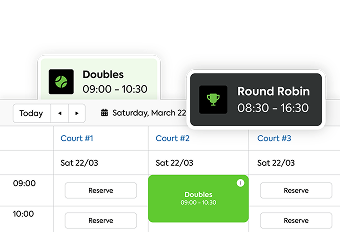
Court closures. Schedule changes. Missed reminders. These communication breakdowns create daily friction for your racquet club — flooded phone lines, frustrated players, and staff scrambling to catch everyone up.
The right communication tools prevent that by keeping updates consistent, timely, and easy to manage.
Here’s a breakdown of the essential communication tools racquet clubs rely on — and how CourtReserve supports each one.
Video Transcript
Hello everyone. Happy Thursday. Welcome
0:04
to another lunch and learn webinar all
0:07
about mastering communication and court
0:10
reserve. My name is Bethany and before
0:13
we get started, I just wanted to
0:14
highlight a few housekeeping items. As
0:17
we’re going through the session today,
0:19
if you have questions along the way,
0:20
please just make sure to input those
0:22
questions into the Q&A box below. Uh I
0:26
have a member of my team, Michelle, who
0:28
is going to be monitoring uh the Q&A
0:30
box. So again, Q&A box is for questions.
0:34
Try to avoid the chat for this session.
0:35
Okay. Um and also a reminder that within
0:38
24 to 48 hours, we will post this
0:42
webinar on our YouTube channel. So that
0:45
way you can review at any time or you
0:47
can send it to anyone on your team. So
0:50
let’s go ahead and get started. Just a
0:53
few events coming up we wanted to make
0:55
you guys aware of. The first one is our
0:57
Club Pickle Ball Mastermind event coming
0:59
up in March. The dates are March 18th
1:01
through March 20th uh with Club Pickle
1:04
Ball USA out in Utah. Devin is uh the
1:08
mastermind genius all about pickle ball.
1:10
Um so if you uh are wanting to know how
1:14
to successfully run a pickle ball
1:16
business, he is your guy. He is going to
1:18
give you the entire formula. So, we
1:21
highly recommend this event. Uh, he’s
1:23
also using court reserve at all of his
1:25
locations. And you can actually go to
1:27
the Club Pickle Ball Mastermind website
1:29
and book a call directly with Devon if
1:32
you do have any questions or you’re
1:34
interested in learning more about Club
1:36
Pickle Ball Mastermind.
1:38
The next thing is our Catalyst Tour.
1:41
2026 Catalyst Tour is back. This is our
1:44
court reserve user conference for our
1:46
customers. It’s actually happening right
1:48
now as we speak here in St. Augustine,
1:51
Florida. Uh we had a great turnout so
1:54
far. Very impactful event, very valuable
1:57
event with over 40 plus attendees. Um
2:01
yesterday we actually had a 4-hour
2:04
networking session. Uh so our customers
2:07
were um involved in roundts. So, they
2:10
were able to communicate back and forth
2:11
on best practices and how they’re
2:13
handling their day-to-day operations uh
2:16
at their facility with using core
2:17
reserves. So, we have a few more coming
2:20
up this year uh out in Ohio, Michigan,
2:22
and Colorado. So, we would love to see
2:24
you and your team there. So, just be
2:26
sure to check out um the registration on
2:29
our website and of course you can reach
2:31
out to our support team if you’re
2:33
interested so you can get those tickets
2:36
purchased.
2:38
Uh, another few of exciting events that
2:40
are coming up, we would love to see you
2:42
if you’re in the area. We’re actually
2:44
headed to the USA Eastern Tennis
2:47
Conference and the IHSTCA
2:50
workshop this weekend. So, if you are in
2:53
the area, I think they’re still actually
2:55
um get allowing signups for those. So,
2:58
definitely feel free to attend again if
3:01
you’re in the area. Next month we’re
3:03
headed to Texas, the RSPA Texas division
3:05
conference and the PTR conference in
3:08
Florida. All of these events and trade
3:10
shows are listed on our website with the
3:13
ones that we are planning on attending.
3:15
So, just make sure to check that out.
3:17
And then the last thing before we dive
3:19
into the product is just a quick
3:22
overview on our agenda for today um with
3:25
mastering member communication in court
3:28
reserves. So, we’ll talk about automated
3:30
versus manual communication within court
3:32
reserve, the different types of
3:35
communication uh channels and how to
3:37
communicate directly to your players as
3:39
well as your staff. Um, and then how to
3:42
send facilitywide messages for different
3:44
announcements and alerts. And then we’ll
3:46
dive into our Q&A. So, at this time, I’m
3:50
going to stop the share and bring you
3:53
guys over to court reserve so we can
3:56
jump right in.
3:58
All right. So, before we get started, um
4:02
I want to talk about really the
4:04
different types. And Michelle, if you
4:06
could just confirm when you can see my
4:08
screen.
4:10
You’re good to go.
4:12
Perfect. Awesome. So, the first thing I
4:14
want to talk about is just an overview
4:15
of the types of communication in court
4:18
reserve. So, the first type is going to
4:20
be our automated system generated
4:23
notifications. What does that mean? that
4:26
is the system is sending a notification
4:29
via email, text or push which we’re
4:31
going to talk about. Uh and the system
4:33
is sending that right whenever an action
4:36
is completed by a player or staff
4:38
member. Okay. The second type of
4:41
communication and court reserve is going
4:43
to be our manual or marketing
4:45
notification. So, this is going to be
4:47
where someone from your staff team is
4:50
actually sending something manually to
4:54
your players from court reserve, whether
4:56
that’s a manual email, a text, or a push
5:00
notification. Okay? And we’re going to
5:02
dive into that as well. Uh before we
5:05
dive in more, I do want to give a shout
5:07
out to our amazing integration partner,
5:10
Patch. Um this is a customer retention
5:14
platform and again they are a third
5:16
party. So if you are interested in patch
5:18
uh definitely let us know in the in the
5:21
chat. We can send you some information
5:22
or you can just reach out to our support
5:24
team and they can connect you with the
5:26
patch team. But what it does is they
5:29
actually take the data from court
5:30
reserve and pull it into patch and they
5:33
can help you build out workflows to send
5:36
out to your players. So, for example,
5:38
let’s say you created an email workflow
5:41
and let’s say I’m a player at your
5:43
organization and I haven’t visited your
5:45
your club in the last 30 days. Well, you
5:48
can actually send me an email cuz Patch
5:51
is going to be able to identify that I
5:53
haven’t checked in in the last 30 days
5:55
and Patch can automatically send me an
5:57
email, you know, disguised as your
6:00
organization saying, “Hey, Bethany, we
6:02
miss you. Come back to the C club. Come
6:04
play with us.” Right? um it’s it’s an
6:06
incentive to get your players back in
6:08
the door, right? That’s just one
6:09
example. Another quick example of patch
6:11
is if you wanted to send a birthday text
6:14
to all of your players, right? Patch can
6:16
help you with that. Or if you want
6:18
reviews on your club, right? Um they can
6:21
help you with that as well. So, a lot of
6:22
great things with Patch. Again, we have
6:24
a full webinar and just let us know if
6:26
you’re interested through our support
6:27
and we’ll get that information sent over
6:29
to you. Now, let’s talk about automated
6:33
notifications. So, where does that live
6:35
in Court Reserve? That’s going to live
6:37
under your settings all the way down at
6:39
the bottom. You’re going to see the
6:41
notifications section. Okay. You’re
6:43
going to see a player button and then a
6:45
system user button. What does that mean?
6:47
Well, player means these are all of the
6:48
player automated notifications that you
6:51
can enable to send out to your players.
6:54
System users, what is that? That is
6:56
going to be your staff, your front desk
6:59
admins, your sub admins, your
7:00
instructors, right? they can also get
7:02
automated notifications. Okay. And then
7:05
I do want to highlight on push
7:06
notifications and what they are. That
7:09
way everyone is aware. Everyone knows
7:10
what email and texts are but push
7:12
notifications we do get questions
7:13
sometimes. So what is a push
7:15
notification? It’s just a popup
7:18
notification sent from the mobile app to
7:21
the player’s device. So, if they have
7:23
the court reserve app on their phone or
7:25
if they have your branded app on their
7:27
phone, then it will actually just send
7:30
to their phone, right? Um, and it will
7:32
show up on their home screen. So, you
7:34
probably actually have push
7:35
notifications on your phone right now if
7:37
you go look from social media. So, it’s
7:39
the same concept. So, just wanted to
7:42
give an overlay on that. Now, before I
7:44
dive more into this as well, I did want
7:46
to mention just some settings here with
7:49
text country code. you are able to add
7:51
that as well as an organization short
7:54
name. And we do have a way for you to
7:57
send texts through a local number rather
8:00
than it just being a random number. So
8:02
again, if you have questions on that,
8:04
let us know as well as you can let our
8:05
support team know. Now, you can see
8:08
there is a lot of notifications here,
8:11
right? We want to make sure that you
8:12
have everything that you need to alert
8:14
your players on what you need them to
8:16
know. Okay, some examples of these
8:18
automated notifications would be when
8:20
someone goes to reserve a court or sign
8:22
up for an event, right? That is an
8:24
automated notification. Um, if someone
8:28
signs up for a class and they get a
8:30
reminder notification, right? That’s
8:32
automated. If they have a membership fee
8:35
that they need to pay in the next 5
8:37
days, that’s an automated uh
8:39
notification, right? Or maybe they pay
8:41
for something and they get a receipt,
8:43
right? There’s a ton of these. So, we do
8:45
recommend just going through all of
8:46
these one by one and seeing what makes
8:49
sense to send to your players or not.
8:51
Now, with that, you’re going to see
8:54
three columns here. Um, automated emails
8:57
are included in all of our plans
8:59
unlimited. You’ll never have to, you
9:00
know, pay for those. There’s no usage
9:02
fees for um automated notifications via
9:04
email. Just check out our website for
9:07
pricing and you can reach out to our
9:08
team with regards to the pricing for
9:10
texts and push notifications. I’m not
9:11
going to go too in the weeds on that in
9:13
this call. Um, but just know that there
9:15
are some different levels of pricing
9:17
with that. Now, with that said, um, the
9:20
one thing I wanted to mention here is
9:22
what is active and subscribed? What does
9:23
that mean? Well, if we just look at this
9:25
example of reservation confirmation,
9:27
let’s just uncheck this. What does this
9:29
mean? Well, if it’s not active or
9:32
subscribed, that means that this
9:34
notification is not going to be sent and
9:36
cannot be sent at all through court
9:38
reserve. Okay? If I have it activated
9:40
but not subscribed, that means that this
9:43
specific notification players do have
9:45
the ability to opt in to this specific
9:48
notification. But if you want them to be
9:50
automatically opted in, you will click
9:53
subscribe. So that’s what we’re normally
9:55
seeing for clubs is they’ll have active
9:58
and subscribed turned on. That way, um,
10:01
if a player is like, you know, I I I
10:03
don’t want this specific notification
10:05
coming through every time, they do have
10:07
the ability to, um, opt out, which I’m
10:10
going to show you how they can do that
10:11
from the player side. And it’s the same
10:13
for your text alerts as well as your
10:16
push notifications. So, that is just a
10:18
quick overview on automated notification
10:22
setup. I did want to show you under the
10:25
audits tab under notifications here on
10:28
the left hand side. This is where you
10:30
can actually go to see all the different
10:32
types of automated notifications that
10:36
you send out through the system. So if
10:38
we look at this example right here from
10:40
Brian event registration confirmation,
10:42
the recipient was Brian. It sent to
10:44
[email protected].
10:46
The email was processed on at this date
10:48
and time. It was sent and it was sent to
10:51
the player. If we click the details tab,
10:54
we’re actually going to get like a
10:55
preview of what exactly was sent to
10:58
Brian, right? And again, Brian is the
11:00
player. So, this is just a quick
11:02
overview of, hey, your registration is
11:04
confirmed, you know, and you can add
11:06
some messaging to these as well. So,
11:08
that again is kind of full-encompassing
11:11
all of your automated notifications uh
11:14
within court reserve. Now, I want to go
11:18
through the other piece to the puzzle,
11:20
which is our manual marketing
11:23
notifications. Okay, that’s going to
11:25
live under the members tab. And you have
11:28
the ability to send bulk emails, bulk
11:30
texts, and bulk push notifications to
11:33
your players. Okay. Uh we’re going to
11:36
start with bulk email. I would say this
11:38
is the uh the biggest piece to the
11:40
puzzle for sure. Um, there is going to
11:43
be some things in here that you may not
11:44
all have access to right now and it’s
11:46
related to our new email campaigns uh
11:49
module that is currently in beta. If any
11:52
of you are interested in having the
11:55
draft uh emails, templates, and
11:58
scheduling of emails, if you’re
12:00
interested in any of that, please reach
12:02
out to our support team. Just let them
12:04
know that you are interested in the
12:06
email campaigns beta and we will turn
12:09
this on for you. Okay? Okay, so I just
12:11
wanted to preface that. Um, now with
12:14
that said, let’s dive in. So you’re
12:16
going to see here all of your drafts. So
12:18
in court reserve now when you’re
12:20
creating an email, if you get distracted
12:23
and you need to leave your computer, you
12:24
can save it as a drafts a draft and come
12:26
back to it, which is very important,
12:28
right? We’re very busy people. So
12:30
there’s that. Um, you also are able to
12:32
see all of your sent emails uh within
12:35
certain date ranges as well as all of
12:37
your scheduled emails um that you have
12:40
scheduled to send out. Okay. Now, we’ll
12:43
just take a look at the templates tab.
12:44
This is just going to show you all the
12:46
templates that you have within court
12:48
reserve. In this builder, you can create
12:51
new templates directly from this page as
12:53
well. And you can edit your templates,
12:55
too. Also did want to mention that there
12:57
is a full in-depth webinar on everything
13:00
to do with the email campaign and the
13:02
email builder. I’m not this is a very
13:04
highle overview. So just be sure to
13:06
check that out on our YouTube channel or
13:08
let us know and we can send you uh the
13:10
link for that specific in-depth webinar
13:13
on our email campaigns. Okay, so just
13:14
wanted to say that as well. Um now going
13:17
back to actually creating our email. So,
13:20
when we click create email, you’ll see
13:23
this is where you’re going to add your
13:25
email name. Now, this is just going to
13:27
be the internal name. It’s not going to
13:30
be shown to your recipients. This is
13:32
just the email that your staff is going
13:35
to see this email labeled as. So, we
13:37
could just say lunch and learn. That’s
13:40
what we’re going to call this email.
13:41
Okay. We’ll save it. Once we save it,
13:45
then you are going to be brought to this
13:47
page where you can select all your
13:49
recipients. So, what you can do here is
13:52
you can toggle this to send to every
13:54
single player within your organization
13:56
or we have this amazing filter option.
13:59
So, if you want to send, let’s say
14:01
you’re having a 40 ladies uh night,
14:04
right? Uh we can actually go in here and
14:06
we can filter and say we want to filter
14:09
in all of our ladies, you know, 40 to
14:12
45, right? Because we’re having an event
14:15
that’s higher level that we want to
14:17
market to, right? There’s a lot of
14:19
different filtering options that you can
14:21
select here, but I’m just going to save
14:22
it with those filters. Once we apply
14:25
those filters, um, of course, I don’t
14:27
have anyone in that range, but if I did,
14:30
then it would actually just filter in
14:32
those people. And then um once I’ve done
14:35
that, then I can move to the next option
14:38
which is going to be who am I sending
14:40
this email from. It’s going to default
14:42
to your organization name and your
14:45
address or your um login email, right?
14:48
You can change that to another admin if
14:51
you prefer. Once you do that, we’ll
14:53
click next. You can also toggle up here
14:56
back and forth between all these four
14:58
options. So, just wanted to show that
15:00
subject line, right? pretty
15:03
self-explanatory. Launch and learn. And
15:05
then content. This is where we’re going
15:07
to actually input the content of our
15:09
email. So, we’ll click design email. You
15:12
can design your email from scratch or
15:14
you can select a template. So, it’s
15:16
saving you time, which is what we want
15:18
to do because we know you guys are busy.
15:20
So, we’re going to select template. And
15:22
we are going to choose our lunch and
15:24
learn template. And we’re going to
15:25
continue. Now, within the email builder,
15:28
I can add to this template if I want to.
15:31
Um, but for time purposes, I’m just
15:33
going to save it as is. And then from
15:36
here, I can actually send a test email
15:39
to myself if I want to see what this
15:41
email is going to look like before I
15:43
send it out to all my players. So, I
15:45
just wanted to show you that that is an
15:47
option within this um this bulk email
15:50
functionality. And then you can also, of
15:52
course, select a file attachment to add
15:54
on to your email. Now, let’s send the
15:57
email. We can send it now or we have
16:00
that amazing schedule email. Right? So
16:03
if we schedule this email, we can say,
16:05
“Hey, it’s it’s midnight right now. So I
16:07
don’t want to send this email at
16:08
midnight. I want to wait until tomorrow
16:10
at a normal business hour to send this
16:13
email.” Right? So that is how you
16:15
schedule the email. And that’s it on
16:17
bulk email. It’s pretty uh pretty
16:20
self-explanatory there. But if you guys
16:21
do have any questions, please please let
16:23
us know in the chat um or from our live
16:26
chat support. You can reach out to them
16:27
at any time. They’re here to help. Now,
16:29
let’s move on to our bulk texting. So,
16:33
bulk text is really good um if you want
16:36
to alert your players on something
16:37
that’s really urgent, right? Maybe you
16:40
are closing your courts, right? And you
16:42
want to say, you know, hey, everything’s
16:44
closed today. The club’s closed, the
16:45
facility’s closed, you need to send out
16:47
a notice to everyone, right? A bulk text
16:49
would be great for that. Uh, but as you
16:50
see here, the filtering options you have
16:53
just like the filtering options that we
16:55
went through on the email, it’s the same
16:57
sort of concept. So, if you want to
16:58
filter by specific people to capture
17:01
those specific types of people, you can
17:03
do so. We’re just going to click filter
17:05
without actually filtering anything. Um,
17:07
from here, this is where we can select
17:09
who we’re going to send the text to. We
17:12
can check all or we can, um, select
17:14
specific recipients, right? And then
17:17
from here um we’ll add our message,
17:20
right? So we’ll say come join us at the
17:24
lunch and learn today.
17:27
Boom. Okay. It’s going to tell you, you
17:29
know, uh the segment count, the number
17:31
of characters, and then the nongs
17:33
characters, which is another thing. You
17:34
can also add emojis to um your text
17:38
messages. So then you’ll click send bulk
17:40
text. Once you do so, it’s going to give
17:42
you a popup where you will just confirm
17:44
the following before sending the text
17:46
message.
17:48
Last thing here, bul push. Let’s move on
17:50
to that. So again, this is just a pop-up
17:52
notification sent from the app to the
17:54
device of the player. So first you’ll
17:56
need to input a title of your push. So
17:59
we’ll say come join us. And then we’ll
18:03
give it a short notification
18:05
description,
18:07
lunch and learn.
18:10
And then this is going to be the text to
18:12
show when the player clicks on the push
18:15
notification. Okay, so this could be
18:17
like more detailed. Um, we are having a
18:20
lunch and learn today at 1:00.
18:25
Be there. We want you to be there. Okay,
18:28
so now we’ll click next. Now it’s
18:31
actually going to give you a really nice
18:32
preview, right, based on um the court
18:34
reserve logo. And then it’ll have your
18:36
personal logo as well, which I showed
18:38
you in the very beginning of this. if
18:39
you remember. Um, and then of course you
18:42
can filter, right? If you want to filter
18:43
by certain players. So, we’ll just go
18:45
ahead and filter as is. Then we’ll check
18:47
off the players that we want to send
18:49
this to. Once we click next, then we’re
18:51
able to send that push. So, really,
18:53
really easy and straightforward there.
18:56
Um, now I actually want to show you guys
18:58
the other places in court reserve that
19:01
you can actually notify your players.
19:05
So, let’s start under theuler.
19:08
This one I feel like is probably the
19:10
most common because I know your staff
19:12
and your admins, you’re on this schedule
19:14
a lot. From the expandeduler, you’re
19:17
going to see I actually have two events.
19:19
Well, I have an event and a league
19:20
happening this afternoon. Um, and you
19:22
can see I have a pickle ball round robin
19:24
with five people signed up. Then I have
19:25
a ladies league with seven people opted
19:27
in. So, if we look at the registrant
19:30
count here, if I click on that, it’s
19:33
actually going to pull up this screen
19:36
where I can see the registrants as well
19:37
as anyone who’s weight listed. And then
19:39
you’ll see this notify button. It’s
19:42
beautiful, right? And then from here,
19:45
you can email, text, or send a push
19:47
notification. And then it’s the same way
19:49
for your internal leagues. If you’re
19:51
using that feature, you’re able to click
19:53
on those optins and see those players
19:56
for that game day.
19:58
And then you can quickly notify from
20:00
here. So if I click notify and then I
20:02
click email, it’s actually going to pull
20:04
in just those players with that email.
20:08
Um, and so once I do that, all right, so
20:11
once we do that, we are
20:15
good to go. That is really the first way
20:19
of other places and notifying your
20:22
players in the system. The other way is
20:24
going to be if you’re running any events
20:26
within your facility. Um, if you’re
20:29
looking at a specific date. So, if we
20:31
look at our pickle ball open play that’s
20:33
happening, I think today, we can see all
20:36
the players who are signed up. Looks
20:38
like Mr. Brian is the only one signed up
20:40
for this open play. So, I’m not sure who
20:42
he’s going to play with, but um, we’ll
20:44
see that notify button here as well. So
20:47
again, if you are um running events and
20:50
clinics and classes and you want to uh
20:53
notify someone specifically from this
20:55
screen, you are able to do that. Another
20:58
place is going to be directly from your
21:01
reports. So, if let’s say we run a
21:04
members report and um we want to filter
21:08
in all of our tennis junior members
21:10
because we’re having a junior class next
21:12
week and we run this report, it’s
21:14
actually going to filter in all of those
21:17
junior tennis players. And you’ll see
21:20
right here at the top the email players
21:22
button, the text players button, and the
21:24
push notifications button. So, just a
21:27
really really great way to quickly um
21:29
capture those people that you want to uh
21:31
notify. And then the last thing that I
21:35
wanted to mention here is our closures
21:38
feature and how that works with
21:39
notifications. So, you guys, all of you
21:42
guys on the call are probably familiar
21:43
with what closures are in court reserve,
21:46
but if not, it’s a way to close off all
21:49
of your courts. Uh maybe if you are um
21:52
if you have outdoor courts and there’s
21:54
weather, right? Weather delays. If uh
21:56
it’s raining and you need to close your
21:57
courts, closure would be a great way to
21:58
do that. Um as well as if you have like
22:00
maintenance for cleaning of your courts,
22:02
whatever that looks like for you.
22:03
Closures are it’s just a really great
22:05
feature in court reserve. Um when you
22:07
create a closure, you’re actually able
22:09
to set what it’s for, right? So we’ll
22:12
just say this one is for maintenance and
22:14
we’re going to say it’s today
22:17
all day. and then we’ll check all the
22:19
courts. And you’ll see the reason why
22:22
I’m showing you this is because of uh
22:24
what the system can do. So, if we click
22:27
cancel all reservations and events on
22:29
our calendar, it’s going to actually
22:30
automatically send those notifications
22:33
alerting those players, hey, it’s canled
22:36
due to, you know, whatever you would put
22:38
in the messaging here. Um, you know,
22:40
your reservation is canceled. That way
22:42
it saves your staff time from having to
22:45
constantly answer the phone, pick up the
22:47
phone, and call all these people on your
22:48
calendar. You can just create your quick
22:50
closure and then cancel, and then those
22:52
automated notifications will be sent
22:54
out. Um, moving on to another piece of
22:59
uh communication in court reserve, and
23:01
that’s going to be via the global
23:02
announcement feature that we offer. So
23:04
that’s located under settings,
23:06
organization settings, global
23:07
announcements. So, this is great for if
23:10
you just have any alerts that you want
23:12
to um send to your players. It’s not
23:15
physically sending them something,
23:17
right, like a email, a text, or a push
23:19
would because they actually have to go
23:20
within the app or the member portal to
23:23
see these global announcements. Okay?
23:25
So, just keep that in mind. Um, junior
23:28
camp signups. This is an example of one
23:30
of my existing global announcements. So,
23:32
let’s just edit that. And you’ll see
23:34
here you’ll put a title for your global
23:37
announcement. and then when you want it
23:39
to be activated. So, when does it start?
23:41
And then you can actually say, I want
23:43
this global announcement to show up on
23:45
the member portal on the app until X
23:47
date, right? Um, and then you can even
23:49
display it to certain membership types.
23:51
So, if you have a certain membership
23:53
type that you want to send an
23:54
announcement to, you can do that through
23:55
this feature. Um, as well as if you have
23:58
specific groups of members, too. And
24:00
then you’ll just save that and you’ll be
24:02
good to go. um on the member portal.
24:05
What that’s going to look like is you’ll
24:08
actually see in the member side uh an
24:11
announcements tab and if they have a
24:14
unread announcement, it’ll actually show
24:17
a little red dot here that they need to
24:19
review the announcement. On the mobile
24:21
app, uh it says alerts. It’s in the
24:23
bottom dashboard of the app. It’ll it
24:25
doesn’t say announcements obviously
24:26
because announcements is much longer
24:28
than saying alerts. So, there is a
24:30
little bit of a verbiage change there,
24:32
but same functionality. And you can see
24:34
as a player, if I click on the
24:35
announcement, this is what it looks
24:37
like, right? I’m able to see, you know,
24:39
when the announcement is and what it’s
24:40
for. And then the last thing before we
24:43
dive into any questions is how the
24:46
players have control over their
24:49
notifications. Okay? Cuz this this will
24:51
happen um where maybe you have a player
24:54
that um you know, opted out of
24:56
something, right? or they unsubscribe
24:58
from your marketing emails that you’re
25:00
sending through core reserve, right?
25:02
They are able to do that because they do
25:04
get the ability to control that and you
25:05
get visibility on the admin side too of
25:08
when people do this at your
25:09
organization. But what you would need to
25:11
do is just hover over um the player’s
25:14
name and then under personal
25:16
information, they’ll actually see the
25:18
notifications tab.
25:21
Here we go. All right, notifications.
25:23
Um, and then you’ll see there where they
25:26
can unsubscribe from uh the marketing
25:28
text alerts as well as where they can
25:30
unsubscribe from the organizations text
25:33
alerts. So those automated alerts that
25:35
are um sending out, right? So
25:38
confirmations, cancellations, things
25:39
like that. You can see here where um
25:43
players can also opt in and out of
25:46
specific emails or push notifications
25:49
that are automatically being sent to
25:51
them. So um that is it on the player
25:55
portal on the admin panel. I’ll show you
25:57
one more thing and then we will dive
25:59
into questions. Um the first thing I
26:03
wanted to show you and last thing is
26:05
under your uh profile as a staff member.
26:09
So, if I just go into my account, you
26:11
should see this in the top right hand
26:13
corner, your name, where which is your
26:16
profile, and you’re actually able to go
26:18
to the notifications tab. And if you
26:22
have certain notifications that you as a
26:25
staff member do not want, but you don’t
26:27
want to turn this off at the system
26:29
level, you’re actually able to come in
26:31
here and disable those different
26:33
notifications that you want. So maybe
26:36
you don’t want, you know, a new notice
26:39
every single time a reservation is
26:41
created, but maybe other admins do want
26:43
that, right? So this is where you get to
26:45
control you as an admin, your specific
26:48
notifications.
26:50
So that is it for mastering
26:52
communication in court reserve.
26:54
Michelle, do we have any outstanding
26:56
questions?
26:57
We asked about do push notifications
27:00
cost to send? So thought that’d be a
27:02
great one for you to share with
27:03
everyone.
27:04
Yeah. Um
27:06
it is included in our grow scale and
27:10
enterprise pricing plans. Push
27:13
notifications unlimited are included um
27:16
for automated and for um manual because
27:20
it’s just sending from the app, right?
27:22
We’re text is a whole different story
27:25
and we can definitely have side
27:26
conversations with you guys depending on
27:27
what plans that you’re on. But yes, the
27:29
grow, scale, and enterprise plan does
27:31
include notifications, push
27:33
notifications at no cost. Um, with the
27:37
start plan, that is not available. Push
27:40
notifications or text alerts is not
27:42
available. And then if you’re still on
27:44
our legacy pricing, um, it
27:46
differentiates, um, based on that, too.
27:49
So hopefully that answers your question
27:50
and we can follow up with you on the
27:52
more specifics too on that.
27:55
Perfect. Yeah. and the rest of them
27:57
we’ll follow up on as well.
27:59
And I saw one more about modifying
28:03
system notifications. Were you able to
28:05
answer that one, Michelle? Might be a
28:07
good one for me to
28:09
Yeah, go ahead and cover that. Yeah.
28:12
Yeah. So, the automated system
28:14
notifications that we talked about in
28:17
the beginning, um those you cannot um
28:21
edit right now. Uh but that is on our
28:23
road map. though that is something that
28:25
we’re looking to do in the future. But
28:27
what you can do and what we see a lot of
28:30
clubs doing and I’m so glad this
28:31
question was asked. So, thank you to
28:33
whoever asked it is the email messages
28:36
section under settings, reservation
28:38
settings, you’ll see email messages. You
28:40
can actually go in here and you can add
28:43
um let me get into Kramer Mountain cuz I
28:45
may have some better examples in there.
28:47
You can actually add a custom message on
28:50
the top or the bottom of all of your
28:54
email messages. Okay? So like here’s an
28:56
example, right? Reservation update. We
28:59
are excited you will be joining us for
29:01
play at the club. So anytime someone
29:03
updates their reservation and they get a
29:06
comp or they get this specific email,
29:08
this is going to act this right here,
29:11
this content is going to show at the top
29:13
of that automated email. So, you’re able
29:15
to um decide on where you want that to
29:18
be positioned within the email, whether
29:19
that’s at the top of the email or the
29:21
bottom of the email.
29:23
Yeah, that was a great question.
29:25
Really good question. All right. Well,
29:27
thank you guys so much for joining
29:29
today. So, sorry about the mouse issue.
29:32
Again, this uh just a reminder that this
29:35
uh recording will be on our YouTube
29:37
channel, so just make sure to check it
29:38
out. And uh if you have any other
29:40
questions, just reach out to our support
29:41
team. And I hope you guys have a great
29:43
day. Thanks.
29:44
Bye guys.
Jump ahead here:
Email communication
Text Messaging
Push Notifications
Workflow-based messaging tools
Facility-wide communication
Automated outreach
Admin visibility tools
Types of racquet club communication tools (automated & manual)
Before we jump into the overview of racquet club communication, it’s important to note that these tools typically fall into two buckets: automated and manual.
Together, they create a reliable system for delivering timely updates and important announcements — making them essential to both the player experience and day-to-day operations.
Let’s take a closer look at where each one comes into play.
Automated club communication
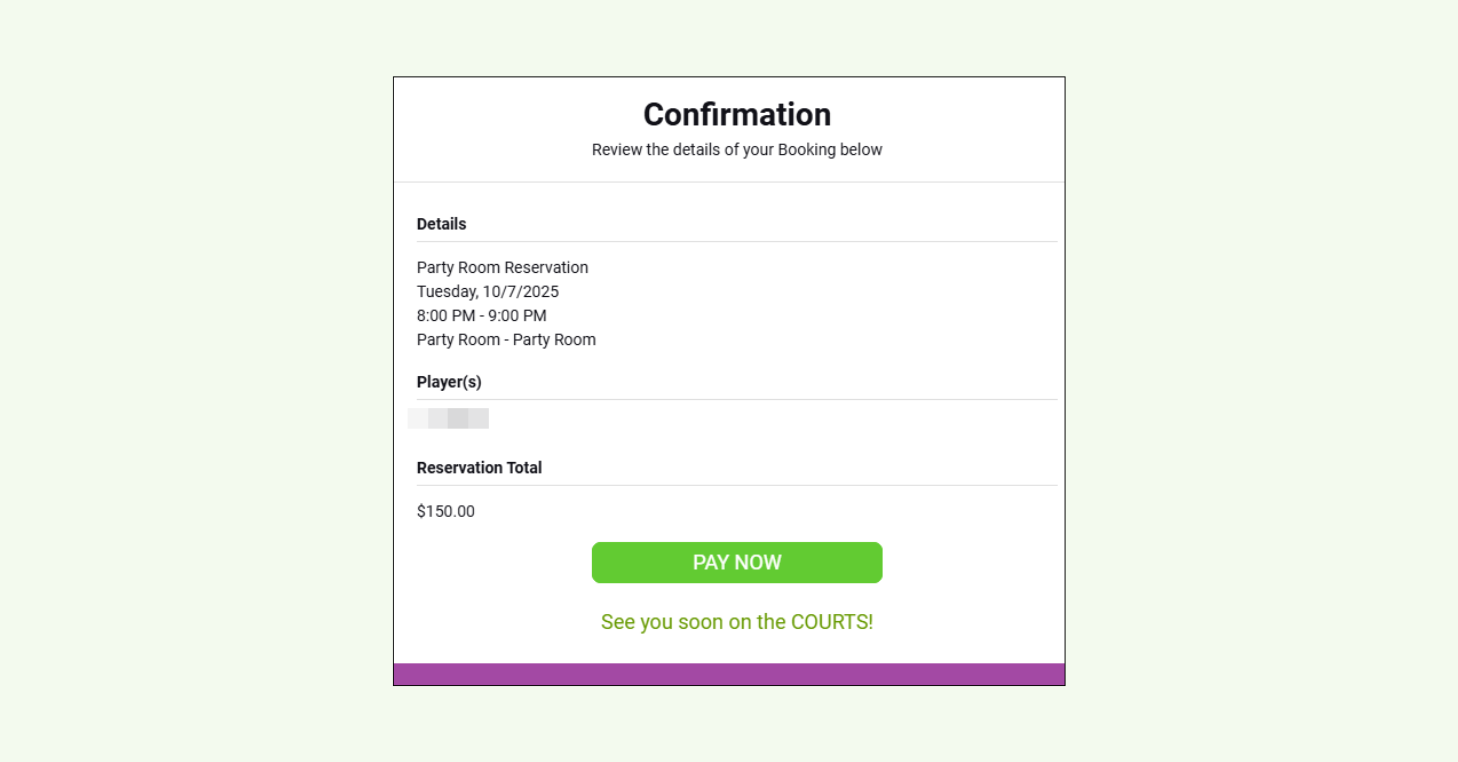
Automated communication tools are system-triggered notifications sent based on player or staff activity. In other words, your club management system automatically sends the right message at the right time, so players aren’t left guessing and staff aren’t stuck manually confirming every detail.
Player Notifications
Triggered when players book courts, register for events, update reservations, join waitlists, or make payments. These include confirmations, reminders, cancellations, waitlist updates, receipts, and more.
Staff or System User Notifications
Alert your team when action is needed — such as lesson bookings, approvals, new registrations, or failed payments — so staff stay aligned without constantly checking the admin dashboard.
Both players and staff have control over their notification settings and preferences. Players can manage which types of alerts they receive and through which channels, while staff can fine-tune their own alerts to avoid unnecessary noise. That balance ensures clear communication without overwhelming anyone.
Best for:
- Saving time and reducing repetitive front desk work
- Sending confirmations, updates, reminders, receipts and other player notifications
- Reducing no-shows and last-minute confusion
- Cutting down on front desk calls and commonly asked questions
- Keeping staff aligned on key actions and approvals
Manual messaging tools
Unlike automated notifications, manual messages are one-time communications sent to players directly by your team.
This type of racquet club communication tool allows your staff to send messages intentionally and is typically used for announcements, promotions, operational updates, or communicating last-minute changes.
Common examples include:
- Bulk messaging via email, text, or push
- Marketing communications to promote upcoming clinics, leagues, and programs
- One-off reminders or updates for events, leagues, or schedule changes
Manual messaging works alongside automation by giving tennis, pickleball, and padel clubs the ability to step in when human timing and judgment matter most.
Best for:
- Communicating proactively with players
- Sending one-time bulk messages
- Announcements, marketing communication, and program promotion
- Time-sensitive updates and last-minute schedule changes
The essential communication toolkit for racquet clubs
From confirmations to closure alerts and marketing, racquet sports clubs send dozens of messages every week. The challenge is keeping those messages consistent without creating more work for staff.
Here’s the essential communication toolkit racquet clubs should have in place to stay organized, responsive, and efficient.
Email for marketing, promotions, and detailed updates
Email is the primary channel for racquet club communication that requires context, detail, or visuals.
Whether you’re sharing a seasonal calendar, launching a new clinic, or sending a policy update, email gives you the space to include key details, links, and attachments in one place.
Modern court reservation systems like CourtReserve make email easier to manage by including built-in tools like:
- Bulk email sending to large groups
- Saved templates for consistent, branded communication
- Drafts for review before publishing
- Player filtering for segmentation and targeted outreach
- Scheduled sends to control message timing and visibility
Instead of exporting contact lists or switching platforms, your club can send professional, well-timed emails directly from the same system they use to manage reservations and memberships.
The result is cleaner workflows, more consistent communication, and fewer missed opportunities to keep players informed.
Best for:
- Delivering structured, high-clarity communication at scale
- Driving program awareness and registrations
- Maintaining consistent player engagement
- Communicating important updates players may need to reference later
Video Transcript
Well, happy December everyone. My name is Ashley. Thank you so much for joining
0:07
us today. Uh we are I’m personally really excited about this webinar because I think it’s one thing to see a
0:14
great newsletter and a great email. It’s another to know how to make it. And so I’m joined by our very own Michelle
0:22
Malard and OG Josh Willie. Uh, if you guys have never met Michelle before,
0:27
Michelle actually works at Court Reserve and she works part-time at Old Coast Pickle Ball. She does all of our amazing
0:33
social and marketing. If you want to see some amazing content, you need to go to Instagram and Facebook and follow Old
0:40
Coast Pickle Ball because that is all Michelle. All the videos, all the social, all the everything. So, when I
0:47
was looking at Michelle’s uh newsletter from Old Coast Pickleball a couple months ago, I’m like, we have got to
0:53
teach people how to do this because she’s doing it all of it out of court reserve. And so, we’re super excited.
0:59
It’s her first webinar. And welcome you, too. So, let’s make some announcements.
1:05
Yeah. All right. Well, our first announcement, if you are a pickle ball club, the last
1:11
club pickle ball mastermind of the year is coming up this next week. And I talked to Devin this morning and he
1:18
still has a couple of seats. So if there’s nothing better than to go to Utah in December, go to Club Mastermind
1:24
next week. It’s a great event for pickle ball. All things pickle ball. We’re sending three people there. You’ll love
1:30
it. You’ll learn so much. And then if you want to know where else Court Reserve is going to be in the next
1:35
couple of months, uh we actually have a brand new marketing site. If you go out to courtreserve.com and go to events, uh
1:41
these are some of the things that we’re going to be doing in the next couple of weeks. Uh we’re going up to Seattle to
1:46
participate in the IAPF regional conference, pickle ball and paddle. We’re going to be at the Racketex City
1:52
Series stop in Orlando. I get to moderate a panel on data and technology. I’m super excited. And then we’re going
1:58
to be a part of the USA Southern annual meeting in Atlanta as well. If there’s one thing today that you guys need to
2:05
know about, it’s the next slide. It is catalyst. So in 2026, core reserve is
2:11
going to be 10 years old. And so we have slashed the price of catalyst for 2026.
2:17
And it’s two-day, so it’s a day and a half. Literally the first half day is
2:22
going to be roundts, networking. We’re going to be pickle ball this and tennis this and paddle this. We’re going to
2:28
have on hands hands-on learning labs, onetoone demos. It’s going to be incredible. And we’re going to have it
2:34
here in St. Augustine, Florida. So, especially for my cold weather friends, come on down to Florida. Uh, sign up.
2:41
Uh, you can go out to Court Reserve and go to Catalyst Conference and get your tickets today. We’re going to feed you.
2:47
We’re going to play pickle ball that evening. It’s going to be so much fun. And Josh and Michelle will be there so you can grab them and have a one-on-one.
2:54
I think I have said enough, folks. Let’s get into the meat. You guys ready?
2:59
Oh, yes, I’m ready. All right. Yeah. Just a couple things to point out before we start diving into court
3:04
reserve. If you have any questions throughout the webinar, please use the Q&A section um because we will be able
3:12
to see those questions after the webinar and if we don’t get to your question, then we will be able to send out an
3:17
email, answer any questions that you have. We aren’t able to keep the chat after the webinar. So, if you do send a
3:23
question in there, we aren’t able to keep track of it if we don’t get to it. So, just want to point that out before
3:29
we get started. So, now we can jump into court reserve. And I want to thank
3:34
Michelle for letting me crash her webinar. Um, before we dive you,
3:39
before we dive into actually creating email content, I did want to take some
3:44
time to go over some improvements that we have been making to our bulk email builder. Um, so everything I’m going to
3:51
show you today in the webinar is not released publicly yet. It is available in beta. So, if you are interested in
3:59
anything that you see today after the webinar, feel free to reach out to our customer success team by clicking the
4:05
green icon right here and let them know that you are interested in being a beta customer for those bulk email
4:12
improvements. We’ve already released it for our first beta group and we’ve already gotten some great feedback. So,
4:18
once all of that feedback is addressed, we’re going to be releasing it to our next beta group. So from a high level,
4:25
what have we improved on in the bulk email editor? We’ve listened to a lot of feedback that we got in the idea board
4:33
and also some things that we have been seeing in support. And I just want to list a few things that we have improved
4:39
on before we actually dive into it. So one, we are giving you the ability to
4:44
create and manage multiple draft emails. Two, we’re giving you the ability to
4:50
create and manage email templates. Three, we have improved the create email
4:56
flow. And four, we are giving you the ability to schedule your emails out for
5:02
a later date and time. So, let’s dive right into it. I’ll kind of show you how it all works.
5:08
With all of these improvements, we did also want to create a new dashboard for the bulk email builder so that you’re
5:15
not directly going straight into that create email flow. So once this is
5:20
released into your organization, once you go to members on the sidebar and you click on bulk email, you’re now going to
5:27
see this new dashboard with a few different tabs and buttons on it. So let me kind of go over each of these tabs
5:33
and buttons. First, we’re going to have the drafts tab. So, this is going to be any email that we have started on but
5:41
not yet sent or scheduled out to our players for any of our draft emails. We
5:46
can click the view button so we can pick up wherever we left off with that email. And if we click on the more actions
5:54
button, we can delete it if we ever need to discard any draft email that we have started. But we can also duplicate that
6:01
draft email. Now, something that I do want to point out here is we have also improved the duplicate feature. Right
6:09
now in court reserve, whenever you are duplicating a sent email, it’s really just going to take the content from that
6:15
previous email and put it into a new email that you are creating. But with these improvements, when you click on
6:22
duplicate now, you are going to be able to pick and choose the information and content that’s actually going to be
6:29
relevant for you when you are duplicating that email. So, if it’s just the email content, if it’s just the list
6:36
of recipients, we can go in and we can pick and choose what information we actually do want to duplicate.
6:44
So, that goes over the draft tab. The next tab that we have here is our sent emails tab. This is really going to show
6:51
us all of that same information that we can already see in the view email history button in court reserve right
6:58
now. This is going to be where we’re going to be able to see any emails that we have already sent out to our players.
7:04
And just to point out a release that we had earlier this year, you can now track the email metrics for any sent email. So
7:12
on the dashboard, you will be able to easily see your open rate and your click rate. And then when you click on the
7:19
send email details page, you’re going to have this new email information section
7:24
where we can easily see the open rate, the click rate, and the bounce rate for this email. Something that I do want to
7:31
point out here is if you look at this grid right here, you’re going to see that we’re able to click on the open
7:37
rate, click rate, and bounce rate. This is an easy way for us to see the players that actually fall into those
7:43
categories. So, let’s say we have a list of players that have their email bounced
7:48
or dropped for any reason. We can easily get a list of all of those players here.
7:54
And for example, we can text them to let them know that there’s something wrong with the email that they have on their
7:59
account and they need to update it so that we can properly send an email out to them. So that’s just sort of a use
8:05
case on how you can sort of utilize these new uh this new grid that we’ve added here.
8:13
So if we go back to the sent emails tab here, I do kind of want to touch on some of the options that we have under the
8:20
more actions menu. So we do have the ability to also duplicate the sent email
8:25
just like we currently have in court reserve right now. But we do also have the ability to save this sent email as a
8:32
template. I’m going to go over templates in a little bit more detail after we actually kind of go through creating an
8:38
email. So, I will touch on that a little bit later. And then we also have the scheduled emails tab. I’m also going to
8:45
touch on that after we go through creating an email as well. So, the next step we can do here is kind of just go
8:51
through creating an email. This will sort of segue us eventually over into that content step and that’s going to be
8:58
where I pass it over to Michelle. So with these improvements, we now have this create email button. And when we
9:05
click on this button here, the first step we’re going to have is adding the email name. This is actually a new field
9:13
that we have added in the system. This is going to be an internal name that we can use to track this email that never
9:20
gets shown to our recipients. So it is different than the subject. This is just an easy way for me to say, you know, I’m
9:27
starting my December newsletter and I just want an easy name and an easy way to track this email that’s, you know,
9:34
going to stay as a draft until I’m ready to send it out. After you have added that email name and
9:40
you click save, then you get brought to the create email page. So, there’s a lot that looks
9:46
different here. I’ll kind of go from the top down and kind of go over each of the differences that we see. On the top of
9:54
this page, we have the email name and we do have this pencil icon here. So, if you ever do need to edit the email name,
10:00
you will always be able to do so. We do have a save as draft button. So,
10:06
that’s an easy way for you to just sort of save your progress, keep it in a draft state. If you click this back
10:13
button, it is still going to save the information that you have worked on. But we did add this button here just so that
10:20
there is a clear button that says save on it. Just so you know that that content is actually going to be saved.
10:27
Below this top bar here, you’re going to notice that we now have four steps for
10:32
creating an email. And in this stepper, I will be able to sort of click through each step that I have in the email. And
10:40
you’ll also see that there’s different statuses I can see for each step. So if
10:45
there is a required field that needs to be filled out from my end, I’ll see this
10:51
icon right here with the exclamation point letting me know that it’s not completed. But if I have filled out all
10:57
of the required fields for a step, you will see a check mark in that step
11:02
there. So let’s get started on the two-step. I know visually this looks very different.
11:08
So I do kind of just want to walk through it. Visually the main difference here that I’ll start off with is we are
11:16
now no longer showing the filters for the recipient list at all times. So that
11:21
way if you do need to just send an email out to all recipients and we don’t
11:26
really care about filtering, we can just easily toggle the send to all recipients
11:32
toggle here. We can still go in and manually select individuals if we need
11:37
to do that as well. Um, but if you do need to filter, we now do have a filter
11:43
button that is going to open this filter menu here. Just to clarify, we haven’t
11:48
removed or added any new filters to the recipient list. This is just visually a
11:54
new way for us to display these filters. So, I can go in here, I can make any
11:59
changes that I need to to my filters. If I need to clear out all the filters, we do have a clear all button. Um, but once
12:06
I click apply filters here, that’s going to update my recipient list for me.
12:12
Below the recipient list, we still do have the option to manually add additional recipients here. And we do
12:19
still have the ability to CC any following system users. So really, this
12:25
is just a new way for us to display the current information that we already have inside of court reserve. um and just
12:31
kind of make it a little bit more modern. So the next step here is going to be the
12:37
from step. This one’s a little bit more straightforward. From here, we’re going to be selecting the from name and the
12:43
reply to for this email. By default, the from name will be your organization name
12:49
and the reply to will be the system user that started this email. But we do have the ability to change that reply to or
12:56
that from name if we ever need to at any point. The next step here is going to be the
13:03
subject line. Another step that’s pretty straightforward here. We’re just going to be adding the subject to the email
13:09
we’re creating. And once we have the minimum amount of characters needed for that subject, you can see up there that
13:16
the status for this step is now checked off, meaning that I will now be able to
13:22
send this email. But before I send it out, the last step here is going to be
13:27
the content. Before I pass it over to Michelle, just one more bell and whistle
13:32
that I want to point out. Once you have some content that’s actually added to the email builder, we have also added a
13:39
way for you to send a test email. So now you will be able to choose from any of your system users to send this test
13:46
email out. And you do also have the ability to manually choose an additional recipient if you want to. for example,
13:54
add your personal email as one of the recipients for this test email.
13:59
Awesome. So, that kind of goes over my first segment. I’m now going to pass it over to Michelle so she can go over
14:05
actually building out this content for these emails. Let me stop sharing my screen here and I will pass it over to
14:13
you, Michelle. All right, sounds good. I am going to be sharing my screen here in just a second.
14:19
There we go. I hope you all can see it. So, I’m super honored to be on this webinar to share the process that I do
14:26
with Old Coast Pickleball newsletters and announcements through Court Reserve email builder. It is amazing. And you
14:33
guys, last year when they made some um updates to it, I was so excited. I was
14:38
messaging Josh all the time. Josh and the product team have done an incredible job. And once again, the new options for
14:46
you guys are it’s going to be amazing. So so thankful for the product team and our development team headed up by Nick.
14:53
They’re doing a fantastic job. I’m going to go through the process and the steps that I do for Old Coast Pickle Ball and
15:00
and it’s just my process. Um I’m just sharing it with you for ideas. I’m hoping that it helps you think of new
15:08
ways to use the system and to be able to create amazing newsletters for your um
15:14
members. And so, um, you can take what I give you
15:19
and I hope that you improve it and use your creativity. So, the first step that
15:24
I do, and even though the one of the new options are to save drafts, which is
15:29
incredible, um I love that option, uh I still am probably going to start
15:35
with this step is that I create all of the content that I need for each section
15:41
of the newsletter prior and I put it in a Google doc just so I have all of that
15:47
information and I can get ready for my next step. So here is here are all the
15:52
sections that I have for this example newsletter. So I have it in my Google doc and I have it with the subject line,
15:59
the body content and usually what I’ll also add is if I have all text for the
16:06
um for the image and then any URLs. And so that way when I go to build my
16:12
newsletter, I have it all in one spot and it’s super easy to grab. So, I have that and I just wanted to show you that
16:18
first step that I do. Next, I go over to Canva. And then in Canva, Canva has some
16:24
free options. If you haven’t used Canva, I highly suggest um signing up for at
16:31
least a free version. You can do so much with it. You can do YouTube tutorials on
16:36
the best way to use Canva. Um it is an awesome tool to use and uh I am using
16:43
the pro version of this but the free version has so much that you can use and
16:50
so many um free stock images and things like that. However, with the free
16:56
version you do still get templates and I would highly encourage you when you build your Canva images for your
17:02
organization that you use your own images. Use images of your facility. use
17:08
images of your members and those are things that you don’t need with to to
17:13
use a paid version for. You can do that with your free version adding your own images with the upload option and your
17:21
players love to see themselves on it. So, so utilize that. I have a story from
17:26
Old Coast Pickle Ball that I had a member come in and tell me that her
17:32
husband was in the most recent newsletter and he was so excited he shared it with all of his family. So
17:38
that was having the email forwarded on to other people just because his picture was in there. So I highly encourage
17:44
using your own images, but I’m going to click on this document that I did for the example today. So I like to have
17:52
this preset up. I have it sized. If we look at the file here, I have it size
17:57
1920 pixels by 1080 pixels. And that’s the size that I use. If you would want
18:03
more of like a panoramic view, say like cut this part out and you want your images to be more panoramic, you can
18:10
size it accordingly. But what I do in Canva is I have this document already set up. I have it titled for my
18:17
newsletter images. So I know that all of my images are going to be the same.
18:23
So, in here, I build um each of the images that I’m going to be using for the newsletter based off of the content
18:30
that I’ve already um had put together of what we’re going to be sharing in the newsletter. And so, here using images
18:37
from OCP, using our members, using our staff, and so also, um incorporating
18:44
your sponsors is a big thing in your newsletters you can do. So once I’ve built all this out and have this ready
18:51
to go, then I go to share and I download them. I download them as um JPEGs is
18:58
what I use for the newsletter. Make sure it’s the fullest quality. And then um when you download it as a JPEG, it will
19:06
download each of these slides into a folder separately. So you’ll have each individual image that you can use.
19:14
And so that’s my next step. So, building your content, then building your images,
19:20
having that ready to go. Uh, one thing I did want to show really quickly, if you do want to do your custom size for your
19:28
um, newsletter images right here on the top of the home screen of Canva, you can
19:33
do custom size. So, here you can put the width and the height, and you can choose pixels or inches or whatever you want
19:39
here. So you can start from scratch and the size that works best for you and how
19:44
you want your newsletter to look. So we’re going to move over to court
19:50
reserve email builder and uh we already have the example that we’re using in this webinar set up but I’m going to
19:56
start from scratch. So I’m going to go up to the top here on the right hand side and start from scratch. So we’re
20:03
going to create an email. We are going to put the title in the email name in what Josh mentioned. This is just for
20:11
your for your um for your view. It won’t be the subject of your email. And then
20:18
hit save. Here we have those steps that Josh mentioned. Um the different steps that
20:24
you can go through. And we’re going to be working on the content. That’s the last one here. And we’re going to go to
20:31
design an email. Once we choose this option, we’ll have two things that we
20:36
can select. We can select from scratch, which I’m going to show you now, or select a template. Templates are huge
20:42
and they are great time savers. And Josh is going to be covering that more in
20:48
detail at the end. So, for this one, we’re going to start from scratch.
20:54
So, once we’re in the email builder, we’re starting from scratch. There is nothing there. is completely blank, but
21:00
we have all of these options over on the right hand side. So, content, rows, and settings. So, I’m going to talk about
21:06
the settings first. So, if we set up the settings, we can go through and we can
21:11
choose how we want this email to look. And we can want choose to have our text
21:18
centered. We can choose the background color for this. We can choose different
21:24
options, link colors. So the default is this pink. I like to change the link
21:31
color to more branded color of the club. So I’m going to change this color. Just
21:37
simply click on there um and you can drag and drop and choose it um with the slider or if you have
21:45
your hex code, you can go ahead and put that hex code in there. other things that you can do um through
21:52
here. You can do your email details, subject, and different things. And this will um uniform the entire email as
22:00
you’re building it as far as like your text and the content areas. So, we’re going to go back over to
22:06
content. And how I typically start my newsletters is I typically start it with
22:11
an image because I want to um draw their attention to this email. So you all you
22:19
do is you just grab the image, drag it in here, and now we have this empty box.
22:25
So we’re going to hit browse, and I’ve already uploaded those images that were created in Canva. Um, and then to upload
22:32
an image, you would just simply do there, click the upload, and then choose your image from the upload option. But
22:39
here is my top header image. So we’re going to insert that. We have it in there. Is beautiful. It looks great.
22:46
um attention grabber for the start of our email. So now let’s look at the
22:52
content. Now we have different options to um to work with this image. So great
22:59
thing is if we need to we selected the wrong image, we want to change an image, we can use this and change the image and
23:06
it will take us back to the file manager. Another great thing is
23:13
you Oh, shoot. Sorry. I had to select it. All right. So, great thing that they
23:19
have is you can do your alt um your alt text, which is super important when
23:26
creating um for your members. So, you’re going to put your alt text in there. And then you can also do a link to your
23:32
images, which is great. Towards the end, I’m going to tell you another reason why I love this feature of adding a link to
23:39
your images. But for the for any of the linked URLs in this example, I’m going
23:45
to use the court reserve email. So, what I typically do for the header would be
23:51
Old Coast Pickleball email and then I’ll tell you as we move forward what I usually use for links, but for this
23:57
example, I will be using the court reserve email. So that’s about all that I want to cover
24:04
on the image content. If we click back on content on the top tab, we get the
24:11
different options again. So next, what I typically do is I typically will add a title. So this would be the subject of
24:18
the first section. And then from here, we are going to Oh,
24:25
I am so sorry. I had to grab something really quick. From here, we’re going to set this up. And so later on when Josh
24:32
talks about templates, it’s going to be a huge timesaver in your workflow. But for the sake of going through scratch,
24:39
right, starting from scratch right now, we are going to build this out one piece
24:44
at a time. And so I am going to go ahead and grab a couple URL, I’m sorry, some
24:51
some of my hex codes that we’re going to change. So, one thing that I want to do is you
24:58
can choose different titles here, font families, and so on. I’m going to use a
25:04
default for right now for this text color. I do want to change. I do want it to be more cohesive with my brand.
25:11
Here’s that link color that we started um with the settings option. It’s no longer pink. We’re going to keep it
25:17
center aligned. And then one thing that I also love about this is changing the
25:23
padding. So, if you notice here, this is very tight. Um, kind of had some visual
25:30
tension in there. Uh, with the default set to zero. So, I typically will add 10
25:37
to the padding. The option the the awesome thing about this is you have you could do it for all sides or you can
25:44
choose more options. So, you can fine-tune it and change it. So, say I wanted a little bit more on the top um
25:51
and just the bottom and I wanted to keep the sides the same. You can also change that.
25:58
All right, we’re going to go back to the content row. And now, oh, it would help if I put the information in there. So,
26:04
I’m going to copy from that document I shared with you in the very beginning, and I’m going to highlight what is in
26:10
here and put in the information. Now, we’ll go back to the content row, and we’re going to add a paragraph. So,
26:17
with the paragraph, same thing. We’re going to go in here. I’m going to click on it. It’s going to give me the
26:23
options. I’m going to grab my hex code. And then I’m going to change the color
26:29
of this text. My link color is already the same. And
26:35
then I am going to grab my body for this section. And I’m going to click and
26:41
paste. So, I’m just clicking and pasting from the document I’ve already created. Once again, there are quite a few
26:47
options in here. I encourage you to play around with it. Use your creativity and
26:52
have fun with all of these options that you can customize it. I am going to add even though the default for the body is
27:00
padding is 10. I typically do make it 15. Once again, you have the more options here to change that padding.
27:09
One other thing that I typically add at the end of a section is a divider. So,
27:15
if we go back up to content, we can add a divider. Your email will look great
27:20
without the divider. You don’t need a divider. I personally, it’s just a personal preference. I like it because I
27:27
know that my viewers will see that they’re going into the next section. The
27:32
default is gray, which looks great, but I do want to point out that you can also change the color there. So you can
27:39
change it if you want it to to your branded color. So say we wanted to put
27:46
that same dark blue in there. All right. So there we changed our divider color
27:52
and we’re going to go to the next section. So what we’re going to do here is we’re
27:57
going to add another image. And from here the next section I have in here is
28:03
to talk about get our app. So the beautiful branded mobile app. So, we’re
28:09
going to choose that image and we’re going to insert it. And so, now we have the image that was already created in
28:15
Canva. And we have these options over here. We can change it. Um, we can add
28:20
the alt text. I’m not going to do this on every single one. Um, but just I want to point it out for this. You can also
28:28
use a URL and you can choose any options there. So, moving forward on the rest of
28:34
my sections, what I want to do is I made I took some time to change some of the
28:40
settings on these two, the the the subject title and the body. So, instead
28:46
of going through and changing that every single time since we’re building from scratch, I’m going to copy and paste.
28:53
However, once again, templates and drafts, um, after you’ve created an
28:59
email, making it into a template is going to be huge. So, simply just choose the duplicate, this little move arrows.
29:07
Pretty simple. You’re just going to move that down there. Then, we’re going to grab our content we already created,
29:14
and we’re going to go ahead and put that in there. So, we’ve got that. Now, we’re going to go
29:20
click on here. We’re going to duplicate our body and we’re going to move it down. And from here we are going to now
29:29
change that context. So one thing about this section is I did add something in
29:35
here. So there is another thing that we can use from our
29:43
uh hold on sorry technical difficulties. Hold on. There
29:49
we go. So, from our content row, we are now going to use icons. Icons is an
29:54
awesome feature because we do also have the socials already pre-built in that I’ll show you later on, but icons are
30:02
basically like the same thing. You can add a icon on here that will have a link
30:09
that if they click on the icon, it will bring you directly to where you want to go. So, I’m going to add a new icon
30:15
here. I’m going to change this image and I’m going to change it to the Google
30:21
store. From here there are more options. So we can look at the more options and
30:27
we can do a link URL. So from this we can link them directly to the app and
30:34
the URL in Google and then um we can go from there. So another
30:40
thing is we can add another one. So here we’re going to change the image and we’re going to do the Apple store and
30:46
insert that. Go to more options. Once again, we can link a URL to bring them
30:52
directly to there to get your branded mobile app. So along these lines, if you’re adding any text, different
30:58
things, you can change this. One thing I did like is that you can also change the
31:03
size of the icons. So you can make them bigger if you’d like. Um, and so play
31:09
around with this. Awesome. You can add some more spacing with the padding between those icons. So that’s about
31:17
that all for that section. Now I do want to add the divider after this section.
31:22
So we’ve already changed the color divider. Instead of using going to content using another divider and
31:28
getting the default, I am going to just simply click on this one, duplicate it, and drag it down underneath. So we’re
31:35
going on to our next one, and we are going to add another image.
31:41
The next section we have is the level up leagues. So, we’re going to click on our
31:46
images and upload. We already have the level up leagues. We’re going to insert that image
31:53
from here. Don’t forget you can change the alt text. You can add a linked URL.
31:59
Great options there. Now, we’re going to go ahead and duplicate our title once
32:05
again. And then, oops, I duplicated twice. Don’t want to do that. And I’m going to drag that down.
32:11
From here, grab my text that I’ve already done, already have prepared. And
32:17
we’re going to go ahead and fill that in. And then we’re going to duplicate the paragraph. Once I once again, this
32:24
is a lot of duplicating, moving because we’re working from scratch. I’ve already made some changes. And so,
32:32
you will have um the ability to have a template already made and use that. So,
32:38
one thing I like to do when I’m advertising in the newsletters for any of our events at the club, you have a
32:45
URL with those events. You can also create widgets. If you have a tournament with events all day long, you can do a
32:52
widget that will bring them directly to all of those options that they can sign up for. So, what I like to do for any of
32:59
our events is have a call to action button. So, we’re going to go to our content. We’re going to grab a button
33:06
and we’re going to put a button in here. Default is this really pretty blue. I love it. However, I do want to keep on
33:13
brand. So, I’m going to bring in the blue that goes along with this example
33:19
organization. And we are going to change that background color here to the color we
33:24
want. There are a lot of other things that we can do. So, we can add our link URL. So,
33:32
let me grab my court reserve URL. We’re going to put
33:37
that in there. And so, one other thing that you can do, um, go through all of
33:43
these options, but we can we can have content padding. So, we can
33:50
add to the top of that button and make it wider top and bottom. I kind of like
33:56
the width that it already was, but I did like it a little wider, so I added a
34:01
little more padding to each side of the button. So, to change what this button
34:06
says, we’re going to simply say
34:12
register. So, they can click on there to register for that.
34:18
One thing before moving forward on this, I did want to point out that if you go
34:24
in the URL, instead of clicking and adding um pasting a URL to the event to
34:30
the widget, you can also just simply type mail to and then this action will
34:36
come. So, if you want them to be able to mail uh send an email to you, you can
34:41
put who it’s going to. So you can put your email in there, whoever’s email it needs to be, the subject, and you can
34:48
put a body in here that is already pre-typed out if it’s something that you want them to reply um and be able to
34:55
easily send an email. So that is a really cool feature. Um you can also
35:00
leave the body body blank and they can um fill that out themselves as well. But
35:06
um just wanted to point that out with our buttons. Okay. So, we’re going to go
35:12
ahead and duplicate our divider because we’re going to go to the next section.
35:17
Moving forward, and now we’re going to go back to con content. I really love, and this is just
35:24
a personal preference. Again, I really love putting a an image in there to draw
35:29
their attention at the top of each of my sections. It’s my my preference. I think
35:34
it it draws attention to that section and it just um brings them next to the
35:40
title and the hierarchy following that. So, our next one, we’re going to
35:45
congratulate the winners of the last week’s level up. So, let’s go ahead and
35:51
grab this. We’re going to insert it. Once again, use images of your players. Take a picture of them before they leave
35:57
that week. They’re the winners. And throw that in there. They’ll be super excited to see it.
36:04
We’re going to do something a little bit different in this section, but to stay cohesive, we’re going to copy that
36:12
um title again. And we’re going to copy what I have already in my document and paste it in here.
36:21
And then we’re going to copy the paragraph. Drop it down. Honestly, the
36:27
way I have this set up, the paragraph is actually going to be at the end. I just have a little thing at the end I wanted
36:34
to add. And I want to show you another op feature that we have in the content
36:39
option. So from here we have a table that we can add. So I’m going to simply drag that
36:47
table and I’m going to put it in between the title and
36:52
the paragraph that I just put in there. So here I’m going to announce the winners of last week’s level up. These
36:59
are all fictitious names that I just grabbed for this example. However, if we
37:05
click on that table over here, we can see how many columns we need. And I do
37:11
only need three columns. However, I do need four rows. So, I’m going to add an
37:17
additional row. Once again, so many customizable features. I highly
37:23
recommend you go through and check. You can change the um all of this. You can
37:29
change the text color. So I do want to make that more uniformed here. And the
37:35
border the border color as well. So I’m going to change those two options
37:42
in the table. So from there I could put
37:48
up here I can say levels. highlight this and put levels.
37:56
And then we have men’s and women’s divisions.
38:01
So, we’re going to put that in there.
38:07
All right. And then I’m just going to copy from my document. I already did. I’m not for this example right now. As
38:14
we go, I’m not going to do the entire um table. It is complete in the example
38:20
that we have that Josh will be going over, but we’ll just go ahead and put
38:26
the first row in there. So, we have the first row in. You can fill out all the different levels and the men and women’s
38:34
winners for that week. Your members will love to see the shout out in the
38:39
newsletter. All right, so that is it for this section. We are going to copy our
38:45
divider again. Scroll down to the bottom and then from here we are going to go to
38:51
our content and we are going to add another image. So we’re going to drag that image down here.
38:57
From here we’re going to next section we have
39:02
record your matches with save my play. If you guys don’t have save my play in your facility I would highly recommend
39:10
checking it out. We have a great inter um integration with them. They
39:15
are amazing. Um, Old Coast Pickle Ball, we have two angles. Um, they have a
39:22
gestures where you can raise your hands and it highlights the last play which is really super cool. So, shout out to Say
39:29
My Play. We’re going to once again bring this title down here and we are going to
39:35
grab our information and put that in there. And one thing I
39:42
like to encourage our members with Save My Play, is I like to encourage them
39:50
to, we’re going to duplicate this. I like to encourage them to send us their highlights. So, either send it to us for
39:57
us to share or tag us on their socials. So, then
40:05
um Oh, shoot. Hold on. Pasted more than I needed to. There we go. So, they can
40:11
tag us on their socials and we can reshare it, which is super cool to share the all of those highlights
40:16
and um it’s a great way to build content and um showcase your organization. All
40:23
right, we’re going to duplicate our divider. Bring that down. And the next section we have
40:30
um we have just an event. So, this one I’m
40:36
going to add. It’s pretty much similar to what we did before. But the reason I have this in here is because there’s
40:43
something I wanted to let you know just off of experience. I made a mistake. So,
40:49
I want to share it with you so that you don’t. So, I’m going to put another section in here about getting PPR
40:56
certified. And if you notice, I actually put that image above the divider. So, I’m just going to drag that divider up
41:02
there and we’re good to go. And so now just repetitive once you build your
41:07
templates you won’t be having to do this and it will save your time. We’re going to
41:15
paste this in here and we are going to also duplicate this and drag it down.
41:21
From here we are going to copy a button for the first time. And so
41:27
when you copy a button, a huge thing that I want you to see
41:34
is we’re going to go up to our button, which is a little ways up here. We’re going to copy it and we’re going to drag
41:40
it down. So one of the most important things I want you to keep in mind when copying a button is check what it says.
41:49
So here it applies again to register. So you can register again for this event.
41:56
So we don’t have to change this. We’re going to use the button one more time where we will have to change this
42:02
button. What the text that’s on the button, but however, you also do want to come in here and you want to make sure
42:09
that you change this information. So if we need the URL,
42:16
um Josh, I’m going to need you to hop on here really quick for me.
42:22
Yeah. Yeah. So, you want to create a new new button there since the other one is set to mail to since it’s set to sending
42:28
out an email. Great to know. Okay. Thanks, Josh. All right. We will be creating a new button.
42:34
We’re going to copy that button again and I’ll show you. All right. So, from here, we’re going to set up our button
42:40
again to match, but we will have the URL option in there. So, let’s change the
42:45
color of our background. Here we go. Now, we got our URL. So, what I wanted
42:51
to point out when you copy, and I’ll talk about it again when we copy it one more time, make sure you change the URL.
42:56
If you’re copying this and you have a URL in there, it is going to stay the same. And so, you obviously, if you’re
43:04
trying to get them to another website, you don’t want to use the same one in there. So, you want to make sure that
43:11
you change that URL, and you also check and make sure that the text in here is
43:16
relevant for what you’re needing. Thanks, Josh. All right. So, we’re going to copy this
43:23
divider one more time, drag it to the bottom, and we are going to add our
43:30
talking about our pro shop. So, from here, we’re going to add an image
43:37
and we are going to say this is the image I want.
43:43
And we are going to
43:49
Grab those. Bring those down. And the one reason I am showing this section is because we’re going to use a new con a
43:56
new rows. So, we haven’t done that yet. So, we’ll go ahead and we will add a new
44:02
row. And so, I wanted to just bring that up how you can do that. So, here we’re going to put that in there
44:10
and put this in here. And so to add a new row, we have the rows here. We’re
44:16
going to go here, and the default is the entire length. But for this option, I
44:22
want to have three images in a row. So I’m going to grab this row, and I’m going to put it here at the bottom.
44:29
So now I have a new row. So this one, all everything above this is the default
44:35
row. Now I have the three three options. So basically it gives us some columns.
44:42
So we can add an image to each one of these sections. So I’m just dragging
44:48
those images in there. From here we can browse through our images and insert them. And the great thing about this
44:55
once again is you can link to each one of these images and you can also add
45:01
your alternate text to those. So I wanted to show you that. However, one
45:07
thing to know about the rows is that now we need to put our divider back in there. But we’re on the three
45:14
three sections. So, we have to go back to rows and we have to now drag the
45:19
default row back in there. Now, we have the entire block again. And so, we’re
45:25
going to drag this divider down and put that in there. And now, we’re back to the default row. So, I wanted to bring
45:33
that up. And then last section we’re going to do before
45:48
this option. So I’m going to go back to rows. I did change the row just back for the divider. Now I have another content
45:56
row. And I’m going to drag in an image. And I am going to drag in a title. Oop.
46:03
Sorry. Sorry, I didn’t want to do that. I want to I want to still copy and paste those.
46:09
Okay, so here is our sponsor. If you’re in St. Augustine, try them out. They’re
46:14
really great. So, here I’m going to copy this. And if I drag this down now, it will put it in this section. So, we can
46:22
do a shout out to our sponsor. They have a special going on. So, we’re going to
46:27
put that in there. Once again, we’re going to add our text.
46:33
our body and we’re going to put that in there. And it’s the last section until the footer.
46:42
So, also what I want to add is I want to grab that button and link them directly
46:47
to the um sponsor’s website. So, I’m going to copy this button, drag it down,
46:55
put it in this section. It will fit it in this section. But remember, we want to check and see what it says. I I
47:02
didn’t change the other one. So, got to do that. So, um visit
47:08
website. So, we’ll just put some text in there to prompt them to call action what to do.
47:16
Once again, if you click on there, you would want to put the sponsor’s email in here. Make any changes that you want.
47:23
So, lastly, we’re going to go back and we’re going to add our footer. So, we do want to go back to our original default
47:29
row. Put this in here. We want to put our footer image.
47:35
And we’re going to put that in there. And the footer is here.
47:42
All right. And I did not add the divider because I had to change the row. So, let’s add that right above there. Okay.
47:50
So, last couple things I want to do with this image. You can see that it’s not quite the right size. It’s kind of a
47:57
little short. So you can click this and auto width and you can do the slider and
48:03
change that width. So there’s an option for that. All right. So content. One
48:09
more content I want to show you is that we have our socials. Actually I like
48:15
there’s two. I’ll try and be quick. So socials are in here. If we click on here we can put the URLs directly for your
48:23
organization right in there and it will direct them to it. Last thing I wanted to show you is we also have a menu
48:30
option. So you can put the menu option in here and you can click here and you
48:36
can add items. So you can direct them to your website, directly to events,
48:41
directly to reservations, directly to any option that you want them to in the membership portal, you can add on the
48:48
menu there. So, I’m not going to go through every step of this, but that’s a really awesome option. You can I’m just
48:56
going to put this in here so you can see. So, you can type it in and put your URL link and all of that. You can add a
49:03
different one. And I’m just going to say example and you can do your URL as well.
49:11
So, last thing I want to show you before I transfer back over to Josh is that if
49:17
you look up here on the top left, there’s a preview option. This is super
49:22
super great tool because now you can see what your email looks like. So, you can go through and see how it will be
49:30
delivered to your members and you can see how you created.
49:35
You can also see the changes and how it would look if they have their computer in the nighttime mode. And then you can
49:41
also see how it would look on a computer, on a tablet, and then on your
49:46
mobile devices. So you can see if any of the alignments off or anything, you can
49:52
make some changes with looking at this view, the preview before going forward.
49:58
So you can click back and exit off of that. And then I just want to say one more thing before I pass it over to
50:04
Josh. I really hope that this inspires you guys to be creative. and I would love to see what you’re building for
50:11
your organizations. So, I’m going to while Josh is talking, I’m going to put my email in the comment section. Please
50:17
feel free to email me your newsletters and share share all the amazing things
50:23
you guys are doing with your email builder. Thanks so much for listening and Josh is going to help you with your
50:29
workflow. Awesome. All right, let me share my screen again.
50:38
All right, and we are back. All right, so just a few questions that I saw in
50:43
the Q&A that I want to touch on before I go over the rest of the updated functionality in bulk email builder. Um,
50:51
one, there was a question on the white space that shows on the sides of the email and they just wanted a little
50:57
clarification on if that is actual formatting in the email builder or if it just kind of has to do with the amount
51:03
of space that we have available. So when you go back to that settings tab, you
51:09
actually do have the option to choose the width of your content area. So if you do want to reduce the amount of
51:16
white space on the sides, you would be able to do that. Um, and then to kind of circle back to that preview button that
51:23
Michelle was just talking about, from there you can then use that preview button to sort of take a look at how
51:28
your email looks once you sort of have adjusted that width. The next question that I wanted to point
51:35
out which is related to the improvements that we are making to the bulk email editor. It is going to be possible for
51:42
one admin to go in and create this email and then have another super admin go in
51:48
and edit that email that another system user has created. So, if we backtrack a
51:54
little bit here, when we go back to the drafts tab, you’re going to be able to see the last time it was updated and
52:00
also the system user that made that change to the email. So, I did want to
52:05
point that out there. Um, so let’s jump back to creating this email. And the
52:11
last parts that I want to touch on are scheduling your email for a future date and time and also the template dashboard
52:18
that we have. So once you have completed all of your steps for creating the
52:23
email, that send email button is now going to be available for you. When you
52:29
click on send email with these improvements, you’re now going to have two options here before you actually
52:35
finalize sending the email. You’ll be able to send it now or you’ll be able to
52:40
schedule that email. And that’s going to be where you see the send date and the send time. And that’s going to be where
52:46
you can select it when you are actually finished with this email here. So I’ll just put a future date and time in here
52:52
and I’ll click schedule email. And from there, that is going to take us
52:59
over to the scheduled email tab. So from here, this is going to be where we’re
53:04
managing any emails that are scheduled for a future date and time that have not yet sent out to your players. So from
53:12
here we do have a view button. This is going to take us to a details page for
53:18
this email. It’s going to look pretty similar to the sent email details page
53:24
that we have for a sent email. The only difference here is you will be able to edit the schedule date and time from
53:30
here if you ever do need to change that date and time.
53:35
So, if we go over to the more actions menu here, I do want to touch on some of the additional options that you have for
53:42
a scheduled email. You do also have the ability to schedule the date and time directly from this page here. Looks like
53:49
that modal is a little incorrect. So, I’m going to have to write that down and keep note of that. Um, the next option
53:55
here is going to be send now. So, if we want to disregard the scheduled date and time and we just want to send this
54:01
immediately, we do have the option to do that here. And we do have the option to also cancel this scheduled email, which
54:08
is really just a way for us to cancel the scheduled date and time and move this email back into a draft state. So
54:16
if we need to edit the content in the email, maybe we need to uh you know re-
54:21
choose the recipients for the email we’re sending out, we will be able to do all of that from this dashboard here.
54:29
Now, the last thing I want to touch on before I go over any other questions that we have in the Q&A section is the
54:35
templates dashboard. This is going to be where we can create and manage any of those templates that we have created. So
54:42
when we click on the templates button here, we’re going to get a list of all of those templates that we have already
54:48
created in our organization. We do have a create template button here. So you
54:54
can start creating those templates from here. But when we go to the edit page
54:59
for our templates, this is basically just going to look like the content step for when we’re creating an email. So
55:06
from here we’re going to be able to actually go in and edit the content within the template that we have
55:12
created. And then from there you know you’ll be able to select this template as an option when you are going in and
55:19
starting an email for the first time. All right. So those were the last two
55:25
things that I wanted to touch on. I know we have some questions in the Q&A. So let me start going through those right
55:31
now. Headers and footers are no longer automatic. we need to build them. We are
55:37
working on getting the header and the footer readded to that default from
55:42
scratch email. So hopefully in the next few weeks we will have that available by
55:49
default. But of course if you do want to build out a custom header and footer like Michelle did, you know, you could
55:55
add that into a template that you are creating and then that way you don’t have to use the court reserve header and
56:01
footer if you do do not want to. Uh the other question was is there an unsubscribe link automatically added?
56:09
There is an unsubscribe button that is going to be at the bottom of that email. We just do not show it in the editor
56:16
since you are required to have that content in your email. So we really just want to make sure there’s not a way for
56:22
an organization to manually remove it for any reason. So that will always
56:27
automatically show at the bottom of an email once it has actually sent out to your players.
56:35
All right. And then for the next question, can you import and export contact lists for emails or can we only
56:43
pull emails from or can we only pull from emails with guests that have accounts in court reserve. So if we go
56:51
back to creating an email here and we go to the two-step, um the recipient list
56:57
of course is going to have anybody that has an account inside of court reserve. We do still have the additional
57:03
recipients field. So if there are any emails outside of court reserve that you need to send this email to, you do have
57:09
the option of doing that. With that being said, throughout the last few months, we have added a restriction here
57:15
where you are only able to add 200 characters to this field. We do have to
57:21
put a limitation on how many players outside of court reserve you can send this email to. um because the purpose
57:28
for this email builder really is to reach out to those people that have an account in your facility. So, we have
57:36
had to put that restriction on it over the last few months because the additional recipients field was being
57:42
misused in a few cases. Um but you still do have an option to send it to a few
57:48
additional recipients if you need to. Awesome. All right, it looks like we
57:54
have a few more longer questions that I’ll probably just need to dive deeper into after the webinar.
58:02
Are there default templates available? Right now, there are not any default templates that are available. Um,
58:09
definitely feel free to sort of reference this webinar as you are creating some of those templates in your
58:14
organization, but unfortunately right now we do not have any default templates that we are adding in there by default.
58:21
Josh, do you want to show them the template that we have already? Did Did you show that? I’m sorry. I was reading
58:27
some questions earlier. Yes. Let me jump over here. So, we do have this example template that we have
58:33
created. And it goes through a lot of those different content types and those
58:38
different rows that Michelle was adding as she was building out that email. Um,
58:43
so, you know, you can put placeholder text in here from a previous newsletter.
58:48
you can kind of keep these content rows in a blank state. Um, you know, that’s really just going to be your preference
58:55
as you are crafting out these emails. But as you can kind of see here, you can sort of set up the formatting for your
59:02
emails. So at least that way the formatting is going to be consistent when you are, you know, creating that
59:08
monthly newsletter or sending out specific type of messaging to your players.
59:14
Thanks, Josh. All right. Of course. Yeah. Do you see any other questions here that might be
59:20
possible to go over live? Let’s see. Yeah, there were some longer ones.
59:27
Oh, it looks like an admin sent in a good reference site for email layout. So, let me actually go ahead and add
59:33
that to the chat just so everybody gets that. Thank you. That’s awesome. Thanks, Michelle.
59:39
There we are. Awesome. All right, let’s see. Is there a preferred formula as to how
59:47
often you should actually send out emails to players? Also, is there a time of day that is best to send an email to
59:53
members where you have the best chance of it being read? I think that really is
59:58
going to depend a lot on the demographic of your players. Um, you know, we have some facilities where their demographic
1:00:06
may be between 20 and 35 and there may be some facilities where the main
1:00:11
demographic is 55 plus and that can really make a difference on when you are
1:00:17
sending out that messaging. Um, you can also look into when your courts are
1:00:23
being the most utilized and kind of use that as a time to not send out an email.
1:00:28
um which you can do using some of our reporting in court reserve. I won’t dive too deep into it, but it’s definitely
1:00:35
worth taking a look at our court utilization report. That’s a good way to see when your courts are the most
1:00:41
busiest and that way you can sort of use that as a time to sort of stay away from
1:00:46
when you are trying to send out those emails. Yeah. Awesome. All right. It looks like we
1:00:52
have a few other questions that are a little bit longer, so I’ll probably need to dive into those after the webinar
1:00:58
here. Um, but yeah, just to point one last thing out, we will have this recording
1:01:04
on our YouTube channel in the next day or two. So, definitely be on the lookout for that. We’ll definitely try to get
1:01:11
that uploaded as soon as possible. And I think that covers everything that we wanted to go over today, Michelle.
1:01:17
Yeah, thank you guys for joining us. This was so much fun and I really hope you email me some of your emails that
1:01:23
you built in Core Reserve because I would love to see them. Also too, I I forgot to say earlier because Ashley did
1:01:30
a shout out to all the content on OCP um that I do. I just want to say I couldn’t
1:01:37
do it without the team at OCP. They help a ton. So, shout out to them as well.
1:01:43
Awesome. And again, if anybody is interested in getting those improvements to the bulk email builder early, if you
1:01:50
are interested in being a beta customer, feel free to reach out to our customer success team and just let them know that
1:01:56
you are interested in being a beta customer for those bulk email improvements and I will make sure your
1:02:02
organization gets added to the next beta list. All right, awesome. Thank you everybody
1:02:08
so much. I hope you all have a great day. See you everybody. Bye bye.
Text Messaging for time-sensitive alerts
If courts need to close due to weather, a league schedule changes at the last minute, or an event gets canceled, texting is often the fastest way to reach players before confusion turns into chaos.
Messages show up directly on a player’s phone, which makes SMS one of the most reliable tools for urgent communication. And because text alerts require opt-in, they also tend to reach a more engaged audience — making SMS a strong tool for operational communication.
Used strategically, it prevents missed updates and reduces friction during unexpected changes.
Best for:
- High-visibility alerts players need to see immediately
- Sending urgent updates to large groups at once
- Weather closures, cancellations, and facility disruptions
- Last-minute schedule or programming changes
- Reducing inbound calls and friction caused by last-minute changes
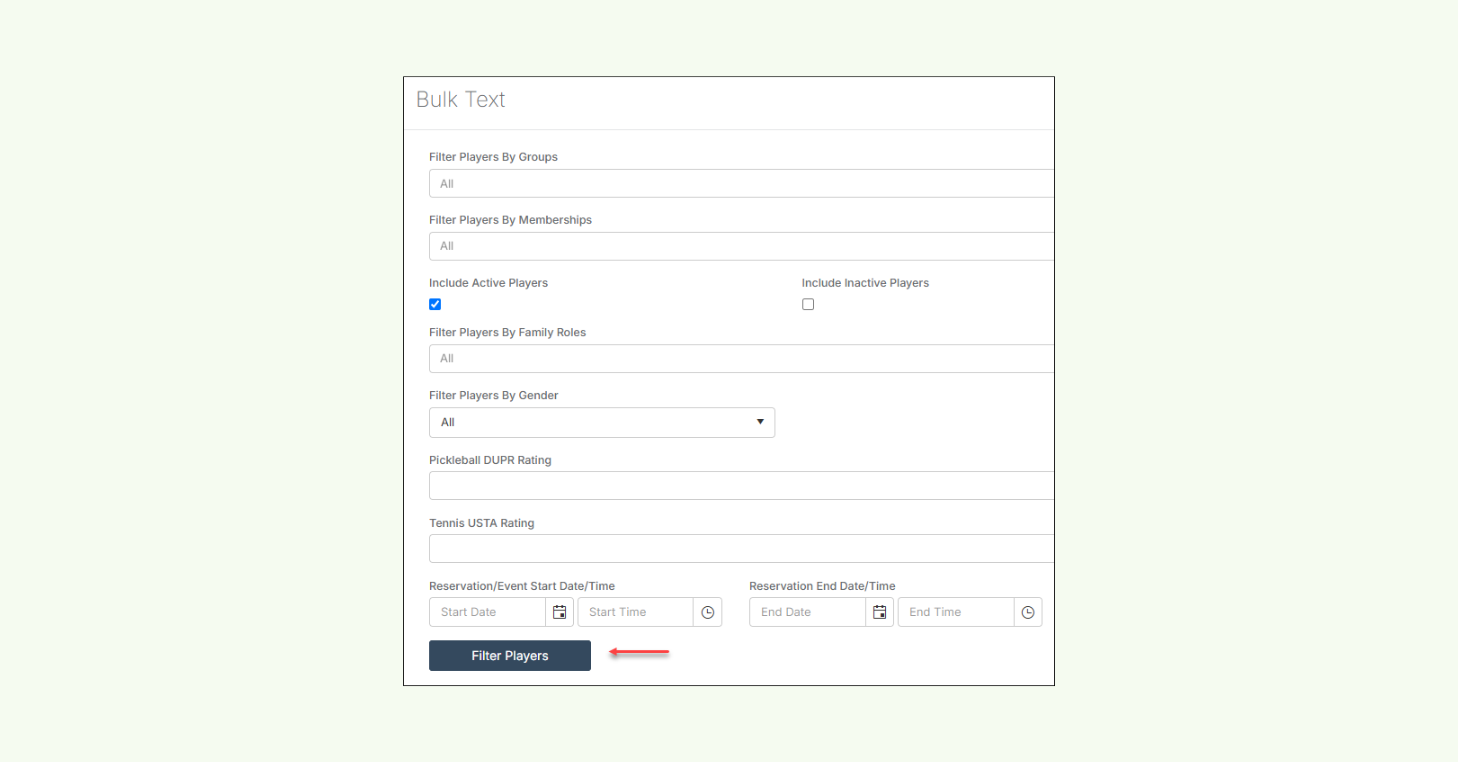
Push Notifications for quick reminders and in-app alerts
Push notifications are short, app-based alerts delivered directly to a player’s phone — as long as they have your club’s app installed and notifications enabled.
They appear on-screen in real-time, giving clubs a highly visible way to deliver quick nudges and timely updates without filling up inboxes or overusing SMS.
Clubs often use push for event reminders, booking confirmations, waitlist alerts, last-minute court changes, weather cancellations, and limited-time promotions.
Push adds an extra layer of communication that supports engagement while keeping messaging lightweight and efficient.
Best for:
- Quick reminders that drive participation
- Real-time updates players need to see fast
- In-app visibility for important alerts
- Reinforcing engagement through your mobile experience
- Supporting a layered, omnichannel communication strategy
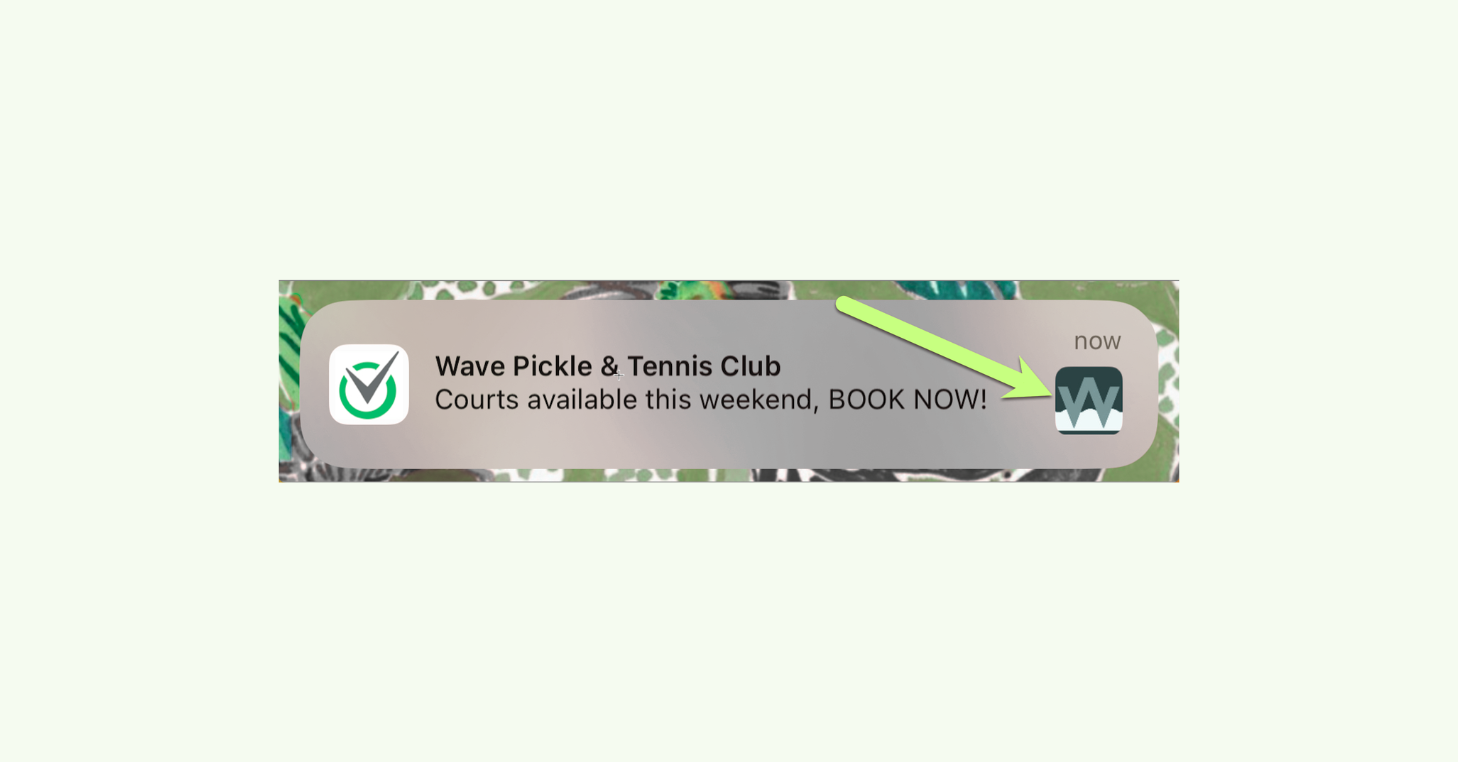
Workflow-based messaging for in-the-moment updates
Some of the most valuable racquet club communication happens in the moment, directly inside the workflows your staff already uses every day.
Instead of pausing to export lists or build a separate message, staff can communicate directly from the context they’re working in. With the right players already identified, you can send updates immediately without switching tools or retracing steps.
Common examples include:
- Messaging event and league registrants
- Notifying participants from the scheduler
- Sending updates tied to specific reservations
- Pulling targeted recipient lists using reporting filters
By embedding communication into daily workflows, tennis, pickleball, and padel clubs save time, reduce errors, and execute more smoothly — making day-of adjustments far easier to manage.
Best for:
- Point-of-action communication inside daily workflows
- Fast, accurate updates tied to real club activity
- Simplifying communication during busy operational moments
- Reducing manual list-building and extra admin work
- Keeping staff efficient without switching tools
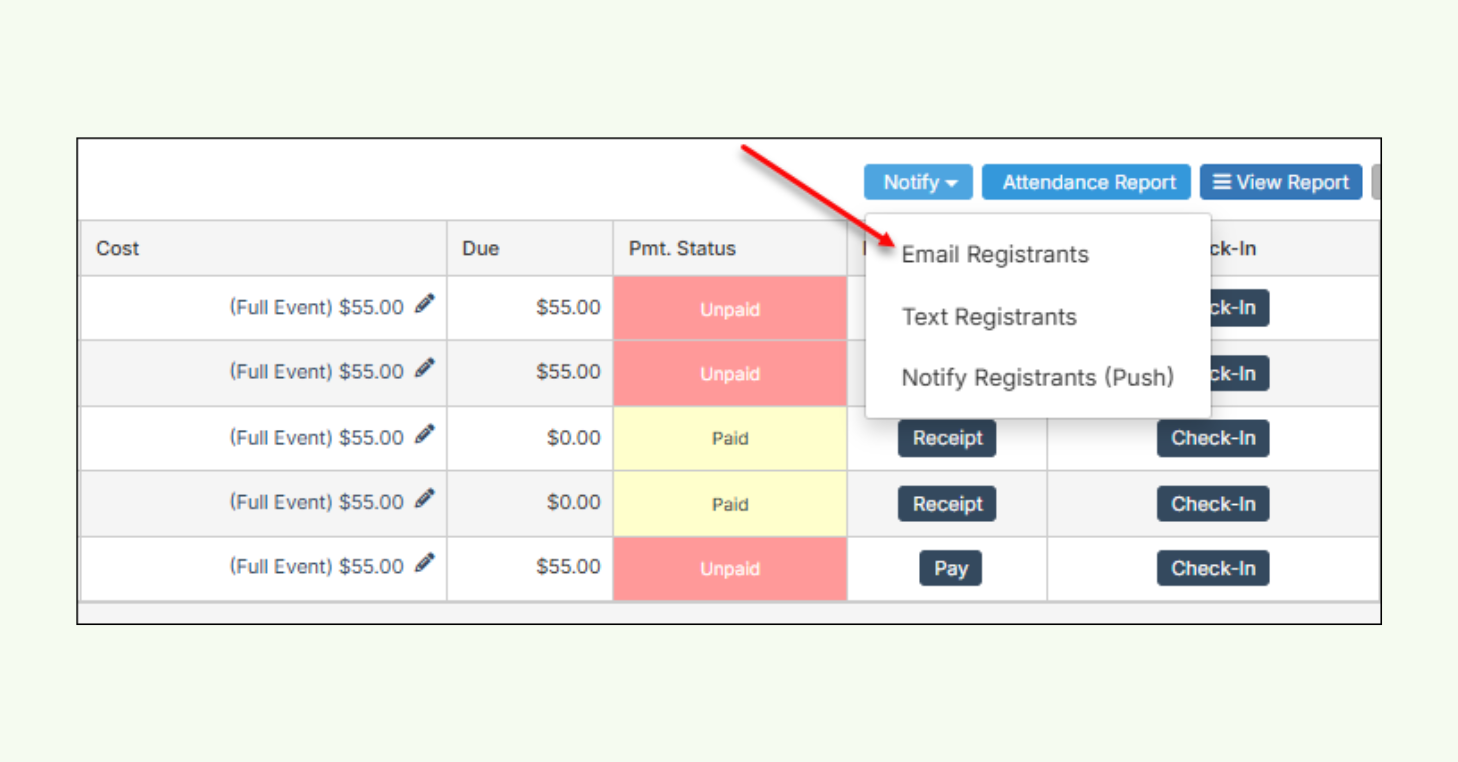
Facility-wide communication tools for high-impact changes
Whether it’s a weather delay, court maintenance, holiday hours, or an unexpected facility shutdown, these tools help staff communicate quickly and clearly during high-impact moments.
Closures and cancellation alerts
When courts need to close or events are canceled, closure and cancellation tools automatically notify impacted players based on their reservations or registrations. Staff can send updates in seconds instead of calling participants one by one.
Global Announcements (Member Portal & app alerts)
Global Announcements allow clubs to post important messages directly inside the Member Portal and mobile app. They act as a digital bulletin board for closures, maintenance notices, policy reminders, event promotions, and other messages that require broad visibility.
Together, these tools help racquet sports clubs manage both targeted disruptions and broader facility-level messaging without adding manual workload.
Best for:
- Managing high-impact operational disruptions
- Notifying impacted players during closures or cancellations
- Sharing facility-wide announcements that require broad visibility
- Centralizing important club-wide messaging
- Reinforcing urgent communication across multiple channels
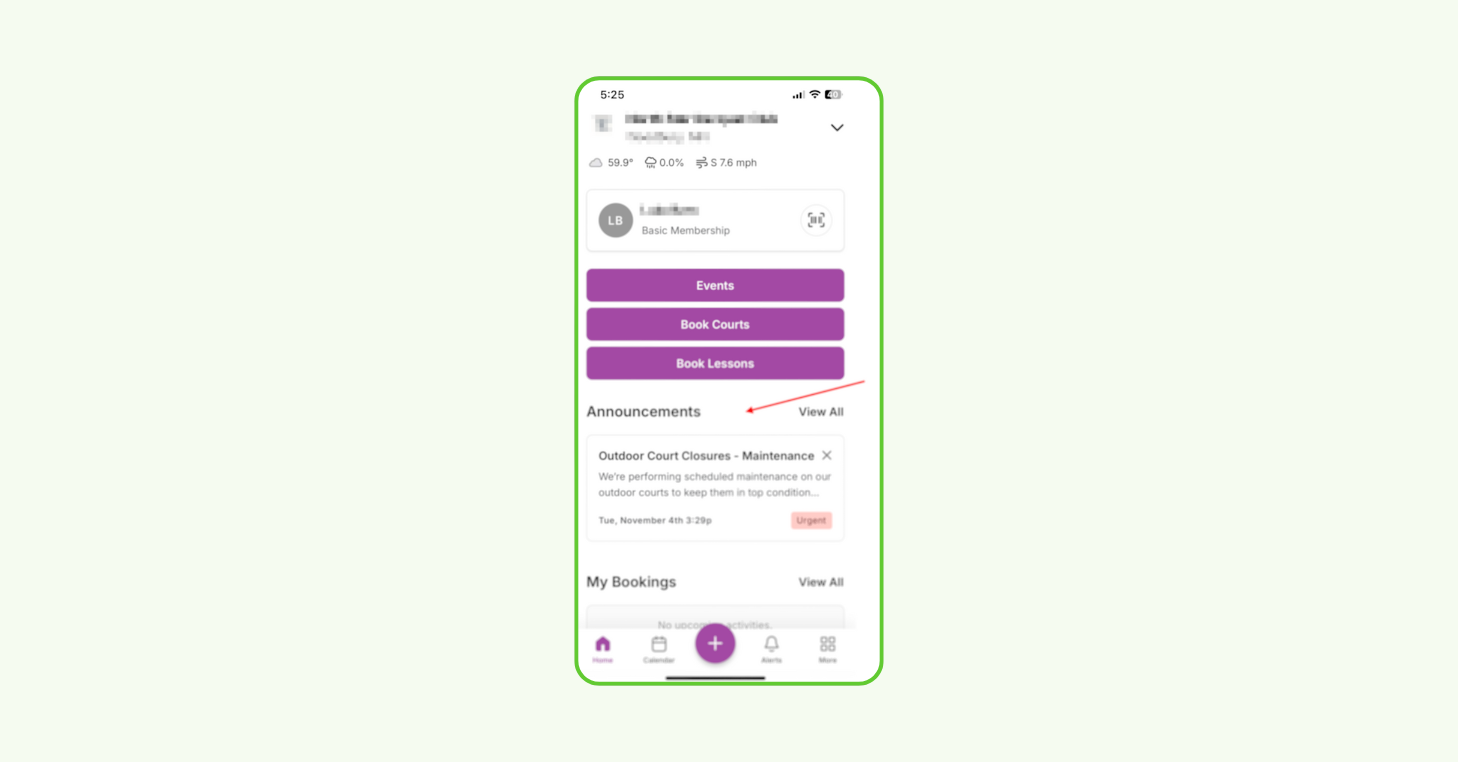
Automated outreach tools for engagement & retention
Day-to-day communication keeps your club running, but long-term growth depends on consistent outreach that happens beyond confirmations, reminders, cancellations, and schedule changes.
Tools like Patch allow clubs to automate follow-up and outreach communications based on real player activity. That includes winback campaigns, lead nurture workflows, free trial follow-ups, birthday promotions, referral automations, review requests, and more.
These automated touchpoints help racquet clubs stay consistent, drive more repeat business, and strengthen player relationships without relying on staff to manually track every opportunity.
Best for:
- Increasing player retention through consistent follow-up
- Re-engaging inactive players before they churn
- Driving more registrations, bookings, and repeat visits
- Automating high-value touchpoints like birthdays, reviews, and referrals
- Supporting growth without adding more manual staff workload
Video Transcript
Hi everybody. Welcome to the webinar today. We’re excited you’re here. We’re going to get started in about uh 3 or 4
0:09
minutes. So hang with us.
2:05
Hi everybody. Welcome. We’re going to get started here in about two minutes.
2:56
Hi everybody. Thanks for being here. We’re going to start in about one minute.
3:35
All right, everybody. Thank you for jumping on today. We’re excited you’re here. Thanks for taking time out of your
3:40
busy schedules to be with us. My name is McKay Allen. I’m the CEO of Patch. We have uh Tim uh Owens from Court Reserve
3:47
who’s in the background as well. And uh we’re so pumped to be with you today to talk specifically about how four clubs
3:53
are using this patch court reserve integration to drive more revenue. So we are going to really dive into use cases.
4:00
We’re going to share examples of emails and text campaigns they’re using. It’s going to be awesome. So we’re excited to
4:08
uh to do this with you today. Uh two quick housekeeping items before we get started. First and foremost, uh we want
4:15
you to know this webinar is being recorded so you can share it with people at your at your club, at your business,
4:20
colleagues, whatever. And then the second thing is we do want this to be interactive. So if you go to the little question area or the chat area, um leave
4:28
us a message there and we’ll address those as we go and then we’ll pause at the end as well. The other item is we
4:34
don’t want this to be an hour, hour and a half webinar. I’ve been on a lot of those and they can be they can be uh
4:40
lengthy. So, we’re going to try to keep this relatively short and be out of here in 35 to 45 minutes. So, um with that,
4:47
thank you for being here again and and we’re excited for it. We’ve um uh there I think there’s uh about a hundred clubs
4:54
that are registered for this event. So, we’re excited to excited to talk to you all today. Um all right, first thing is
5:00
about patch. Um what do we do? Essentially, uh, we’re a platform that
5:05
allows you to turn your one-time players into longtime members to keep those members to upgrade members. And clubs
5:12
use us for texting, email, and customer retention. Uh, you’ll see that more in depth in a moment, but that’s kind of
5:18
the the background, right? Texting, email, and customer retention automations. How does the court reserve
5:24
and patch integration work? Well, basically, it automatically automatically syncs your court reserve
5:30
data to patch. So everything from contact fields to order finished events.
5:36
So check-in status, did they show up? Are they a member? Are they on a trial period? Um even your pickle ball
5:42
ratings. And then what’s next? We’ll talk about this at the end end a little bit as well, but just advanced check-in
5:48
data, more specific detail about what exactly they’re attending, what they’re checking in for, which I think is really
5:55
important. We’ll cover a lot of these automations. So how are people using the integration? So, they’re sending out
6:01
texts and emails when a membership expiration’s coming up or if they visited for the first time a campaign
6:07
that is sent to them to try to get them to come back and or become a member. Birthday campaigns are really popular.
6:14
We’ll talk about all of these in detail. And then some common questions we get.
6:19
So, I just want to hit these right off the top. Do my players interact with patch at all? No. So, your players do
6:25
not know we exist. There’s not an app they download. There’s nothing like that. We’re not interested in in
6:30
scheduling courts for your players. They would simply you would simply use patch as the tool through which you email and
6:38
text your players. How long does it take to get going? Usually we’ll do some demo
6:43
calls with you. Make sure it’s a great fit. After you sign up, if you want to be a customer, there’s usually a few
6:48
onboarding calls. Um my onboarding team won’t love that I say this, but it’s essentially unlimited for the first uh
6:54
60 days or so. Um, so the goal is to graduate you from that where you know how to use the product really well. And
7:01
then of course we have ongoing customer support and then um do you need to use
7:06
patch for it to work? Yes. So patch is just a tool. We’re not an agency that’s going to come in and build all the
7:12
campaigns for you. Um but you can just set up these automations one time and
7:17
let them let them go. So that’s important. All right. Um, as I said,
7:23
patch email, texting, reviews, journeys, um, basic texting, onetoone texting,
7:28
blast texting, emails, all of that stuff is within the PL patch uh, system. Okay,
7:35
I want to dive in and talk about these examples. Um, we’re going to dive very specifically into some clubs who are
7:40
using patch and using the integration with court reserve and talk about how they’re using it with specific examples
7:47
and with data. and we got permission to use these examples. Um, and we’re very
7:52
very grateful for the clubs that gave us us permission to use the examples. Um, first is Dildinkers in Colombia. Um,
7:59
this is a quote from Ally over at Dill Dinkers. So, she says, “I sent out a text blast about a gift card sale we were running. We sold $8,000 in gift
8:06
cards in a week. I feel like a patch nerd. It is so fun.” I love that. Um,
8:11
the automation is very powerful. You guys are seriously awesome. I also love the liberal use of exclamation points in
8:18
this uh in this quote by Ally. It’s a great job. All right, so how do they use
8:23
Patch? First is they use us they have a kiosk at the front desk um for guests to
8:29
drive check-ins so they can get additional texting optins and they know
8:34
for sure when people show up and that’s really important. They’re also using it for onetoone texting. So, you’re going
8:42
to if if you’re a patch customer, we can help you make your phone number a textable number. So, you can send and
8:48
receive phone numbers or text messages rather through that phone number. They look and behave like any normal text
8:55
message would. They’re not like a short code or a long code. Um, but people can
9:00
text in and ask about hours, um, leagues, tournaments. Um, you do that,
9:07
you put it on your website and you will instantly see an impact and then you can reply to those. You can see here an
9:13
ongoing conversation between a player and the uh location and how it’s just
9:21
back and forth, very simple. It shows up as a text on their phone and that’s a great way to keep your customers, your
9:26
players engaged. All right, this is a chart um that I
9:32
wanted to show conversions by marketing channel. So, let me kind of orient you to what you’re seeing here. Um, what
9:38
you’re seeing is the blue bars are um conversions,
9:43
meaning essentially uh players that were impacted by a campaign. Those are blue
9:49
uh which indicates email blasts. And then the red little ones that you see at the top are ongoing automations. So,
9:57
this is the impact in real dollars of email campaigns and the ongoing
10:03
automations. So you’re going to notice that whenever an email is sent, you see a typical bell curve, right? Where the
10:08
effectiveness is really high for the first two or three days as people are opening that. Then it starts to die out.
10:14
And for the red bar at the top, you see that just kind of continues every day.
10:21
There are ongoing automations that every day produces revenue for this location.
10:28
Um and that is very standard and typical result that we see is a lot of revenue,
10:35
a lot of conversions are driven um very quickly after an email is sent and then
10:41
ongoing um there are uh uh on there’s ongoing revenue from the automations.
10:50
All right, I want to talk about the email campaigns because they’re doing an awesome job with email blasts. So, email
10:57
campaigns are a very simple way to message multiple customers at once. So,
11:03
this specific location is sending weekly emails um to segments of their list, often
11:09
their entire list, but they’re sending at least one email a week. They’re
11:15
sending a few text message blasts. And you can see here that their open rates
11:20
which are on the right hand column there are excellent which means their list is really good.
11:26
It’s clean and the content that they’re producing is compelling. People want to
11:31
read about what they’re sending and they’re used to getting content from them. This could take time to develop an
11:37
open rate at this at this level because if you just start from scratch, people
11:43
aren’t used to seeing something from you. It’s going to take time for to to condition them that you’re going to
11:48
email them every week with what’s going on at your club. And you’re going to see what the emails look like here in a the
11:54
next couple slides. They’re very simple. They’re easy to navigate and they’re short. And that uh is a great simple
12:03
solution to engaging with your uh with your players. They don’t need to be
12:09
incredibly complex. They can be simple and short and uh and easy to write.
12:15
I want to talk about some of the campaigns they’re running as well. So, as I mentioned, you see here the email
12:21
blast and text blast they’re sending, but I’ve also mentioned the automations that they’re sending. So, I want to
12:26
highlight a few of those automations. Um, these are the three that three or four I think that were the most commonly
12:33
used within uh this location. So, the first is after three check-ins,
12:39
so after someone has been there three times, they send either a text or an email, not
12:46
both, to the folks who’ve checked in three times, asking them for a Google review.
12:53
This is a fantastic way that a lot of our clubs uh use to easily generate more
13:01
Google reviews. We have clubs that have literally tripled their Google reviews in the first 60 or 90 days using the
13:06
platform. And in this competitive space with more clubs opening all the time, that’s really, really important. So,
13:14
they’re getting these in an automated way. They’re not asking it for asking people to fill it out as they leave.
13:19
They’re not manually sending texts to people asking for a Google review after. It’s happening automatically two hours
13:26
after their third check-in. So you can see here the purple box um run after
13:32
three check-ins. It delays two hours and then sends either the email or the text asking for the review.
13:39
This is a member last time check-in. So essentially this campaign the idea here
13:45
is um you see these three filter blocks in orange. So look at the three orange
13:51
blocks. Every single day, Patch is looking through their database and saying,
13:57
“Okay, who are members whose last check-in was 30 days ago, 60 days ago,
14:03
or 90 days ago.” And then it’s sending an email, waiting 4 days, sending a
14:09
text. So, the goal with this campaign is to try to re-engage people, members
14:16
specifically, who have not shown up in either 30, 60, or 90 days.
14:24
And you can see here, like this looks a little complex, but I think you can also see like once the logic’s built and you
14:31
just let this run, the impact that this has on a business. Imagine being able to
14:37
every single day automatically email people at your club
14:43
or text people at your club, members who have not been in 30 days, 60 days, 90 days, and remind them to come back.
14:50
Remind them of the bene benefits they’re getting by being a member and uh get them back to to playing pickle ball and
14:56
bringing guests to do that. By the way, this is another common one. Um it’s a
15:02
birthday campaign and this one’s so simple. I love it. It is sent to people,
15:07
anybody in their database on their birthday.
15:12
So, every single day, it looks through the database and says, “Whose birthday is it today?” and then sends an email.
15:20
What do they send? They send this awesome email with a cat with a bow. And
15:25
this is an incredibly effective campaign. So, this has generated about $15,000 in revenue for the business. um
15:33
which is incredibly powerful for something this simple. So again, these emails are, as you can see, like very
15:41
simple. Three paragraphs, basically, one image, probably took 8 to 10 minutes to
15:46
create. That’s awesome. It doesn’t need to be complicated. It can be very, very simple and you’re going to see an
15:52
impact. So amazing job by the by the team um at Linkers in creating this.
15:59
This is a similar campaign but with a different filter. So this is for a birthday in 30 days. So 30 days before
16:07
someone’s birthday, they will send an email. And this again is the email. Um
16:13
offers them the ability to come in. They have a member discount if they want to have a party at the club.
16:20
Awesome. another great example of a very simple campaign that is um very very
16:28
powerful for the business. So you can see here there’s campaigns that are more complex and then there’s very simple
16:33
campaigns. So let me just pause there before I jump into the next example and see if anybody
16:39
had questions on the first example.
16:45
Yeah, there’s a couple of of um thoughts here as we move into the second second
16:51
example. I showed you the first example that had really simple emails and very simple campaigns along with a few more
16:58
sophisticated ones, but they’re really good at consistently sending email blasts as well as having campaigns
17:05
running in the background all the time. And I want to stress, it’s not an eitheror proposition. You don’t need to
17:10
either have campaigns running or send email or text blast. You can do both at
17:16
the same time. All right. Second example is a pickle rage location in West Bloomfield.
17:23
Um quote from Marian. Um I love patch. I’m a big believer. I was amazed once we turned on the automations of what took
17:29
place in just 7 days. I threw up my papers and was like, I’m just going to go eat lunch for the day. I’m done. I have nothing else I need to do. This was
17:35
great. Christina, who’s the GM of another one of their locations, is a huge fan. She was like, “I told you I needed patch and you wouldn’t let me
17:41
have it at another location. It’s been great. We’re thrilled. It’s living up to what we thought.” Which I love. That’s
17:46
awesome. So, let’s dive into how they’re using it. So, you see another similar
17:51
view of how the conversions are tracking. So, um, blue is email
17:58
campaigns. You see upticks when an email goes out, and then you see consistent red, which means the automations are
18:04
going on every single day, all the time. They’re set up once. Email and SMS campaigns are going
18:12
amazing. Um, this location is sending email campaigns weekly. They’re sending
18:17
some SMS blasts and the open rates are fantastic for these campaigns, which means again the
18:25
list is good and the content is compelling. And then I added over here the revenue generated by each email. And
18:32
we always get questions around, well, how do you calculate this? I’m going to be honest with you, it’s not perfect.
18:37
There’s no revenue attribution model that is perfect. Um, but basically what we’re doing is we’re saying, hey, if
18:43
someone interacted with a text or an email, meaning they open it, they read it, they click on it, and then within 3
18:50
days they spend money at your club, we’re counting that as part of the revenue. Is it perfect? No, it’s not
18:57
perfect. But it’s it’s a pretty conservative approach to how we’re thinking about uh revenue here.
19:06
Um, okay. So, their blast. What are some examples of the blast they’re sending? Now, I want to highlight
19:12
sort of the two styles of emails we’ve seen and also highlight there’s no right or wrong to how these are built.
19:19
They are building very complex emails that are long that have a lot of
19:25
links and images. So, and they’re still getting great open rates. So, these
19:31
probably take longer to build than the ones in the previous example that you saw, but they’re also getting great open
19:37
rates and they’re getting great click-through rates. So, there’s no oneizefits-all. You do what is best for
19:43
your business, the time you have, the resources you have. Not every ne email needs to be perfectly designed, but
19:50
these also do a great job like really really and it shows kind of the design capabilities too that you can have
19:55
within uh patch if you want to to really design your emails effectively.
20:02
Okay, let’s talk about some of their campaigns. Inactive player re-engagement.
20:07
So, these are campaigns that are are sent
20:12
when a player has not played in 30 days at the top, 60 days, or 90 days. You
20:19
notice it’s a little bit different. These are not just for members. These are for any players who have not been in
20:26
30, 60, or 90 days. They send an email, then delay four days, and send a text.
20:32
Send an email, delay four days, send a text. Send an email, delay four days,
20:37
send a text. This is a very effective campaign. You can see examples of the emails that are sent
20:44
and the texts that are sent. This is the first texting example we’ve shown. The reason people will defer to texts
20:52
often is because a they’re much easier to write. They’re much shorter, obviously.
20:58
That’s the nature of texting. But then also the open rates are much higher.
21:04
So, for example, with email, like if you write a really good email, you can get a 25 to 45% open rate. That’s incredibly
21:12
good. With text, you’re going to get a 98% open rate. It’s it’s unbelievably
21:18
effective. So, a lot of businesses will will defer to texting over email, but
21:24
most will actually say, “We want to have both in our campaigns,” which is great.
21:31
A new player welcome. So the trigger for this is a waiver being signed. You can see in the purple box.
21:38
Then 2 minutes an email goes out. 7 days a text goes out. And you can see what
21:43
the text says here.
21:51
Now this one is awesome. A non-member conversion campaign. So, the idea is to whenever someone um
22:02
shows up at the club as a guest, they’re put in this campaign where they’re they
22:07
receive text messages and emails until they become a member. Now, you
22:13
notice up here at the top, the contact is updated when they become a member and they are ejected from the campaign. So,
22:21
if someone becomes a member at any point during the campaign, they’re removed from the campaign and they don’t
22:26
continue to receive emails or text messages about this campaign. Um, so
22:32
this is the idea here is if someone um is a guest player, they receive this
22:38
campaign which consists of um let’s see a text message and two emails
22:44
and then if they become a member, they’re removed from the campaign. Awesome.
22:52
Example three. This is Pace Pickle Ball Club. So, I’ve shown a couple of like
22:57
awesome franchise groups. And so, you might be saying, “Man, we don’t have the resources they have.” Um, the next two
23:04
I’m going to show are are single location clubs that um you can easily
23:11
easily um replicate what they’re doing. Um so conversions by marketing channel
23:16
the automations are in red and they are producing for them at a
23:22
high level every single day. So again they are focused really on the um the
23:31
automations instead of the email or SMS blasts. So they’re setting up the automations and letting them work which
23:37
I love. They’re also using onetoone texting. You can see the conversation here.
23:45
And you can see the emails are textbased. They’re very simple. Contact is created. An email is sent. Awesome.
23:54
Very simple. That’s great. Couple of very simple links. A header at the top that they simply uploaded their logo to
24:00
create. Awesome. Very simple. A welcome email to try to get them to to come back to try
24:07
to get them to become a member. A recapture campaign. So, this is a
24:13
variation of those folks who have not played in a while. Their variation is 45
24:20
days, 90 days, and 120 days. And then they receive an email for each one. Super powerful.
24:26
I love this one. It’s a more complicated one. So, I’ll walk you through it. It’s a follow-up for a specific class. So,
24:34
every Saturday at 12:05, it goes to a specific group of people. Ask them if they enjoyed the class via text. um and
24:42
then ask them eventually one day later to leave a Google review. So it’s it’s the the idea is to get them
24:50
to leave feedback about the class, possibly the instructor, and to get them
24:55
to sign up for additional classes, lessons, membership, etc.
25:01
I love this one. This one’s a really unique one, very cool. And the fourth example I’ll keep a
25:06
little more anonymous. It’s a club out west here in Montana. Um, I like this one because they’re using SMS blasts a
25:12
lot. The reason that they’re using SMS blasts a lot is because they’re easier to write than email blasts. So, they’re
25:20
much simpler, they’re shorter, they’re easier, and it works.
25:26
So, SMS blasts are sent to a segment of the list. You can see here how frequently they’re doing it. And this is
25:34
uh why people send text messages, this 98% number. An average of 98% of people
25:39
read texts within three minutes, which is incredible.
25:45
And if people reply to those, we get this question a lot. If people reply to text blasts, those replies go back into
25:51
the onetoone thread. So if someone replies to a text, because
25:56
they don’t know they’re in a text with a thousand other people, 1500 people, 6,000 other people, whatever the number
26:02
is, they can reply to that and start a onetoone conversation.
26:07
Very simple campaigns again. Contact is created. This is a new player welcome campaign. An email is sent. 7 days later
26:15
a text message is sent. This is one I love because they
26:22
basically got settings built in here that allows our system to tell them when
26:27
a customer is at risk and when a player is already lost. and they have built
26:33
campaigns into their system to target people who are at risk or who
26:40
are already lost and try to get them to come back. So each of these is a separate email, separate text
26:47
that those folks receive. And then a non-member, a new non-member
26:52
check-in, so they are there for the first time as a guest or just for uh open play.
26:59
They receive a text message, one day later an email. 7 days after that, an email. So, they have a very, very simple
27:07
campaign built to try to get them to come back, to try to get them to engage
27:13
once they have shown up to play. Okay.
27:19
Um, so, type your questions into the top there. We’d love to take them. You’ve
27:25
seen, I think, a few really good examples of email campaigns,
27:32
text campaigns, and automation journeys that any club can do. A lot of those
27:38
things are pre-built when you sign up for patch. And because of the awesome integration we have with Court Reserve,
27:44
that data flows in. We’re able to tell when people checked in. We’re able to tell um when they have not been in 30
27:52
days, 60 days, 90 days. were able to tell if they’re a member and you can build campaigns that focus on each of
27:57
those aspects, which I think is really powerful. And then the other thing I just wanted to
28:02
highlight here, and Tim can speak to this as well, is we’ve been asked a lot for more specific data, kind of like a
28:10
phase two of the integration, right? Like more not just that they checked in, but what did they check in for, Tim?
28:16
That’s probably the number one thing, number one or two thing that we’ve been asked about with the integration. Would
28:21
you say that’s fair? Yeah. Uh, thank you. This is awesome. And before I jump into that, I just want
28:27
to address the audience. You can hear me. Okay. Correct. We got you. Okay. Um, first off, I just want to
28:34
shout out uh Patch uh this integration. You know, we take integration partners very seriously and it’s just been a
28:42
delight to work with Patch and the team. And not only that, it’s just the value
28:47
that this integration creates for clubs. It’s just um for those that don’t know
28:54
um me and Ashley also own a club, a pickle ball club here in St. Augustine and we run patch at our club and it’s
29:02
all about value and and if I was to say I wrote down and jotted down some just four value points and if it’s okay I’d
29:09
like to share those. Okay. Um, yeah. Um, four things stood out to me
29:14
when I sort of when I sort of look at patch and the integration with court reserve. Um, one is just the insights
29:21
you get around members. So, it’s really nice to be able to to see at a glance
29:26
who your champions are, uh, who your loyal customers are, but it’s also a
29:32
great way to create strong member loyalty because just like we look and we
29:38
take churn very seriously, you know, and I tell this to the team all the time and to clubs, it’s not just about the new
29:45
members, but it’s about retaining your current members. So being able to
29:50
identify those quickly that may be at risk to churn to leave your club and go
29:56
somewhere else. Patch gives you the insights you need to prevent that. And
30:02
just the automated growth engine, the automated growth engine that these customer journeys with patch let you sit
30:09
down and create. Yes, as he as you saw on there, it takes some time to create
30:14
the journeys to tweak them to get them right. But once you do, you can go to lunch as that one quote said. You can go
30:22
pay attention to other parts of your business. You can nurture, re-engage, and upsell members automatically. And
30:27
Patch does that great. And finally, it’s just communication. We’ve saw with our front desk, just the the back and forth
30:33
text. We’ve saved people from going and going somewhere else. we’ve given information about a specific clinic or
30:39
about a pickleball 101 class and was just able to have a text conversation with those people and the front desk is
30:45
like wow we are actually able to communicate people very quickly and very effectively so I just wanted to
30:51
highlight those value points and then as he mentioned it’s all about the future
30:56
value what are we doing yes this is an amazing integration but we are not going
31:02
to be complacent as you know with court reserve we’re always innovating and we always want to make things better, make
31:08
things more powerful. So, what we’re going to do in the next coming weeks is
31:14
we are going to take the check-in event that McKay is talking about and we’re going to add some things to it. One of
31:20
the things we’re going to add is the activity type so that you will know the difference when somebody comes in and
31:26
checks in. Were they there for an event? Were they there for a reservation? Were they there for a lesson? Were they there
31:32
for a league? So then you can build campaigns specifically around that type of event. And not only that, we’re going
31:38
to give you the name of the event. Were they booking singles or doubles? Were they booking a pickle ball 101 class
31:45
compared to more of an advanced clinic? So you can build campaigns and reachouts specific specifically for the type of
31:52
event that they’re booking or they’re registering for. Second, we’re going to add activity start times and end times.
32:00
And this is really good for timebased automations. So an example of this would be like sending a thank you note right
32:06
after a lesson like or good good luck tonight right before a league match
32:11
because if we know the specific event they’re signing up for you know the time they’re coming. Now you can build
32:17
timebased automations. Uh thirdly we’re going to give you more information around the check-ins for courts and
32:23
instructors. And I’ve really been really excited about instructors because you
32:28
can do a lot of things. If you know somebody came and took a lesson with an instructor, you could send out a survey to see how valuable that lesson was with
32:36
that particular pro. Or you could say, “Here’s a 20% promo code for your next session with Sarah or Jim.” Um, and
32:44
finally, uh, we want to really put in some more valuable cost data so that you can sort of distinguish between free and
32:51
paid attendance. um and offer and upsell customers to offer them a discount to
32:58
free trial attendees or a free beginner class. So, those are just some of the things, McKay, that that we’re adding.
33:04
And one thing on specifically for the court reserve side is promo codes. So,
33:10
we’ve been hearing it from the rooftop around, hey, it would really make the integration more powerful if we had the
33:17
ability to set up promo codes in court reserve and then utilize and send out those promo codes in these campaigns.
33:24
So, that’s a that’s a feature that’s actually in development right now with a scheduled fall release. So, super
33:30
excited about what we’re building, super excited to work with patch and uh I hope you guys see the value in this
33:36
integration. Love it. That’s awesome. Um Tim, thanks for that. That was great and it was a
33:41
great look forward to. Yeah, it’s it’s so fun to work with Tim and Ashley and their team.
33:47
A, they’re awesome people, so they’re fun to hang out with. And B, their team just gets stuff done. And there
33:54
sometimes you get in you, as you guys know, there’s a lot of people who who
33:59
say things, there’s very few that do things and and they do a great job of getting things done. So, uh, that’s
34:05
awesome. So, let’s do this. Tim, why don’t we run through a few of the questions that are coming in? and um and
34:11
uh hit on those and then we’ll let everybody get back to their uh lovely Tuesday. Um
34:17
okay, so Dorothy asks, “Where do we find the conversions by marketing chart that you have been showing?” So I want to
34:23
like show that and then I’ll kind of explain where it is in the system. It’s this chart conversions by channel. So,
34:29
if you’re a patch customer, you go to dashboards on the left hand side of your screen if you’re a patch customer. And
34:36
the second dashboard that you see kind of open up in the hamburger menu is called marketing. So, dashboard
34:44
marketing. That’s where you’re going to find it. And it’s going to show data for your business. Um, now to be to be super
34:50
clear, you have to have built something in order for that to show, right? If you haven’t sent out a text or an email or
34:58
um built any automations, it’s not going to show any data, right? So, we’ve got
35:03
to make sure that you’re sending emails and texts. Hopefully, that makes sense.
35:08
Um let’s see, one more question around one:1 texting. Yeah, so let me review
35:14
that again. Um the idea is this.
35:19
When you sign up with patch, we can make your current number a textable line. So
35:24
basically, businesses can text businesses, you’re the business, your customers can text you directly and you
35:30
can text them and it doesn’t show up as like a weird short code or or anything like that. It’s a normal phone number
35:36
and they just receive it like they would a text from their mom or their brother or whatever. And it shows up on their
35:42
phone so you can text them. So they will text in and ask questions. You can text back. You can also even put a little a
35:48
little bug on your website, a little widget on your website that um that
35:53
allows you to receive inbound messages really easily. So, uh it’s a really
35:58
powerful and very simple tool. Um
36:04
Tracy asks, let’s see.
36:14
She says, “When you’re talking about guests or waiver sign, is that a waiver for non-account holders?” So, it’s any waiver that is signed um um within court
36:22
reserve and and Tim most clubs will would you say it’s what percentage of clubs are requiring a waiver when they
36:28
when when a when a player shows up? Tim, what would you say that number is? Any idea? Yeah, it’s very interesting question and
36:34
a good question. Um, if I don’t have the statistics in front of me, it’s much more, it’s interesting because it’s much
36:41
more predominant in the pickle ball club market than the tennis market, but um, you know, internally for those
36:48
using our waiver services, I would say about 70% are requiring a liability
36:54
waiver of some sort. Cool. And if you’re not using court reserve, the their system for this,
37:01
their their solution for this is really simple and really really easy to use. So I would strongly recommend that. Love
37:09
it. Um Tracy asked, “Does patch catch up on lost customers when you first start?”
37:16
Um give me a little more detail on that one, Tracy. I’m trying to So, so we can
37:22
patch will be able to tell you which customers are already lost if that’s what you’re asking. So, yeah, we can do
37:28
that. We can tell you which customers are already lost and you can build campaigns for them. Um, if that’s if
37:35
that’s what you’re after. Awesome. The other thing I would say here is that there are
37:42
when we talk to clubs um and we’ve got a about 200 clubs using this integration
37:47
right now and what we’re finding is um when they sign up with patch they
37:54
might be using an email marketing solution let’s say like a Mailchimp or something like that that they’re paying
37:59
a couple hundred a month for. They might be using a one-to-one texting solution
38:05
that they’re paying a couple hundred bucks a month, maybe 300 bucks a month for. And then they’re probably not doing
38:10
text blasts or automations. So kind of the four pillars of what we do, right?
38:15
Email, onetoone texting, text blasts, and automations. They’re probably paying for two of those four and not doing the
38:22
other two. So when we come in and we say hey you can do all four of those things in the same tool and we are deeply
38:31
integrated with the system that you use for everything which is court reserve it becomes a no-brainer for a lot of these
38:38
uh clubs. So um awesome great questions everybody and um thanks for your time
38:45
and for jumping on today. We know you’re busy so we value your time. We want to get you back to your day. And Tim, thank
38:51
you again for jumping on and and for for saying those kind words. Everybody, if
38:56
you have questions, you can email me directly um at mccay at patch retention or Tim at Tim at Court Reserve. We’d
39:02
love to talk to you and uh we’re grateful for all you guys do for the sport and for the industry and we’re excited to keep working with you. So
39:08
Tim, any final thoughts before we before we close up here? No, I I think this was fantastic. Again,
39:14
I just want to mention the fact that if you have not explored this integration, I highly
39:20
encourage you to do. It’s just interesting to see how clubs are embracing it, how we get clubs every day
39:27
asking about it, jumping on it, and immediately see an ROI. Um, and so, yeah, I I again, this is probably going
39:34
to end up being one of our most popular and most powerful integrations. And so, I’m so glad I found the team at Patch
39:40
and McKay and we got this working. And the best is yet to come. Awesome. Love it. Thank you so much,
39:47
guys. Appreciate it. Have a great day.
Admin visibility tools for tracking & oversight
Clubs need clear visibility into what notifications were sent, who received them, and which channel was used so they can identify gaps, resolve issues, and improve communication over time.
Tools like notification history, delivery tracking across channels, and audit logs give staff confidence that messages were sent as intended. Visibility into opt-ins and opt-outs by channel also ensures teams understand who is reachable and how.
With that level of insight, clubs can prevent miscommunication, strengthen accountability, and continuously refine their communication strategy instead of guessing.
Best for:
- Confirming messages were delivered across email, text, and push
- Troubleshooting communication gaps quickly
- Improving internal accountability and staff alignment
- Understanding opt-ins, opt-outs, and who is reachable by channel
- Refining club communication strategy based on real activity
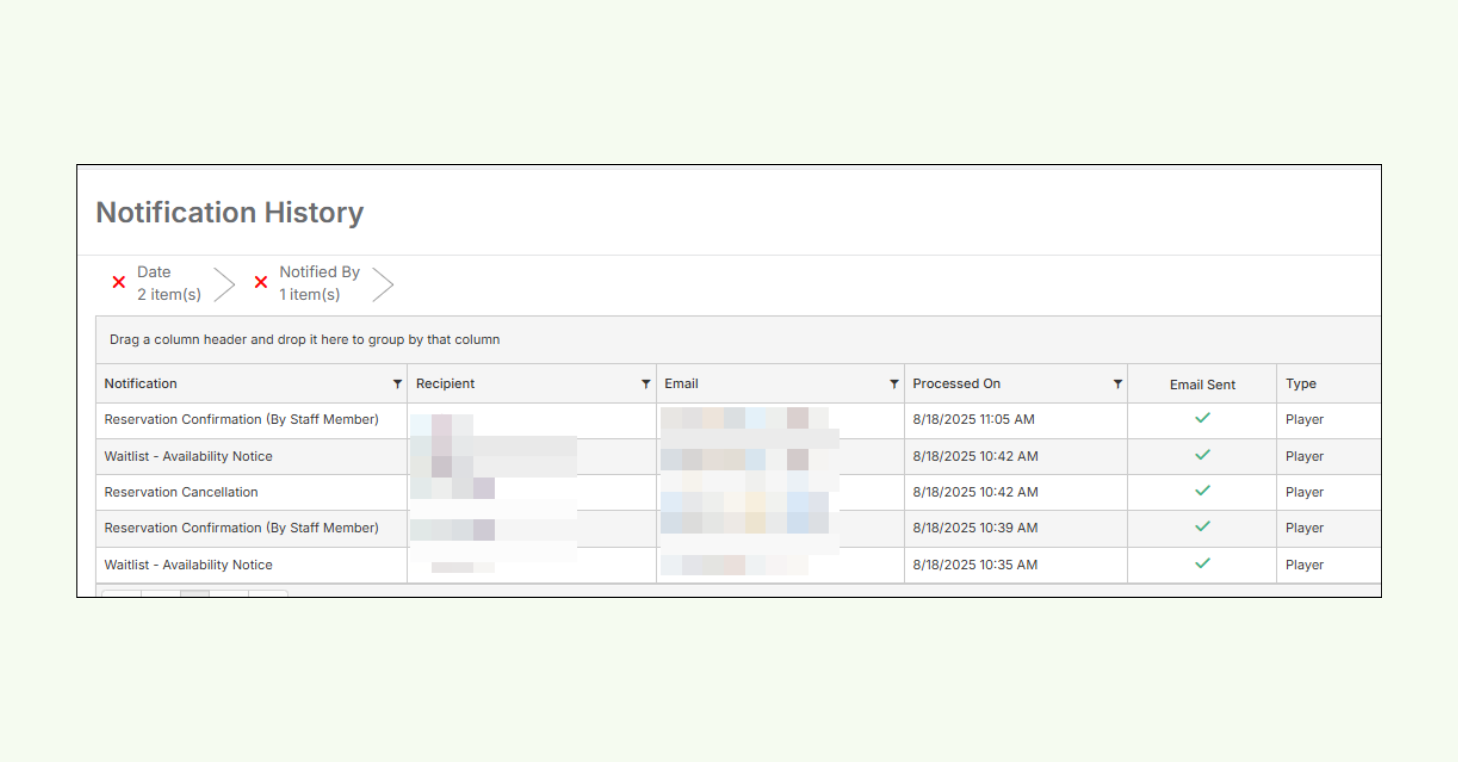
What strong racquet club communication looks like
Communication is one of the most overlooked growth levers in racquet club operations.
When clubs combine automated notifications, targeted messaging, facility-wide alerts, and ongoing outreach, they create a system that reduces friction, builds trust, and keeps players engaged over time.
With the right communication infrastructure in place, your racquet sports club can operate more efficiently, respond faster to change, and build stronger, longer-lasting player relationships.
Visit our Communication Help Center Collection for step-by-step guides, setup instructions, and best practices.