How to Make the Most of Peak Season at Racquet Sports Clubs
May 13, 2026
Spring is the most energized stretch of the year for racquet sports clubs, and the most consequential. What happens in April and May tends to define your summer season. To come out of summer with more members, fuller courts, and stronger revenue, preparation has to start in spring.
The window for capturing that energy is real, and it’s open right now.
Consider this your head start on the season.
Is your club ready for peak season?
Peak season has a way of surfacing the gaps that quieter months keep hidden. Courts fill fast, new players are making quick decisions, and the operational cracks that were easy to work around in winter suddenly have real consequences.
Before the rush arrives, it’s worth an honest look at where those gaps live in your club.
When programming demand spikes, does your team have visibility into what’s full, what’s available, and who’s on a waitlist, or are they managing it manually?
If a first-time player walks in, is there a clear path to get them into a clinic, a league, or open play?
Do you know which of your members are at risk of disengaging before summer even starts?
Peak season is coming either way. The question is whether you’re ready for it.
Spring and summer bring a real surge to club operations — more bookings, more programming demand, and more opportunities to grow. Making the most of it starts with getting a few key things right.
Here’s what to focus on before peak season arrives, and where the biggest opportunities live.
Make it easy for players to find and book with you
New players are searching for courts, asking friends for recommendations, and making quick decisions about where they want to play. Most of them won’t push through a clunky process. If getting on a court requires creating an account or calling the front desk, they’ll simply move on.
That means two things have to work together: discoverability and booking. Ensure your club appears where new players are actively searching on Google, social media, and your website. Then, audit the player booking experience. Find your club the way a new player would and try to book a court. Count the steps. Note where the process breaks down.
Anyone who finds your club should be able to book without friction. The lower the barrier, the more of that spring and summer demand your club actually captures. Tools like Public Booking are built exactly for that, letting anyone book at your club without requiring an account or membership.
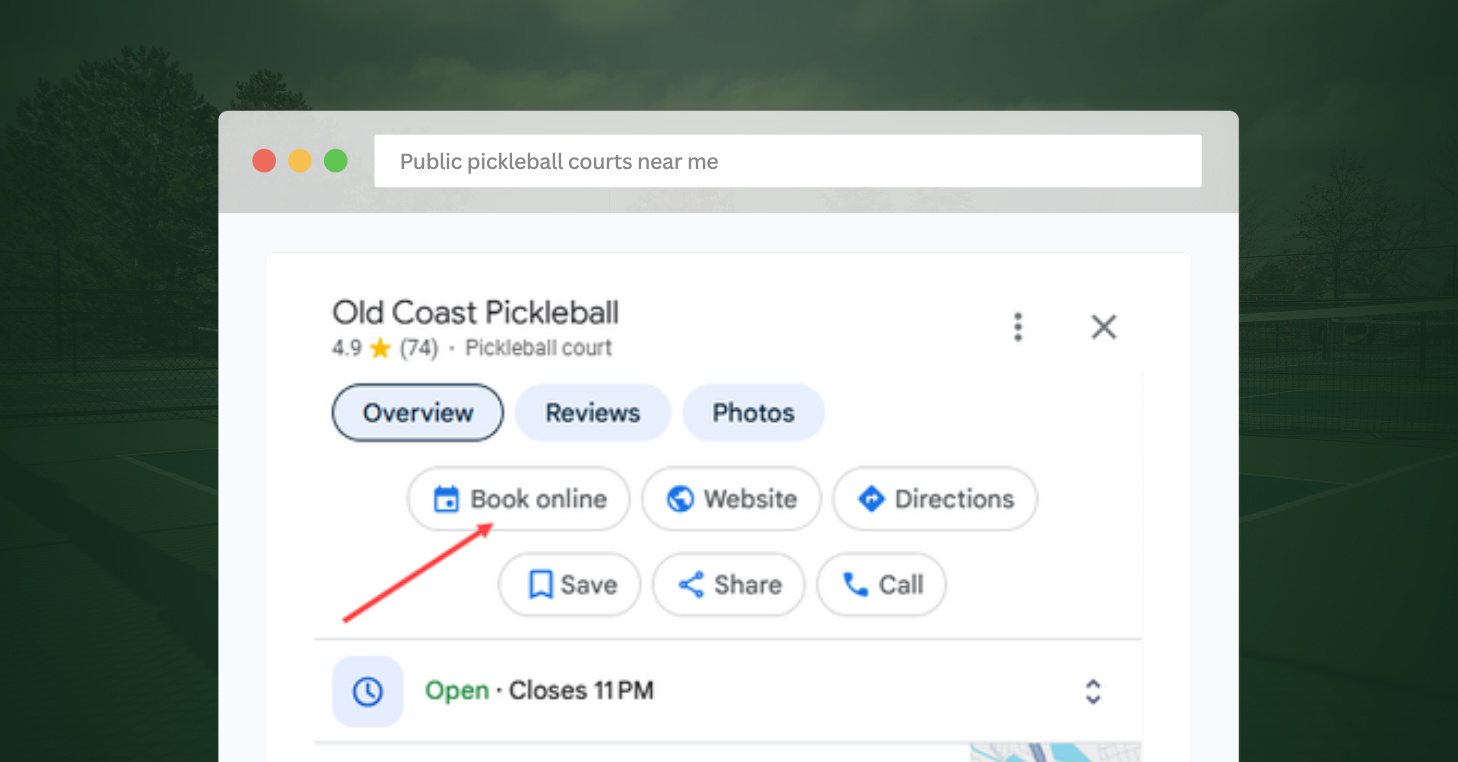
Reserve with Google takes it a step further, putting a “Book online” button directly on your Google Business Profile so players can go from search result to confirmed booking without ever leaving Google.
Video Transcript
0:011 secondYour next regular is someone who’s never heard of your club. They just want to play. Public booking from Court Reserve makes that effortless.
0:1111 secondsOne sharable link on your socials, your Google listing, or in an ad. Anyone can browse Open Courts, lessons, clinics, or
0:1818 secondsevents, and book in seconds. They pick a time, pay, and they’re done. No app, no membership required. When they arrive,
0:2828 secondsthey check in and go play. No front desk line, no friction. And every guest who books becomes a contact in your system,
0:3737 secondsready to be nurtured into a paying member. This goes beyond filling empty time slots.
0:4444 secondsEvery booking becomes an opportunity to grow.
0:4747 secondsPublic booking from Court Reserve for Every Club.
Get programming ready before demand arrives
The mistake most clubs make is building programming reactively. Courts fill up, new players start asking about clinics, and suddenly, staff are scrambling to put something together mid-season. By then, the window to capture that energy has already started closing.
Get your spring and summer programming calendar live now. Clinics, leagues, summer camps, and social events all need to be in the system before the rush hits. The earlier players can register, the more likely those spots actually fill. A full programming calendar also gives your front desk something concrete to point new players toward the moment they walk through the door.
If you’re not sure where to start, look at what programs and events filled the fastest last year and build from there. Peak season rewards clubs that show up with a plan.
Know where your club stands going into peak season
Before peak season hits full stride, it’s worth doing a pulse check on your operations, starting with an honest look at how your club is performing across the areas that drive growth.
Once you know where to look, run a few key reports to dig in further. Focus on the areas most likely to affect your season:
Which courts or time slots are consistently underutilized?
Which programs are underperforming on registrations?
How does your membership status breakdown look right now compared to this time last year?
Once you have a good idea of where your club stands now, look back at last peak season. Repeat what worked, fix what didn’t, and go into your busiest months with a plan built on real data rather than gut feel.
Which programs filled fastest, and are they live and ready to fill again this year?
Which courts or time slots were in highest demand, and are you staffed and scheduled to meet that demand again?
Where did revenue peak, and what drove it?
What didn’t work, and what are you doing differently this time?
Spring is when this data is most useful. Pull it now, while there’s still time to act on it.
Video Transcript
0:00
Hello everyone. Welcome to our weekly Spark webinar. I am Ashley Owens. We are
0:06
so excited to have you today. We have two of our incredible folks from our customer success team. Dylan’s going to
0:13
be on chat support rocking the mic and chat and Emily is going to be walking us
0:19
through the member report today. Um so, hey, let’s talk about some important things. See if I can get my button to go
0:25
here. Uh don’t forget pickle ball is important, right? And so we encourage you if you are a pickle ball facility,
0:32
you should think about going to mastermind. The next one’s coming up in a couple weeks. We always send team
0:37
members out there. They have like 10 clubs already signed up. So it keeps getting bigger and better. Uh just the
0:43
networking in and of itself. And then every month we get on a call with Devon and talk about all kinds of great things
0:49
in the pickle ball space. So that is a great opportunity. And then if you live under a rock, uh, you hopefully will
0:56
still know that Catalyst is back this year. Columbus, Ohio is next. Detroit,
1:01
Michigan, Denver, Colorado. We’re going to Toronto in August. And I may be planning like four more stops. So, get
1:09
excited. Um, after I come off, I’ll put the link to this in the chat and then you guys can check it out. Uh, we’ve
1:16
reduced the price. It’s 99 bucks. Bring your admins, bring your director, bring your front desk, bring your operations
1:22
person because it’s literally a day and a half. The first half day is at a local
1:28
club that will do four hours of best practice roundt sessions. The one we did in St. Augustine, I mean Dylan was
1:33
there, he can agree it was fantastic. So many great best practices that even I
1:38
took away. And then the next day is a full day of training. Uh we go through all the cool stuff in court reserve. So
1:44
don’t forget we’re all over the place. Uh we’re coming up. Uh I I see that this is old. Uh but we are going to be at
1:51
Racketex. So if you’re going to be in Fort Lauderdale in a couple weeks, come see us. And we really are going to be at the Southern annual meeting because it
1:57
got snowed out and it’s going to be in April. So I’m really excited about that. Now what I want to do though is I want
2:03
to show you if you uh are not aware yet, we have some really cool stuff going on.
2:09
So let me bring back up public booking. How many of you know public booking is live? Public booking also includes
2:16
waiverss and public booking if you’re on Stripe now has Google and Apple Pay. Uh
2:21
yeah, we did all that in a week. So, we’re so excited. You can go to this web page. I will put this in the chat
2:27
support. We the the I can’t even say I can’t even explain the clubs that turn
2:33
on public booking. They are seeing an average of 24% of their court reservations are from public booking.
2:40
How’d you like to fill 24% more court time, right? I mean, come on. All right. And then the next thing I want to say is
2:46
you obviously know how to find our webinars. You just go out to courtreserve.com. You go to resources.
2:52
You go to webinars. We’ve got some really cool ones coming up. Mastering weight list. Uh we’re going to have one
2:58
with patch in a couple weeks. We’re going to be talking about court cost. But the one I want to point out is
3:03
because this is near and dear to my heart. I’m starting a new uh it’s called courtside conversations. We’re going to
3:09
take some of you guys and we’re going to make you panelists for the things that you’re good at. And we’re going to have an hour best practice session. It is not
3:16
about court reserve. It is all about for this one summer camp round table. It’s going to be how do you set up summer
3:23
camps? How are you holding summer camps? How do you do your instructors? How do you do your your moms, your dads, like
3:29
everything to do with summer camps. And we’ve got some incredible we got Isabella from Lifetime Activities. We
3:34
got some folks from Bill Dinkers and also Alex from Holler Rock uh swim and racket club. So we’re doing tennis,
3:40
pickle ball, uh country club, like you you name it, we’re gonna talk about it. So Dylan and Emily, I don’t really think
3:47
there’s anything else that I can talk about. So I think you guys are ready to go. Just a little bit of housekeeping before
3:54
we move forward. Tanya, I see that you said there’s um some echo going on on your end. I’m not hearing that on mine.
4:00
If anyone else is, feel free to put it in the chat. But I think we’re mostly good. It might be something on your end,
4:05
Tanya. And then if you have questions along the way, um Emily and I are going
4:10
to be handling or I’m going to be handling those, but Emily will be answering them. And um we will um see if
4:17
we have time during the teaching to handle those. If not, we’re going to save those until the end of teaching, but we do ask that you just put them
4:24
into the Q&A section instead of the chat um before asking your questions. Thank
4:29
you so much. All right. Thank you, Dylan. Hey,
4:35
everybody. So excited to do this with y’all today. So, we’re going over the member report. And first first things
4:41
first, members report is always going to be your best report to gather a lot of
4:48
information that you have on your players in your system. So, we’re going to go over basically from beginning to
4:53
end all the different options that you see inside of it, ways that you can maneuver
4:59
um running the report and all of your report outputs and then just going according to what would work best for
5:06
you. So, I’m going to go ahead and share my screen.
5:13
All right. Yep, I’m on the right one. Okay. So, first things first, when you
5:20
first open the report, number one, you go to reports members. We have this section here. This is going to be your
5:25
best place to begin. This is going to you could do it by selecting all of them. You have your currently active,
5:32
suspended, and these are members that are manually suspended, expired, meaning that they either have never paid their
5:38
initial fee or they’re past due on a billing cycle, or they just don’t have a membership currently.
5:45
You can go through this one. you can select all of the different memberships that you have. So, if you’re wanting to go and pull a report that you’re looking
5:52
for currently active and you want to say you want to find all of your couple memberships, that’s pretty much all you
5:58
need to do to gather that information right there. We have upcoming membership, meaning
6:03
this is something that is not yet started. It could be one that they have pre- purchased or you have assigned to them. And if they are just already part
6:11
of that membership and you want like they’re part of a membership and they’re not scheduled for anything else, do that
6:17
there. Payment profile status, especially if you are doing autopay on membership dues or you’re doing batch
6:25
billing. This is a great way to find out who has a payment profile and who doesn’t. If you want to go and pull a
6:31
list of all your males, all your females, and then if it says prefer not to disclose, I do not believe it’s going
6:37
to show up here. You can search according to family roles. So anybody who’s in a family unit
6:43
like my lovely Dwight Shroo here in his family unit, we have primary. Then you
6:49
have spouse. So you can sort according to that. Here amount due. This is to gather a quick
6:56
overview. If you want to make sure, okay, I want to see if anybody in my system owes currently more than $100,
7:03
you would do it like that. Or if you want to say less than $100 or
7:09
$1,000 like that, you would run it that way.
7:15
Account credit works the same way of that. You can put in here how much you want to look at. Penalty cancellations.
7:22
This goes according to what you have put into your general settings here
7:29
of penalties that they can get from cancelling a reservation within a certain time limit or you just go and
7:36
manually put that on their profile and you want to see how many penalt penalty cancellations you have in the system. That’s what you’d use. You can also sort
7:44
and pull information according to your member groups here. If I did that for all of my Dunder employees, all of them
7:50
who have a currently active membership, run the report and it automatically pulls that for me.
7:56
So that’s a great way, especially if you have determined a certain group that you want to keep track of, use a member
8:03
groups, a static member group, and then you can filter according to that group.
8:08
Last login date is tracking from when the member last logged in on their own. And that depends with the desktop or the
8:15
app. that will do that. Created date is the created date of their account specifically. So, it goes
8:22
either if you created them or if they created themselves. You could choose that to see, especially if you’re
8:28
wanting to keep track how many new accounts you’ve had like in a quarter. Let’s say I wanted to track everybody
8:34
who’s joined since January 1st almost to let’s say March 31st. Run it like that
8:41
and it’s going to pull everybody who was created during that time span.
8:47
Same thing here for payment profile. This would go according great with if
8:52
you do a has a payment profile, you could work that together here to see payment profile created when and from
9:00
next payment date. This goes according to pretty much anything that they need to pay for. I think this might be
9:06
membership specific. Pretty sure that’s membership specific.
9:12
First visit date. This goes according to the very first time they either had a reservation or an event. So together
9:18
with created date from and then first visit date from. So if you wanted to see when they created their account, but
9:24
then you also see wanted to see when they first attended your club, that would be this one right here. Current
9:31
membership. This would go together with your currently active.
9:36
Same thing there. And a cancellation date. This would go for
9:42
actually you could do that with currently active and then do that here again if you wanted to see who all is
9:47
scheduled to be canceled within a certain time. Reservation event start date and time.
9:53
If you wanted to see everybody who has come or joined a reservation from such
9:58
and such date to such and such date there. If you have any custom ratings in your
10:04
system, these will show up here and you can choose according to the rating types. So, if you wanted to see
10:09
everybody who’s a 2.5, put that in there and it’ll automatically pull anybody who has that in their details section. Same
10:17
thing for the USA and elite rating. Reservations types. This will pull
10:22
anybody who’s ever had any of these reservations again in a specific time frame. If you don’t put any time frame
10:29
inside of this section here, it’s going to pull from the whole time that your club has been active.
10:36
And same thing with lesson types, event categories, or you can get super specific and put in, let’s say I had an
10:43
open play, I think. Yeah, I can put in an open play there, and it’s going to pull all of those events from that open
10:51
play or everybody who was joined in that open play. And here also with the tags,
10:57
any tags you’ve assigned to go with your events. Attended from this is anybody who has
11:03
come to your club and they have had their attendance marked, meaning you have either manually marked their
11:09
attendance by going to attendance, add attendance here, or if you have a kiosk for selfcheck-in, if they scan their app
11:16
and they come in, it’s going to mark them attended. Number of days attended is going to be
11:24
how if you want to track how many times they’ve been to your club. If you want to see if there’s anybody who’s been there more than a certain amount of
11:30
days, like somebody who’s a really po like common visitor, you could track that. Or if you wanted to see anybody
11:37
who is part of your club, but you don’t tend to notice them, you could try and use this one to track how many times
11:42
they’ve actually come and actually visited your club. Recurring B’s has,
11:47
has not. Pretty simple. age from and to according if you have
11:53
that on your sign up form. This is a great way to track that especially if you want to see I think I’ve seen clubs
12:00
who’ve done this like to track certain age ranges. If they’re going to be running camps or if they have something
12:05
like silver sneakers they want to track okay who in my club is I believe ages 55 and higher. You could use that
12:14
marketing tech status. This would come specifically if you are running
12:20
and your members bulk text. If you’re shooting texts to them, it’s not necessarily an automatic notification.
12:27
These are the ones that you manually send to them. And this is to see who is currently subscribed to that and who has
12:34
unsubscribed. If they’re pending, that means that they haven’t actually logged in and chosen whether or not to opt in
12:39
or opt out. Same thing here with the push notification. they have subscribed to push notifications with their app or
12:45
they have gone and said no to notifications and it’ll be the same thing here for
12:51
system text alert status also for the automatic notifications. So these are
12:57
going to be your main filters and these are going to be there no matter what. Um this is your main bread and butter for
13:02
running that. But then along with that depending on how many things you have set in your club we have all of these
13:08
report outputs down here. And this is where you can add even more customization to your report. Main ones
13:14
that are always going to pop up first is going to be member first name, last name. Um, I have res resorted this how I
13:21
wanted to, which if you didn’t know, click on this and you can begin dragging it up and down. So, it’s going to sort
13:26
it according to how you want it to go. So, if I’m doing this, I want to find
13:32
member, first name, last name. I want to track their age, if they’re in a family unit, email, current membership. I can
13:40
run my report right now and it’s going to pull all those items for me.
13:46
And we’ll see it goes according to the num the tags that you have put in your
13:51
report output here. And you’ll see goes across like that.
13:58
Beyond that we have current membership, membership status to show if they are
14:03
active or expired, account credit, amount due. So these also are going to go according with this up here.
14:11
Payment profile type. So if they have a payment profile and you allow for both credit card and AC, this is a great way
14:18
to track who does credit card and who does AC. next payment date on their membership,
14:23
when their current membership started, when it’s going to end, membership, upcoming membership information here of
14:30
name, start date, frequency, and price. Especially if you’re doing something for the upcoming year, and you want to get
14:35
prepared to see how many people are going to be um signed up for a particular membership that’s beginning, let’s say May 1st, and you want to see
14:43
if they’re going to be signed up for the monthly or the yearly, if you’re offering that, that’s a great way to track that. Membership autopay. This is
14:50
one that will be there or not be there depending on your integrated payment settings. So if you are a type of
14:58
facility where you are not requiring automatic payment on your membership dues, you can go and track who has when
15:05
they purchase their membership chosen to enroll in autopay. So let me show that
15:10
here
15:16
in their uh information here. they have this option here to enroll in autopay. So if they enroll in autopay, this means
15:22
that the system is going to automatically charge them um if they have a payment profile, but if not, it’s
15:30
up to them to log in and pay that. Or if you’re using batch billing, you can invoice them and do it that way. If you
15:36
come into your integrated payments and turn on autopay membership dues,
15:42
let me refresh that admin panel.
15:47
Okay, give it a second.
15:52
I save it.
15:58
Okay, now let’s get back to that report.
16:06
Okay, so now my enroll and autopay is no longer there
16:13
because I have gone into the system and taken that away. So, if you’re using autopay membership dues, you will not be
16:19
able to see that. If you do have that turned off, you’re not um you will be able to track according to that.
16:25
Continuing on from there, let’s see. You can track uh penalty cancellations.
16:32
If you are approving members, like it’s a manual approvement, you can check
16:37
who’s approved, when they were approved. Penalty cancellations. H it has
16:43
switched. One second.
16:48
I had it. Interesting. Okay.
16:56
Okay. It’s gotten out of whack there. That’s okay. We’ll continue on.
17:03
Yes. Okay. So along with that you have if you are wanting to track anybody
17:09
who’s unsubscribed from marketing emails or anything like that this is a great way especially if you’re doing bulk
17:14
email and you’re sending out notifications to everybody and you get the notification dropped or that just
17:20
doesn’t send. This means that that player has purposely chosen to unsubscribe from marketing email so they’re not going to get bulk emails. So
17:27
this is a great way to track that. Same thing for the marketing text alert status. This goes together with this
17:34
here. So, if you’re going to be searching here, you want to make sure you come down and enable that here.
17:40
Uh, pin code. If you’re using access control, this is a great way uh access control together with brievo. This is a
17:47
great way to track their pin code. If they have a phone number on file, their information such as address, city,
17:53
state, and whatnot. And then when you get down further, you can then begin to do a little bit more
18:00
tracking. You have the number of reservations that they have had during their time span as a member or according
18:06
to whatever time range you’ve put in. Event registrations, if they have canceled reservations, event
18:12
registrations and reservations, those are going to be great way to track that. One thing we get asked a lot is if you
18:18
can track how much people have paid. This is going to be the total paid here. And again, this goes according to
18:24
whatever filter of time you’ve put in. But if you just don’t put in any time range, this is going to grab who has
18:30
paid the most in that time range. So, I’ll just go ahead and run that real quick.
18:36
Since this is my system, it’s probably going to be me. Let me get back to that.
18:49
I don’t have a membership. One second. You have upcoming membership.
18:55
Ah, there we go. I have upcoming membership. That is correct.
19:01
Actually, I don’t on this one. I’m in the wrong system.
19:08
Sorry y’all. Got logged out and was in the wrong system. There we go. Okay. So,
19:14
let me make sure. Okay. So, now let’s get back to the members report. That’s why it looked
19:20
different. So, let me find my total paid.
19:30
All right. Now, I can run that report.
19:36
There we go. So, it’s going to automatically pull anything that you have currently assigned. But I also want
19:42
to track total paid. And so the fun thing about these reports is that if you want to go according to that, but you
19:48
want to gather all this information as well, what you can do is you can grab any of these headers and pull it into
19:54
this section here. So if I want to sort according to total paid, move that into there, and it’s going to automatically
20:00
sort from lowest to largest. But you can flip it the opposite way.
20:07
Actually, I believe we need to do this first. Hit it this way first, then we pull it here.
20:14
or not. I’ll have to play around with that. But this would be how you get to see your
20:22
total highest paid here. So, it’s going to show up in this column here or give you that amount right here. So, if you
20:29
want to track anybody who’s done less than a certain amount, this would be what you do. Or if you want to see who are your highest spenders in that time
20:35
frame, that would be what you do there. Um, continuing on with that, if you run
20:42
duper can use that here again with your club ratings if or custom ratings, you
20:47
have that option here. So, these report outputs down here especially are going to go according to
20:53
more information that you have put in here and that is largely how you use the
20:59
members report. So, let’s do a couple of
21:05
example ones. So if I wanted to come in here and I wanted to see everybody who has I’m
21:14
going to go according to suspended. I want to see everybody who has who is suspended. All I have to do is select
21:20
that here. Pull their information here and also their email just in case. I can run that report
21:28
and it’s going to give me those that information and who has been suspended. With this you can do anything a few
21:34
things further. You can automatically pull a a marketing email here or you can text them, send them a push
21:40
notification, or you can create a new member group from what you’ve done here. If you want to pull it to a PDF or
21:46
export to Excel, you can do that as well. That’s a great way to track who has been suspended. If you want to pull
21:52
anybody who’s currently passed due and you want to send them a reminder, pull that here and it’s going to pull the
21:58
information here. If they have no email, this is going to be blank, which means if uh you try to do that, they’re not
22:06
going to be able to be contacted. If they’re unsubscribed from text messages, let’s see.
22:14
We’ll go ahead and pull subscribed as well.
22:21
Ah, I don’t have anybody subscribed for this. So now I don’t have anybody to be pulled with that. So, if you pull a
22:27
report and you’ve put in um a report filter such as subscribed, it’s not
22:34
going to necessarily work that way.
22:40
Let me find that subscribed.
22:46
There we go.
22:52
Yeah. So, I don’t have anybody currently subscribed for text messages alerts because these are all fake players. But
22:58
that’s a great way to also track that. Let’s see.
23:04
Malia, I have an example. Um, go ahead from a question. Uh, we have a member or an admin asking, can you please show how
23:10
to identify uh people who have been at the club consistently or constantly for the past two to three weeks to identify
23:17
them for potential membership offers? Yeah, you definitely could. So, if you’re wanting to do that and they’ve
23:24
specifically been at the club for the last week, let’s say I’m going to track for the whole month like that, you would
23:31
use your attended from and attended to if you wanted to see how many days
23:38
they’ve come. I wouldn’t I wouldn’t necessarily use that. It’s
23:43
going to pull this information here to show who’s attended during that time. If
23:49
you wanted to get more specific to see if they’ve had any reservations during that time and which ones they were here
23:54
for, you would use that as well. And that would be the filters that I would suggest.
24:01
Not necessarily these right here, but you could what you could do is
24:08
if you wanted to do anything with that, you could say
24:14
um has no upcoming membership. And that way you could see if they’re on a current membership. So I would suggest
24:19
that type of thing to see the attended from attended to pull their name, email,
24:26
and current membership, current membership start date. And that should be what you really want.
24:33
Let’s not do that. And that would pull anybody who has attended during that time, which again,
24:39
I don’t have anybody who has attended during that time, but that’s what you would do in this that situation. Perfect.
24:45
Do we have room for more questions? We absolutely do. Awesome. We have someone asking, “How do
24:50
I deselect filters that are automatically checked by default?” All you have to do really is when you
24:57
run this, let’s see, it usually pulls, I believe it’s the first 10,
25:05
10 to 15, something like that. What I suggest if you want to start fresh, check all, uncheck all, and then you can
25:12
go through and you can choose which ones you want specifically. If you want to do something
25:18
um to pull like you’ve decided, okay, I know which filters I want to check on a quarterly basis, that is where I would
25:25
suggest moving these up and down so you can move them how you want to. Make sure you select them. So, let’s say I’m doing
25:31
this and I want to have that along with that and that
25:39
that’s what I want to check and I want to check it every quarter. I wouldn’t necessarily put in a date range here
25:46
because you’re going to check that every quarter. But if you select that and you come up here, you can hit save filter,
25:52
put it however you want. So let’s say we’re going to do quarterly check.
25:58
Then when you come into this report next time and you know you want to run that report again, go into your uh saved
26:04
filters, load that and it’s going to automatically have what you selected
26:09
last time as part of that saved filter. And that would be pretty much what you
26:16
do every single time if you I’ve seen some clubs they run like 10 different filters and they’re
26:22
going on a quarterly basis. They’re wanting to check currently active, if they have upcoming memberships, if they
26:30
do have upcoming memberships, and they want to see which ones specifically can hit that. Let’s say we want to check
26:36
that. And then they want to pull this information.
26:43
Uh, and that’s pretty much what they do. Let’s see.
26:50
And upcoming. You can then check upcoming membership name, type, frequency, price, and if
26:57
they’re going to be on a family or individual membership, run that report,
27:03
and it’s going to pull that information here, showing you their name, upcoming membership name, when it’s going to
27:09
start, the membership frequency, and then how much it is, and if it’s family
27:15
or individual. Awesome. We’ve got another question from Scott. Um, everyone be sure to put in
27:22
your questions if you have any. We don’t have a lot of time left, but we’ll try to get them answered. And if you do have any, uh, feel free to, uh, reach out to
27:29
the customer success team in the chat or via our email at supportcortreserve.com afterwards. Um, but we do have this one
27:36
here. Can you pull account of memberships by type that were active by month over the past 2 years?
27:45
I think the answer is no. it doesn’t necessarily give you a
27:50
month-to-month breakdown. You could definitely check um the active memberships and you can put in that time
27:56
range of let’s see I would say probably
28:03
current membership uh start date from and to but it doesn’t necessarily give
28:09
you a monthby-month view. If you wanted to do something like that, you could definitely run this to start with that.
28:16
And um make sure you select the membership name,
28:21
current membership, have that information here, which membership specifically you’re wanting to look at,
28:27
and run that report. And when you run that report, you would then export that to Excel. And you could run this in
28:33
either Excel or Google Sheets. And then you could do further filtering. we tend
28:39
to recommend an option like chat GPT or something similar to have it um populate
28:45
a formula to especially put that in there and further filter down so you can get a month-by-month view.
28:50
Awesome. Then the last question here, what is the best way to run a report for a specific skill group? Let’s say 3.5 to
28:59
see how many times they play during specific time slots. Specific time slots. M you could
29:06
definitely do that to a certain degree. So if you wanted to go according to a
29:12
rating, so let’s say I wanted to track all of my 3.0, I would do that there. I
29:17
would put, let’s see, reservation dates. Um, if I wanted to do reservation dates
29:23
starting January through today’s date, I’d put that there. And this is going to pull everybody who has that. Make sure
29:30
we come down here and select. You want to make sure if you’re choosing a custom rating up here, you want to make sure
29:36
you come down and choose that report output so that it actually populates. You could then see the number of
29:43
reservations they’ve done in that time. With that
29:48
member name, if you wanted to get specific to time slots, though, you could run this report together with the
29:55
reservations report, and that would then pull um the specific time slots that they were actually there for those
30:01
reservations. because this is just going to give you a broad overview. Um, I do
30:07
not believe it’s going to break it down into specific time slots. I unfortunately don’t have enough data
30:12
for that to pull, but your best if you’re looking for specific information for reservations. We always recommend
30:19
reservations report and you can tie that together with the members report. There we go. Awesome. Emily, you have
30:26
rocked it. Thank you so very much. Um, if anyone has any follow-up questions,
30:31
um, can you show them where they might, um, look for information as far as the
30:36
knowledge base and chat? Yes. So, let me log out and log back in because I don’t see this in my current
30:42
view. So, no matter what, when you’re in our system, you always have access to this
30:48
live support here. And we have our new Rally AI, which you can ask a question
30:54
24 hours a day. And this is going to be your fastest route to get some information cuz what this does is it’s
31:00
pulling off of our knowledge base and the knowledge base is always there for you as well. So pretty much every all the information you get from Rally is
31:07
being pulled from here and we’re constantly monitoring the answers it gives as well to make sure it gives you
31:12
the correct information. If we find anything wrong, we’ll pull that ticket, shoot you a message to let you know,
31:18
hey, that was incorrect. This is correct answer. But the knowledge base is going to be your best place to find
31:25
information. So if you wanted more information about the members report, all you have to do is click this right
31:31
here, which pulls up the knowledge base, and you can get the members report. If
31:36
you want more information, it looks like we’ve had some updates to that. Here’s more information together with that on
31:42
total paid last login date or I can come to rally and say
31:48
how would I run the members report all
31:54
attendances for the last quarter
32:00
pass that and then Rally is going to pull the information that we have put into the
32:05
system with the knowledge case eventually. There we go. And it’s going
32:13
to give you that information. One thing to keep track of, if you see these numbers, that is actually a direct link
32:18
to the knowledgebased article that it is pulling from. So, if you feel like you need more information and you want to
32:24
read it more in depth, all you have to do is click on that and it’s going to pull it up here for you like that.
32:30
Awesome. And then we’re also reachable at I don’t have a way to type it in here. Let me put it in here.
32:37
can always reach us also at emails supportreserve.com
32:44
and emails will come to us as well. You might get an answer from the bot, but if we see that it’s something that a team
32:50
member needs to handle, we’ll make sure to snag it as well. Awesome. All righty. I do see there’s a
32:55
couple more questions being asked in the Q&A section. Unfortunately, our time has been reached. So, if you have any
33:00
follow-up questions, please feel free to reach out to us um how Emily’s been talking to us. And uh we’ll catch you
33:06
guys next time. Take care everybody everybody.
Re-engage lapsed players this spring
Your programming calendar is filling up, new events are coming online, and players who have gone quiet have more reasons to return right now. That makes spring the best time for a re-engagement push.
Start by identifying who has gone quiet. Pull a list of members who haven’t booked in the last 30, 60, or 90 days and segment them by how long they’ve been away. The longer the gap, the more compelling the outreach needs to be.
Then reach out with something specific to act on — a new league with open spots, a clinic that fits their level, a spring promotion on court time. It doesn’t need to be complicated. Lead with what’s happening at your club and make it easy for them to jump back in.
A small incentive goes a long way here, too. A discounted first session back, a guest pass, or a limited-time offer gives players a low-stakes reason to return without feeling like they’re starting over.
Peak season rewards preparation
Peak season doesn’t give you a second chance at the first impression. New players who find a smooth booking experience in April become regulars by July. Lapsed members who receive a well-timed outreach in May are more likely to return before summer slips away. Programming that’s live and ready when demand spikes fills fast.
The work you do in the next few weeks sets up the next few months. Peak season is your club’s biggest opportunity of the year. Make the most of it with CourtReserve’sGrowth Season resources.
This comprehensive ebook introduces the Club Growth Flywheel - a proven growth framework for racquet sports clubs. With actionable guidance and practical tools, it shows you how to turn daily operations into a system that supports long-term, sustainable growth without added complexity.
Simply give us your email below and we will send over the free guide instantly to your inbox!
The Club Growth Flywheel Toolkit
A practical framework for building momentum in racquet sports clubs.