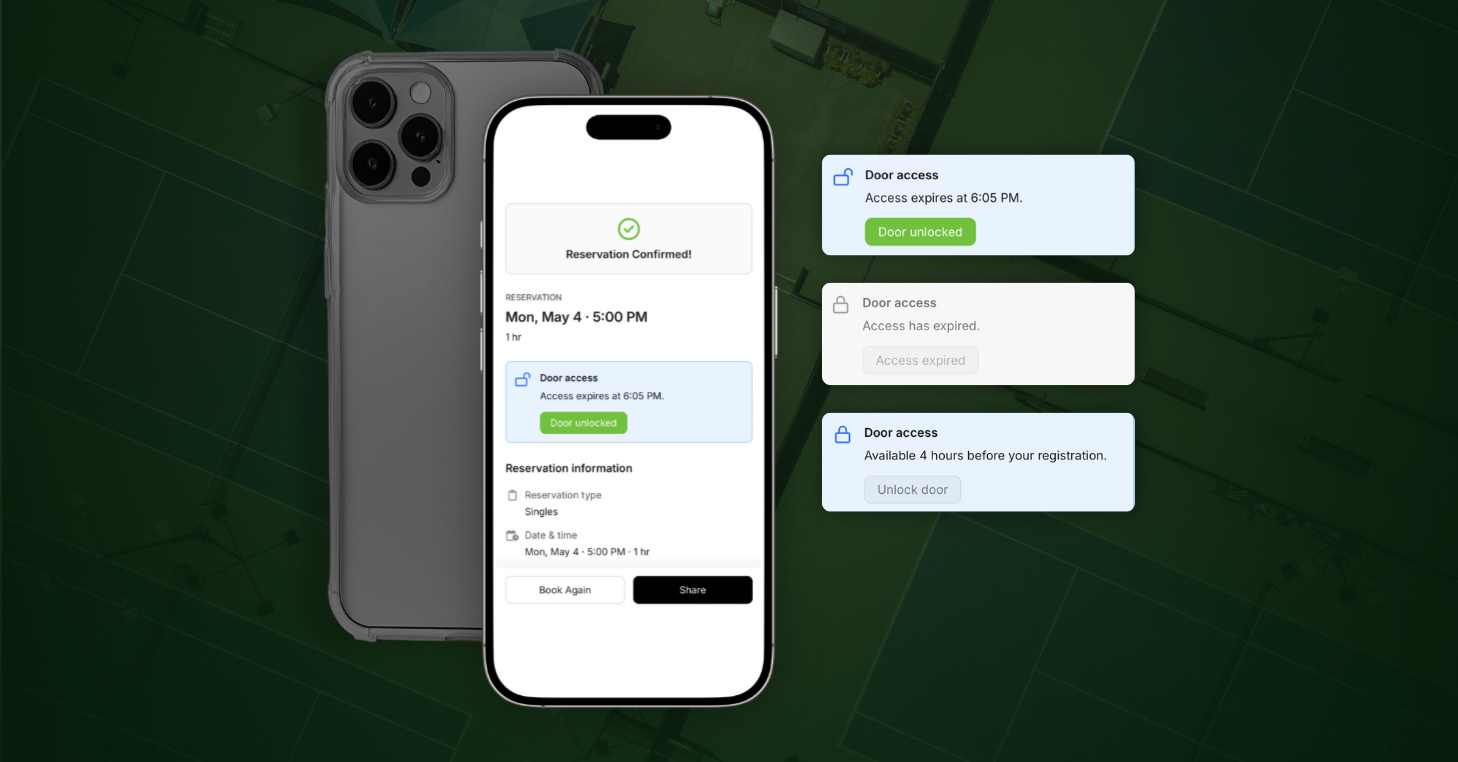
Public Booking now supports Access Control, allowing players to unlock your racquet facility’s door directly from their confirmation page, no PIN code needed.
CourtReserve clubs using Brivo or RemoteLock integrations can now enable Public Booking, knowing guests will have a secure, self-serve path to the court.
What’s new
- For clubs with an Access Control integration, a Door Access card now appears on the player’s Public Booking confirmation page.
- Players tap once to unlock the door. They do not enter a PIN code or check in at a desk.
- Access follows the same waiver rules and time windows you already have configured.
Built for clubs that run on smart locks and remote entry systems
Players who book online still have to get through a locked door, and at a staffless club or 24/7 facility, there is nobody on site to open it. Public Booking lets guests book without an account or an app, but your locks need to know who gets in, and handing a one-time player a permanent code was never an option.
The Door access card solves this by giving each guest temporary entry tied to their booking — access opens when their reservation window starts and expires when it ends.
How does door access work for players who reserve through Public Booking?
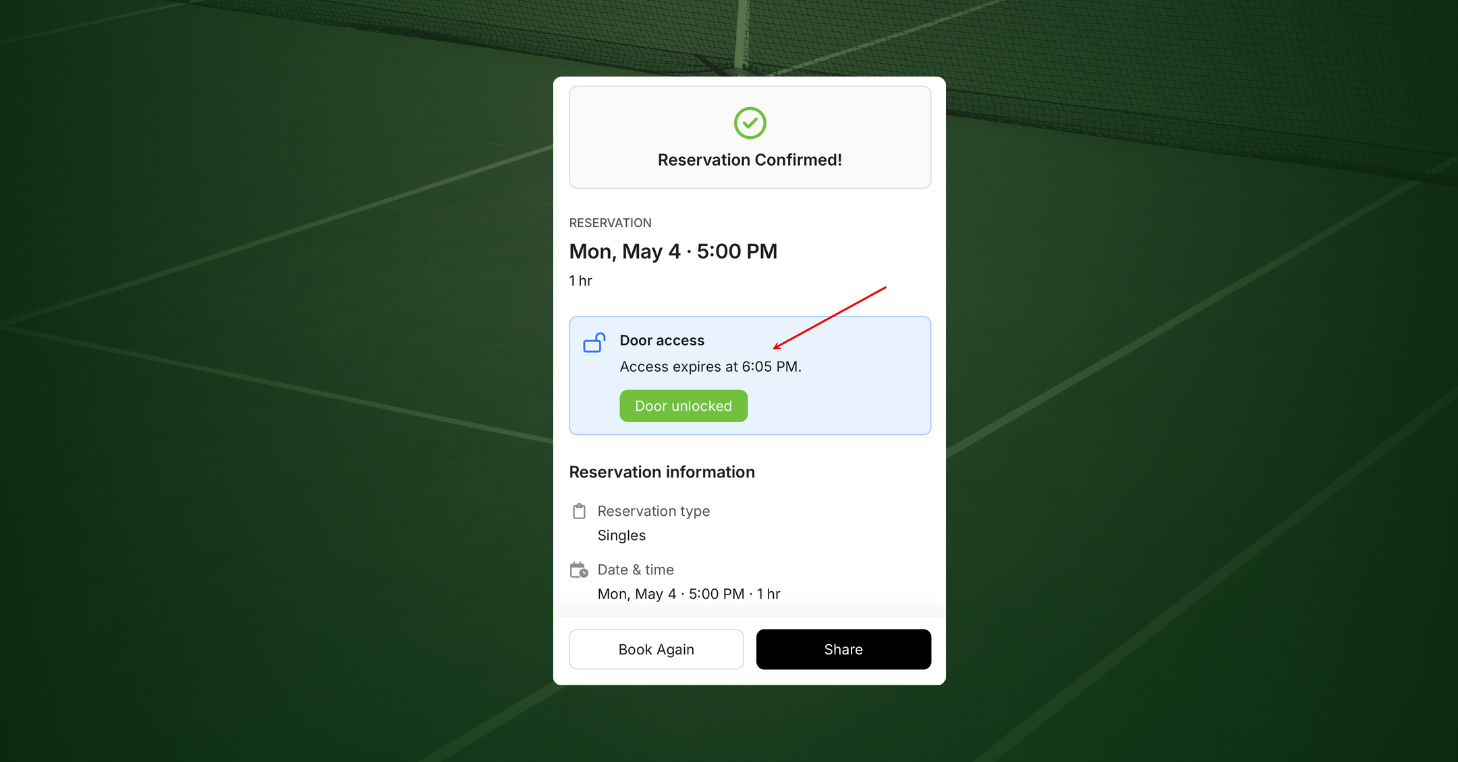
After a guest books and pays, their confirmation page shows a Door Access card. CourtReserve creates the credential on the backend, and the player never sees a code. When your club’s access window opens, the Unlock door button becomes active. The player taps it, and the door unlocks through your CourtReserve integration.
The card moves through four states:
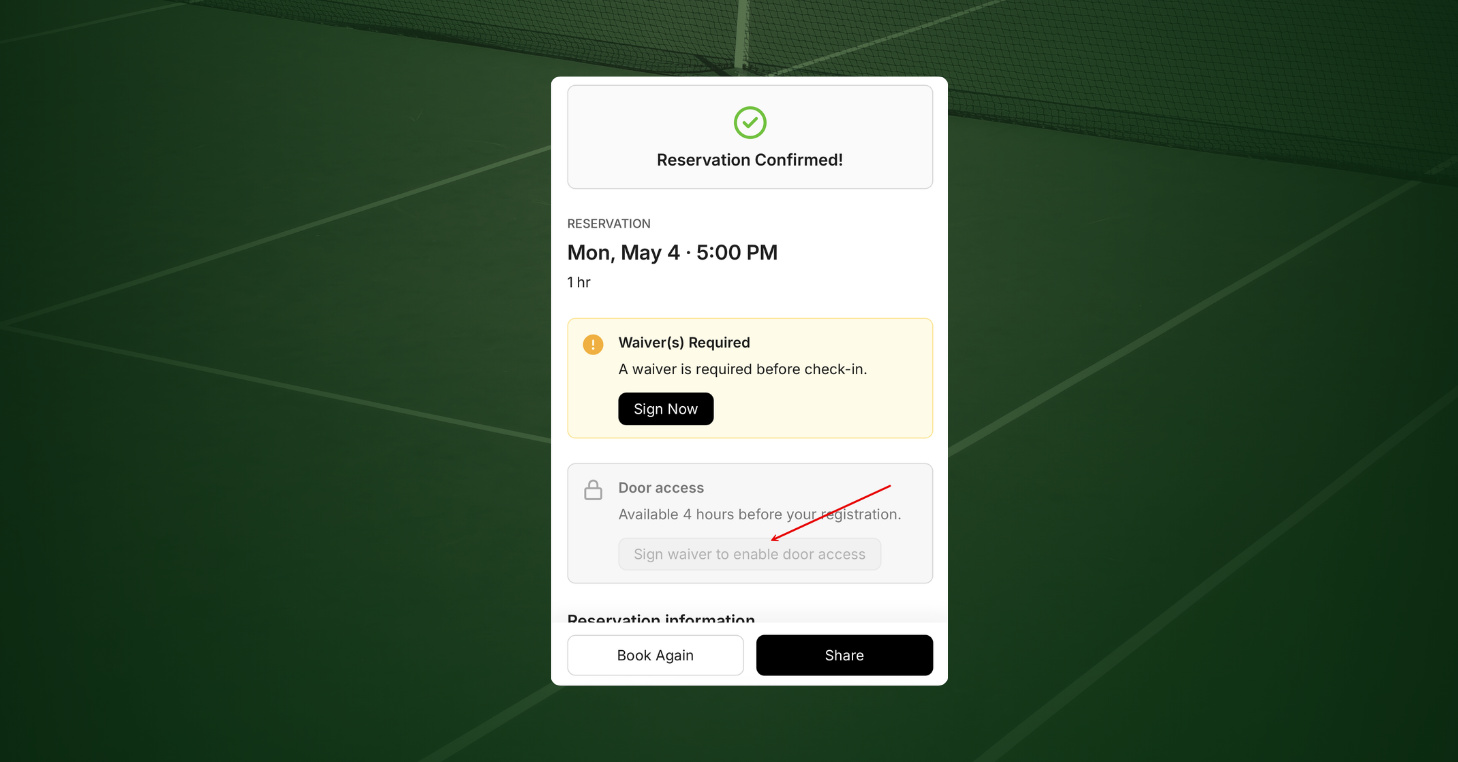
- Waiver Required. If your club requires a waiver, the card stays grayed out until the player signs. A banner above it prompts them to sign first.
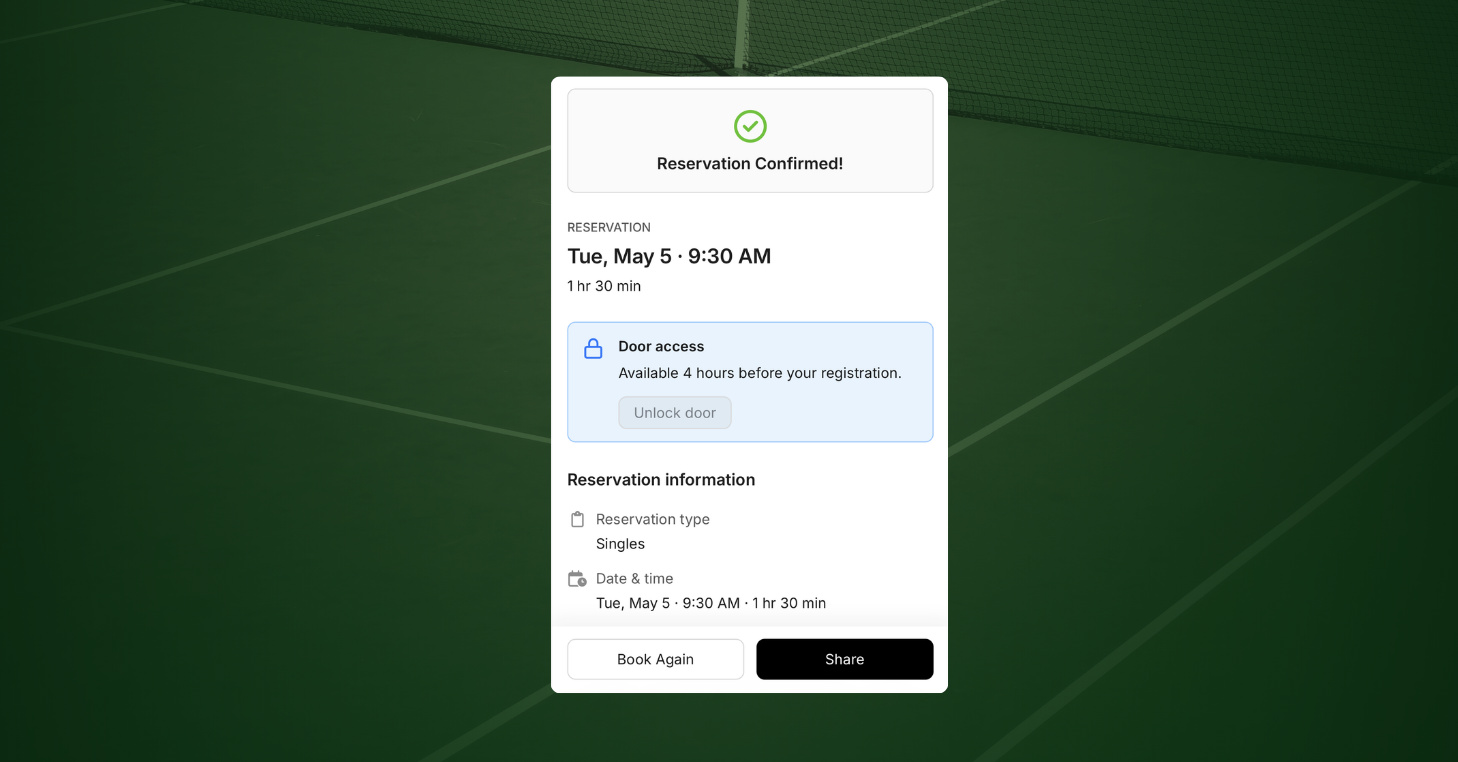
- Before Window. Once waivers are signed, the card is active, but the Unlock door button stays locked until the access window opens.
- Active. Inside the access window, the Unlock door button works. After a successful unlock, it displays “Door unlocked.” If the door closes before they get in, they can tap again.
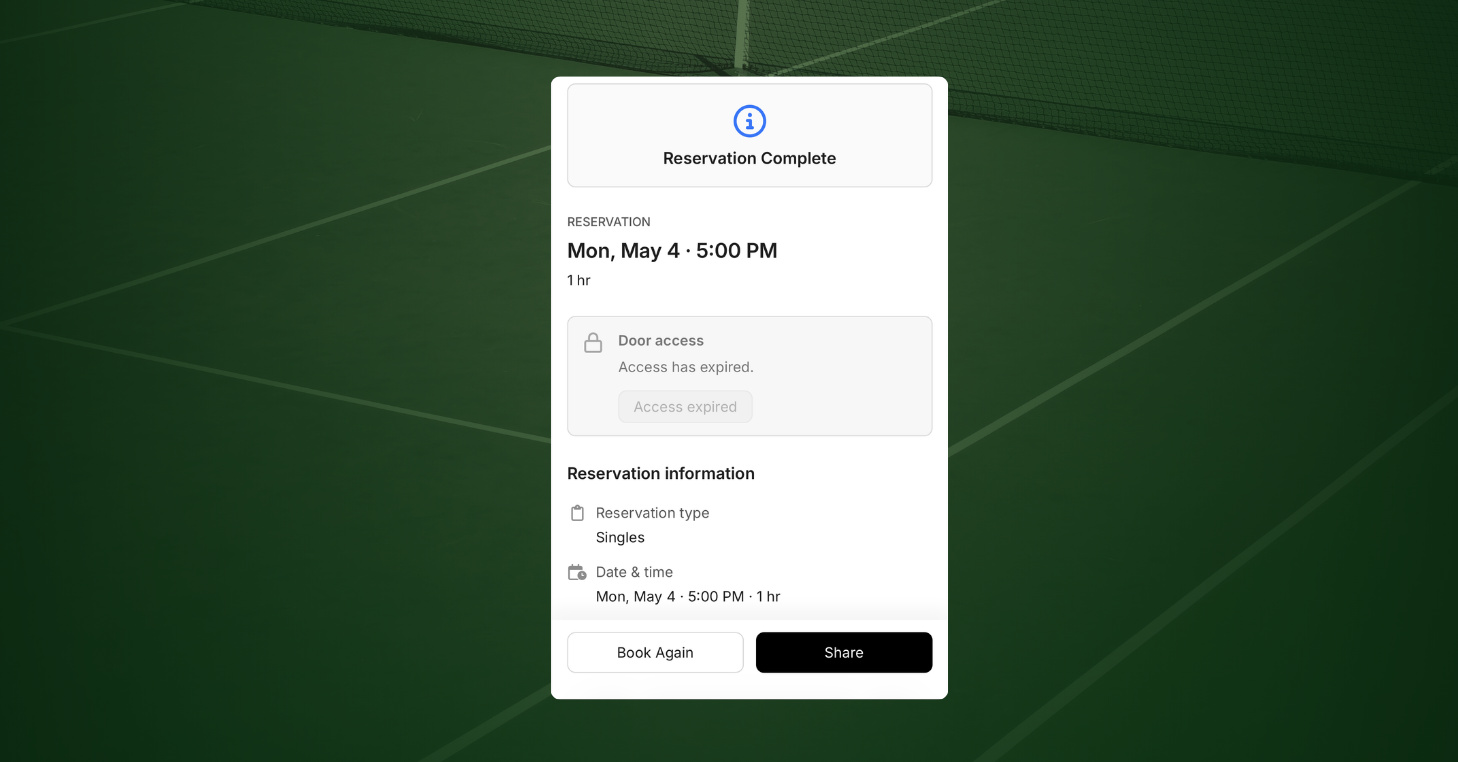
- Expired. Once the reservation and its access window end, the card reads Access expired and the button is no longer available.
That access window comes directly from your Access Control rules. If your rule opens access 15 minutes before the reservation starts and closes it 5 minutes after it ends, the button works only during that time frame.
Guests get a smooth, self-service experience
Players get a complete, self-service experience from the moment they book online to the moment they step on court. Everything they need is on their confirmation page — what to sign, when to arrive, and how to get in. They handle it all from there, with no app to download, no PIN code to enter, and no front desk to check in with.
No permanent codes or lingering access
Every credential CourtReserve creates for a Public Booking guest is temporary and tied specifically to their reservation. Once the access window closes, it expires. No codes are ever handed out, which means no codes can be shared, reused, or passed along to someone who was never part of the booking. So, there is nothing for your team to revoke or track.
Unstaffed hours are no longer a barrier to Public Bookings
Opening your facility to guest bookers can feel like a risk. But every safeguard you have configured — access windows, waivers, entry rules — applies to Public Booking guests the same way it applies to your members. You stay in control of who gets in and when, at any hour, with or without staff on site.
Waivers stay enforced across every player, automatically
If your club requires a waiver, the player cannot unlock the door until it is signed. Because the system enforces this automatically, your club’s liability stays protected. That means the paperwork gets done before anyone steps on court, and your staff no longer has to chase down signatures at check-in.
Know exactly who accessed your facility and when
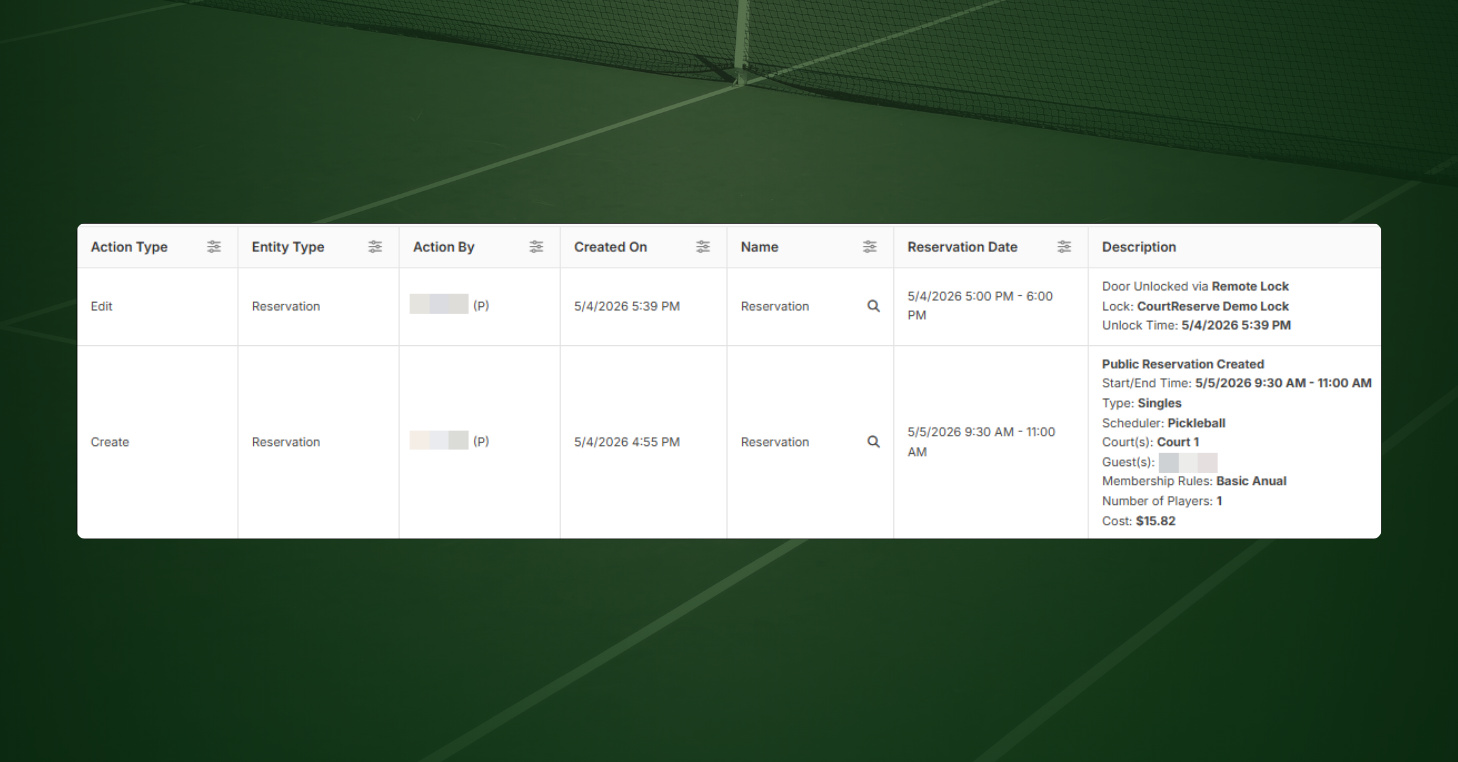
Every guest unlock is recorded in your CourtReserve audit log. You can see the:
- Access Control provider
- Specific door lock triggered
- Entry timestamp
- Reservation details
That gives you a full picture of who accessed your facility and when. Public booking players appear with a (P) after their name, keeping guest activity separate from member activity in the log. To review it, go to Audits > Audit Log in your admin panel.
Works with your existing setup and rules
Your existing Access Control rules cover guest bookings the same way they cover member reservations. Members still see a PIN code where you use one. Guests get the unlock button from that same rule.
Ready to open your courts?
If your club is already using Brivo or RemoteLock with CourtReserve, you now have everything you need to start accepting Public Booking players today. With both features enabled, the Door Access card appears automatically on every guest’s booking confirmation page.
For more information, visit the help article below. It walks you through the full setup and what to expect on both the player and admin sides.
See Public Booking: Access Control guide here.