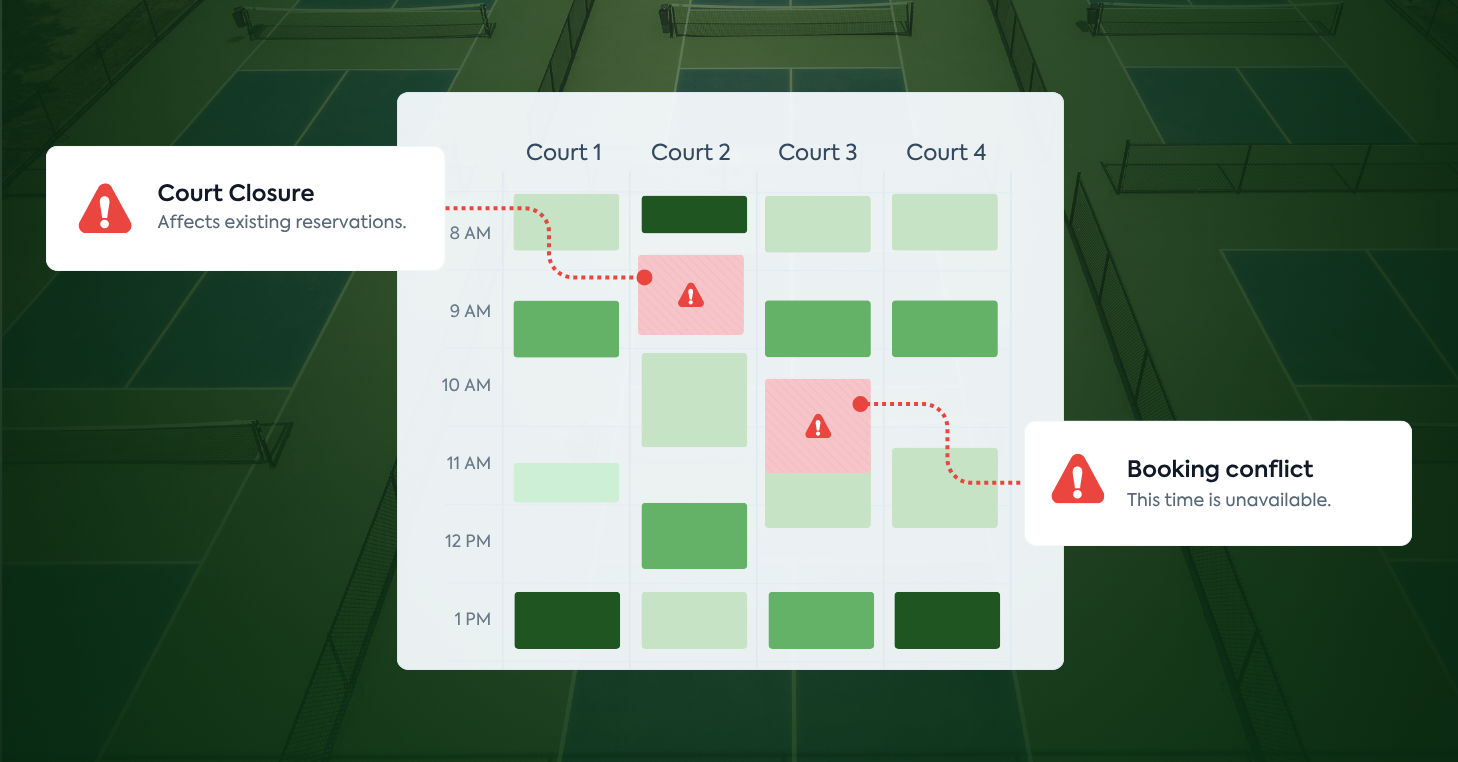
Saturday at 9 AM, two groups arrive for the same racquet court. Both have a confirmation. Now your front desk is deciding who gets moved, who gets comped, and how to explain a problem neither group caused.
Fixing the immediate booking conflict is usually the easy part. Figuring out why it keeps happening is harder.
For racquet sports facilities, double bookings, rule conflicts, and schedule mismatches can point to gaps in how you create, update, or enforce reservations. This guide will help you pinpoint the source, test the most likely failure points, and determine the right fix.
Four types of booking conflicts at racquet sports clubs
A booking conflict happens when a reservation clashes with another booking, a club rule, a player’s booking limits, or the availability shown in your schedule.
Most fall into four categories:
- Double bookings. Two confirmed reservations claim the same court or playing surface at the same time.
- Rule conflicts. A booking is accepted even though the player does not meet an access rule, such as a membership or booking window restriction.
- Player-limit conflicts. A member holds overlapping reservations or more court time or future bookings than their membership allows.
- Schedule conflicts. Your calendar shows availability that does not match what has already been reserved, programmed, closed, or taken out of service.
Double bookings are usually the easiest to spot, but all four can affect court availability, member access, and how much your staff can trust the schedule.
To figure out where your conflicts are coming from, you’ll need to look at both past reservations and how your system handles new ones. Before you start, gather a few basics: admin access, a test member account, a second device or browser, recent reservation history, and one other person to help with a simultaneous booking check.
Important note: Some of the following tests create live reservations. Run them during a low-traffic window on a court you’ve blocked for testing, or outside operating hours, and delete every test booking when you finish.
Start with the conflicts that already happened
Before you run any tests, look at the conflicts you’ve already seen. Reservation history can show you where problems tend to happen, while an audit trail can help you reconstruct what changed around a specific incident.
Start with recent reservation data from the last 90 days and look for:
- Overlapping reservations. Look for bookings assigned to the same court during overlapping times.
- Patterns by court, day, or time. See whether conflicts cluster around particular courts or busy booking windows.
- Cancellations or last-minute changes. If your system tracks booking activity, look for reservations that were edited or canceled around the time a conflict occurred, then review what changed and who made the change.
- Member and front desk complaints. Search for the language people actually use: “someone else was on the court,” “my reservation disappeared,” or “the app said it was open.”
Reporting tools can make those patterns easier to spot. In CourtReserve, the Pulse Utilization dashboard can break booking activity down by court, day, and hour.
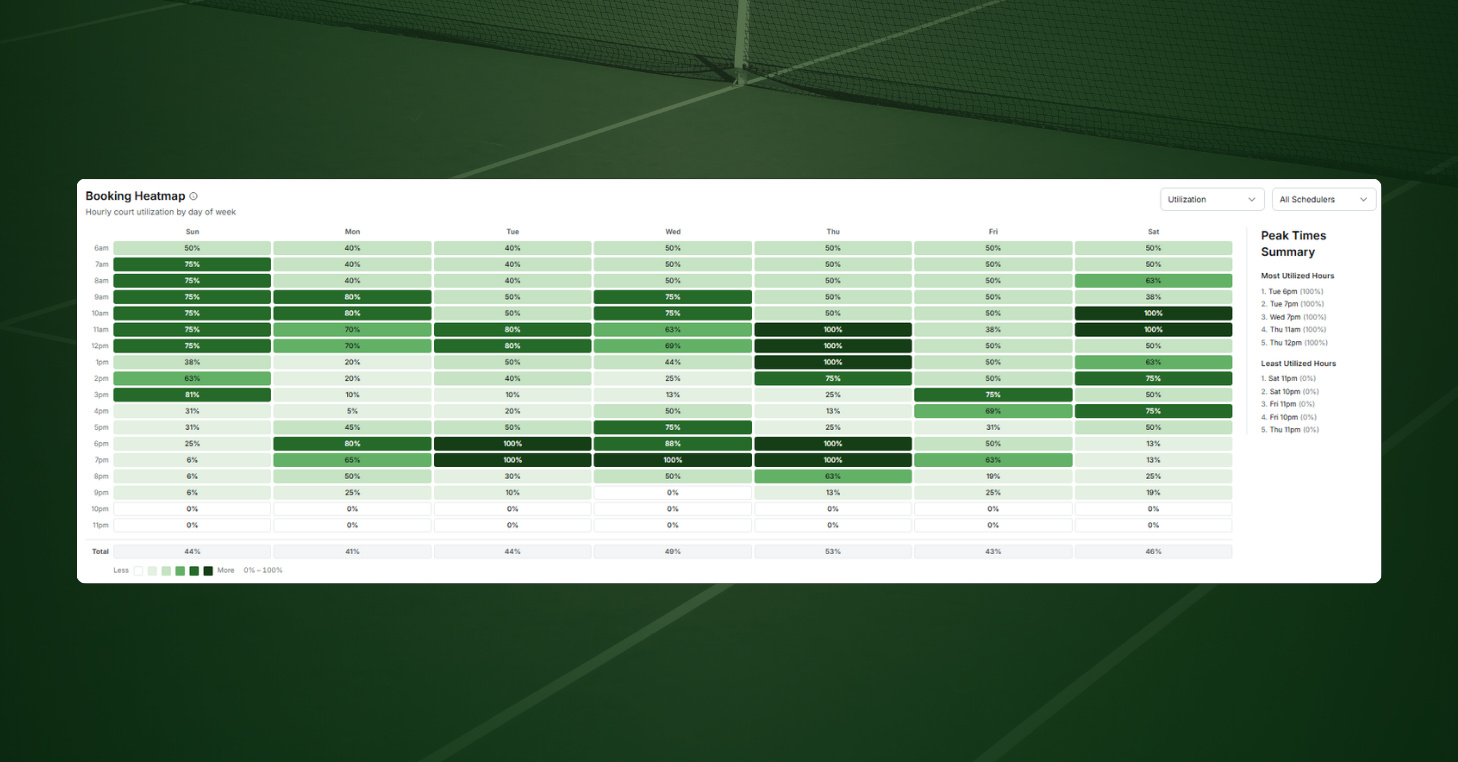
If a specific incident is unclear, check the audit trail for the reservation, event, or closure involved. Compare when it was created, edited, or canceled with the booking time, and review any confirmation history if a player says they received one.
By the end, you should have a clearer picture of where conflicts are happening, when they tend to occur, and which courts are most affected. Use that to guide the tests that follow.
Audit your scheduling workflows
Start by testing the workflows your staff use to create reservations, schedule programming, and close courts. These three checks can show whether court availability is getting lost somewhere in the process.
Test 1: Book the same slot through two paths
Have your front desk book a court through its normal process, such as an admin booking or a reservation taken by phone and entered into the system. Then try to reserve that same court and time from your test member account.
Pass: The second booking attempt is refused.
Fail: Both reservations are accepted.
What that tells you: The two booking paths aren’t pulling from the same court availability. If one of those paths lives outside your reservation software, such as a paper schedule, you’ve found a workflow gap rather than a software failure.
How to fix it: Consolidate every booking path into the same court reservation system. Reservations taken by phone, at the front desk, or online should all update one live court schedule so a reservation made in one place immediately affects availability everywhere else.
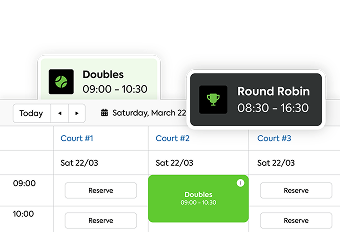
Test 2: Add programming and check availability
Create a clinic, league session, or open play on courts that currently show as available. Then check those same courts from your test member account.
Pass: The courts assigned to the program are no longer available for a separate reservation during that time.
Fail: A member can still reserve the same court and time.
What that tells you: Your programming and member reservations are not working from the same court availability. That may point to configuration, permissions, or a gap in how the program was scheduled.
How to fix it: Block courts as soon as programming is scheduled so a clinic, league, lesson, or open play session immediately removes those courts from member availability.
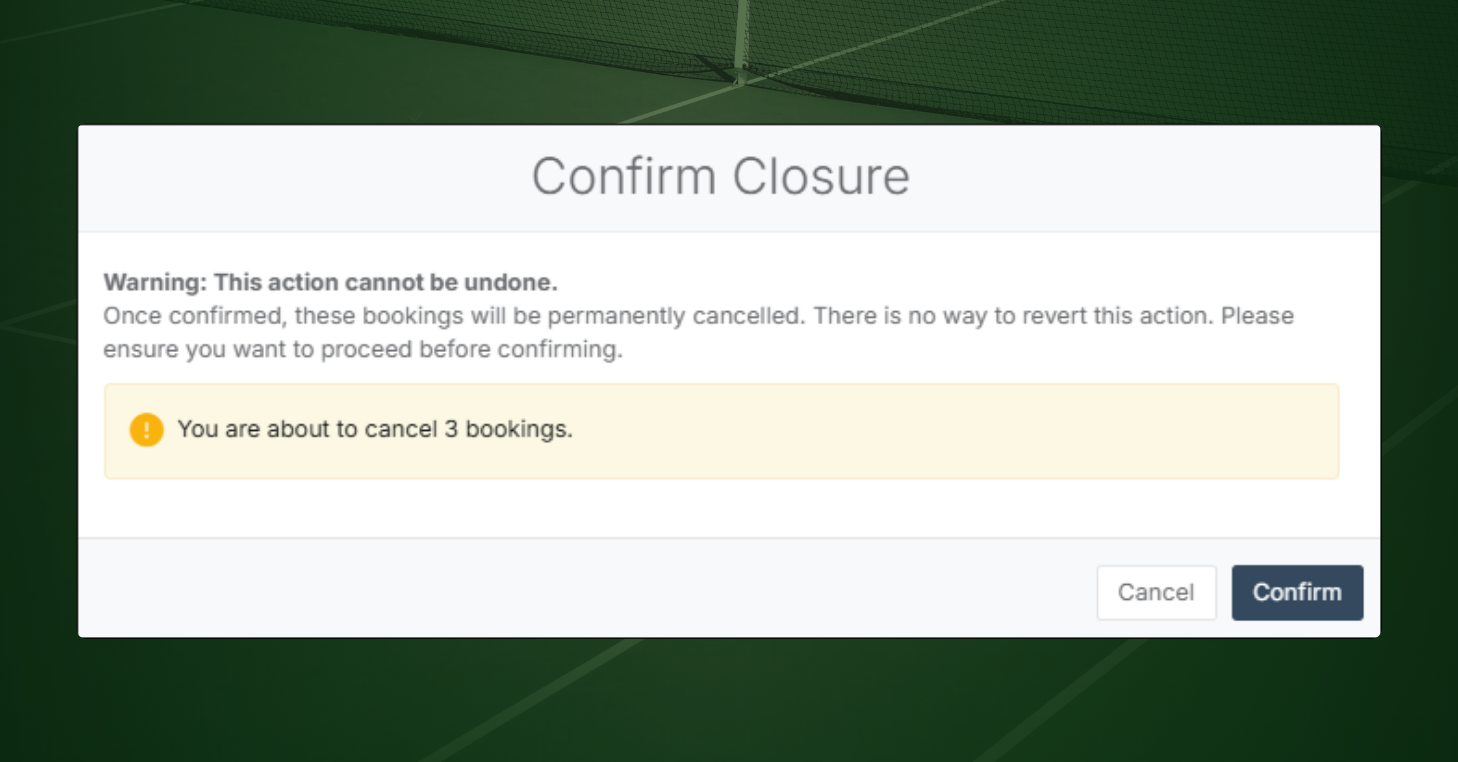
Test 3: Add a closure over an existing reservation
Find a future reservation, including an occurrence in a recurring series, and add a court closure that overlaps it.
Pass: The system identifies the affected booking or otherwise makes the overlap visible before you finish the closure.
Fail: The closure is added without any indication that an existing reservation occupies the same court and time.
What that tells you: Your closure workflow is not checking against existing bookings, which makes it easier for the schedule and actual court availability to fall out of sync.
How to fix it: Manage closures from the same place your team manages reservations. That gives staff one source of truth for what is open, booked, or unavailable and reduces the chance of separate calendars falling out of sync.
Check your court availability for sync issues
A sync gap happens when court availability changes in one place but does not update everywhere it should. These three tests check whether your schedule stays accurate as players book, courts overlap, and availability changes.
Test 1: Submit two bookings at the same time
You and a team member each open the same available court and time slot on separate devices. Leave both screens open, then submit both reservations within a few seconds of each other.
Pass: One booking succeeds, and the other is refused because the court is no longer available.
Fail: Both bookings succeed.
What that tells you: Your system is not reliably rechecking court availability when a reservation is submitted.
How to fix it: Availability should be confirmed again when a player completes a reservation, not only when they first open the booking page. If your court reservation system cannot recheck availability at confirmation, ask your provider whether that behavior can be changed.
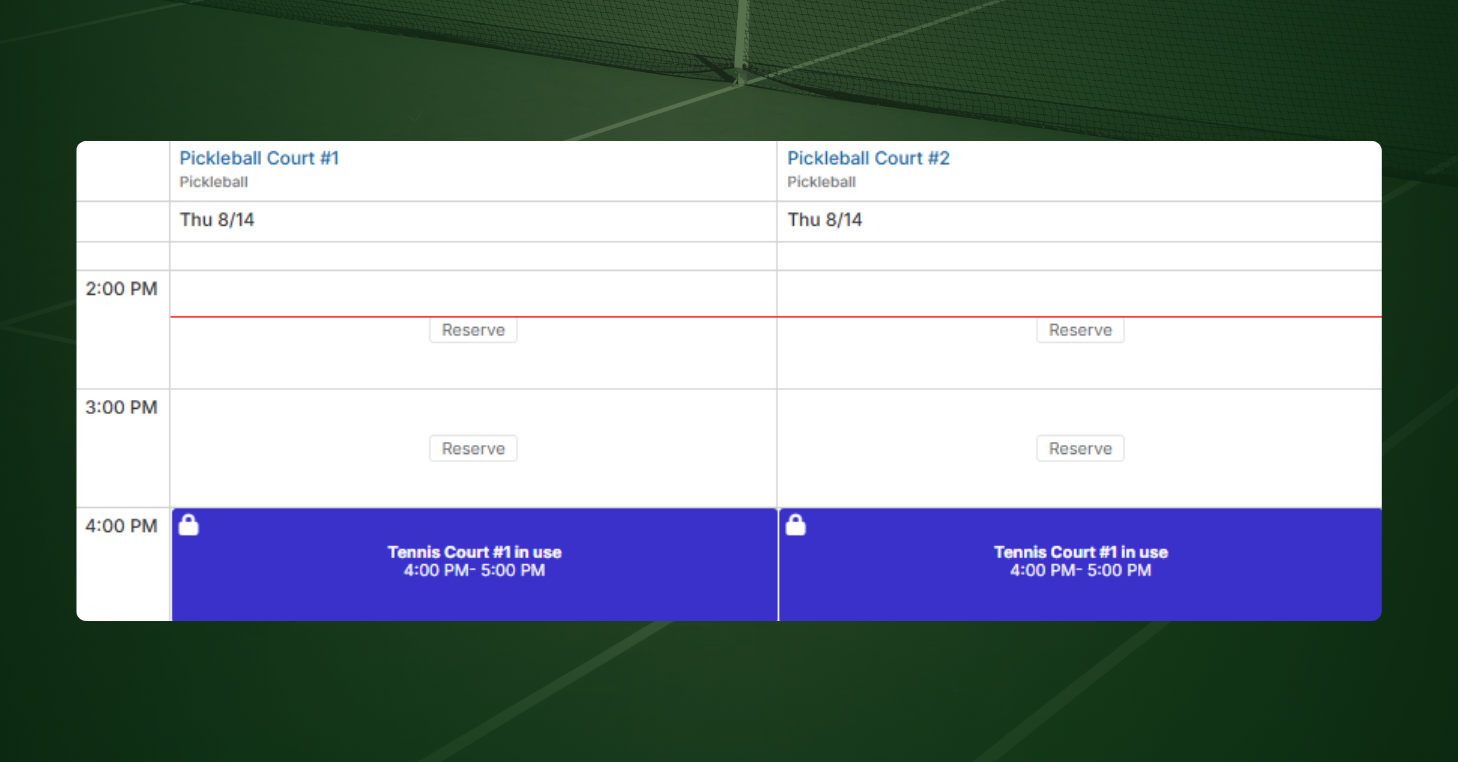
Test 2: Verify your combo court blocking
This test applies to clubs that use combo courts, where one physical surface can be booked in multiple configurations, such as pickleball courts laid out on a tennis court. Book the full court from your admin account. Then try to book one of the smaller courts on that same surface from your test member account. Delete both, then reverse the order: book a smaller court first, then try the full court.
Pass: The conflicting booking is blocked in both directions.
Fail: Either booking goes through, allowing the same physical surface to be reserved twice for overlapping times.
What that tells you: Your system is not recognizing the relationship between courts that share the same physical space. Because the reservations carry different court names, the conflict may not be obvious on the calendar.
How to fix it: Link the courts in the combo court configuration so booking one automatically blocks any overlapping setup. Your court reservation system should understand that the full surface and the smaller courts share the same physical space rather than treating them as separate inventory.
Test 3: Close a court and review availability across channels
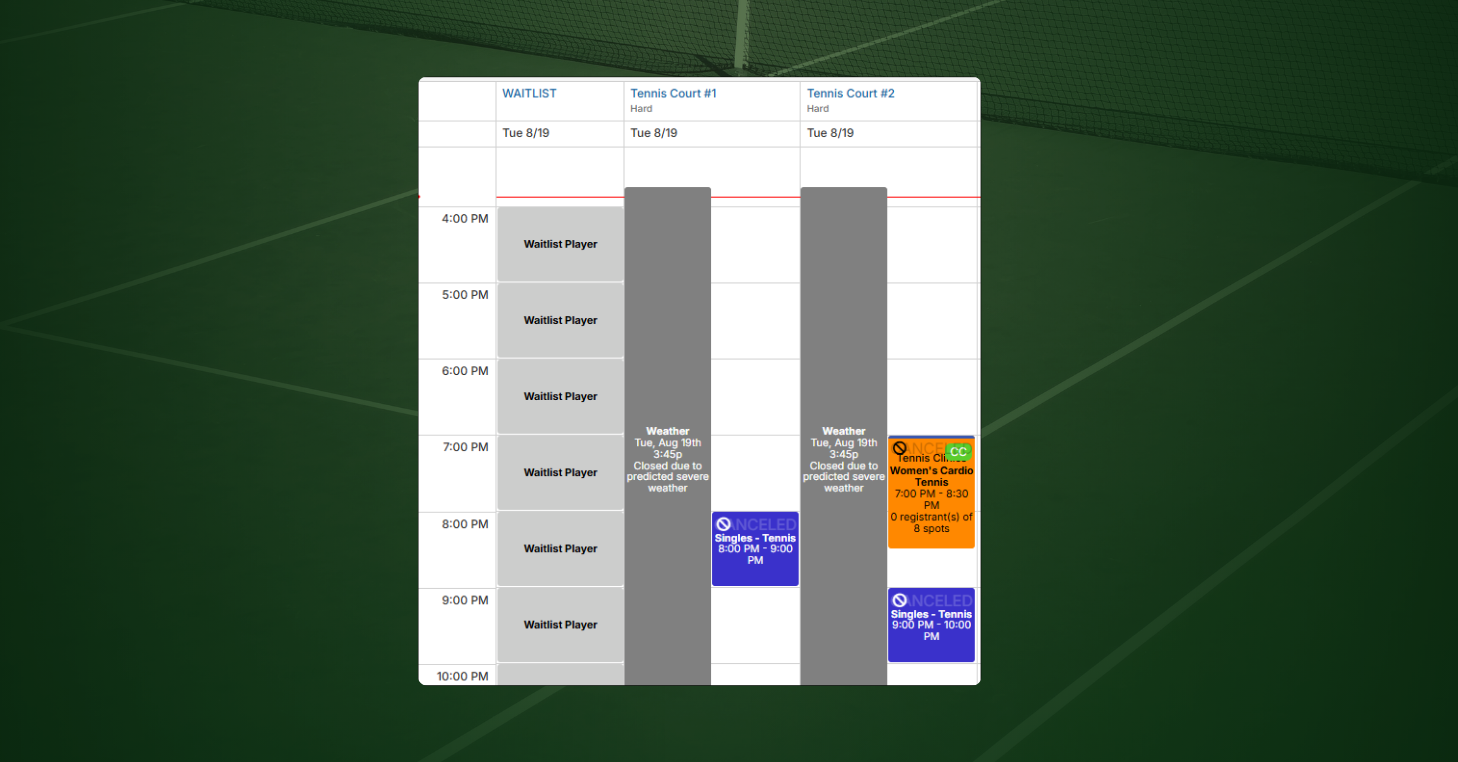
Close a court from the admin side. Then check every place someone could still reserve or view it, including the member app, web portal, public or non-member booking page, custom scheduler views, and the screen your front desk uses.
Pass: The court shows as unavailable everywhere you check.
Fail: It remains bookable on at least one surface.
What that tells you: Court availability is not updating consistently across every booking path, so players and staff may be working from different versions of the schedule.
How to fix it: Manage closures and availability changes from a central schedule that feeds every booking surface. If your club uses multiple scheduler views, Public Booking, or other booking paths, confirm that each one reflects the same live court availability.
Confirm your booking rules hold
Some booking conflicts happen because a reservation gets through a restriction that should have stopped it. The easiest way to find those gaps is to test the rules the same way a member would encounter them.
Test 1: Review access and booking windows
Use a test member account with a known membership tier. Try to book a court or time that should be restricted, such as prime time the member cannot access or a reservation outside their allowed booking window. If you have separate guest or non-member rules, test those booking paths too.
Pass: The restricted booking is refused, while reservations the member is eligible for still go through.
Fail: The member can book a court or time their membership should not allow, or a valid reservation is refused.
What that tells you: An access rule or booking window is not applying the way you expect.
How to fix it: Compare the rule assigned to that membership or booking path with the policy you actually want to enforce. Change the rule that failed, then repeat the same booking attempt to confirm the result.
Test 2: Assess daily court and time limits
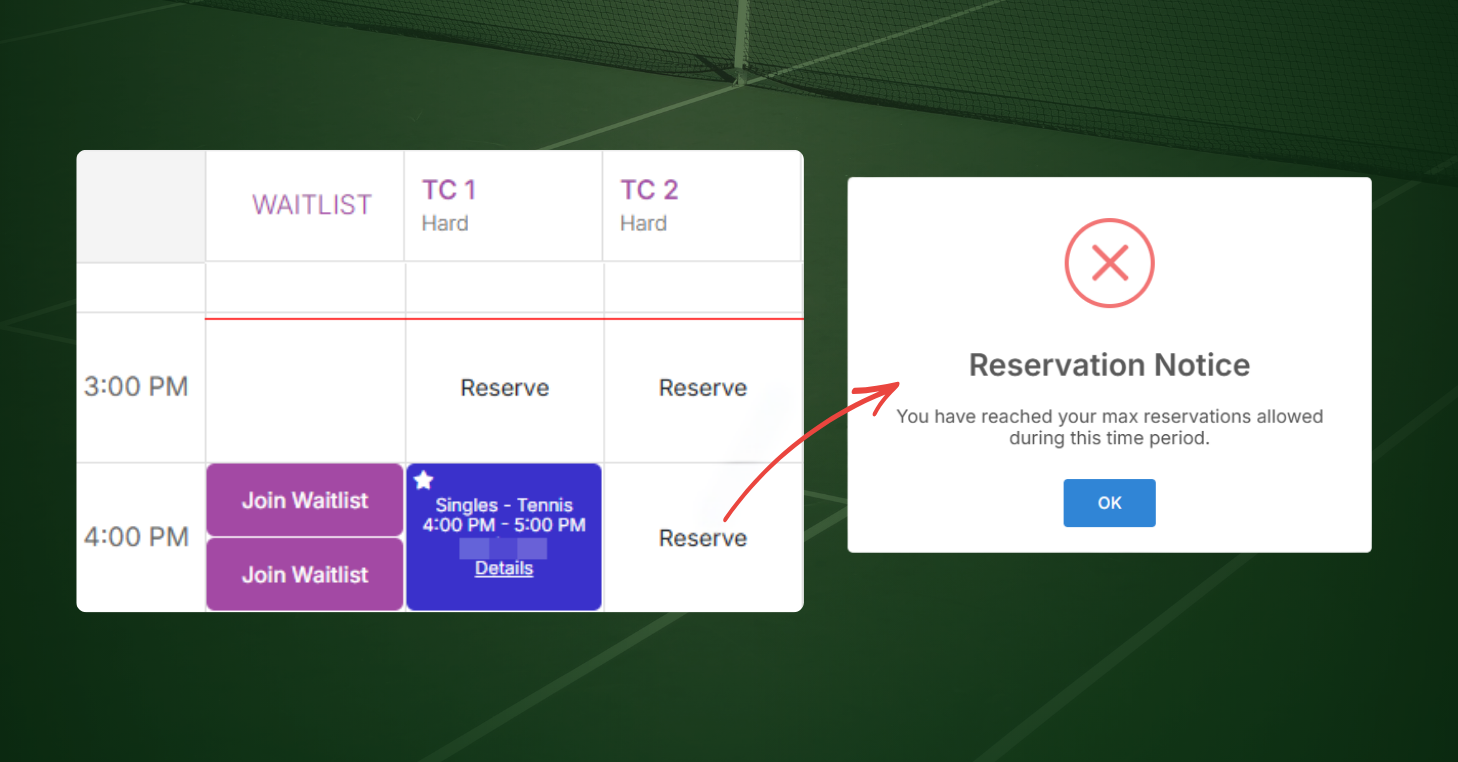
Make reservations until your test member reaches the daily limit your club allows, then try one more. If you also limit reservation length or total minutes per day, try to exceed those limits separately.
Pass: Reservations within the member’s allowance go through, and the first booking that exceeds the limit is refused.
Fail: The member can book beyond the allowed number of courts, minutes, or reservation duration, or gets blocked before reaching the limit.
What that tells you: One of your usage limits is either configured incorrectly or is not applying to the booking you tested.
How to fix it: Identify exactly what your policy limits are: number of courts, number of reservations, total minutes, or reservation length. Make sure the corresponding rule applies to the right membership and booking type, then rerun the same test.
Test 3: Check concurrent and outstanding reservations
First, make one reservation and try to create another that overlaps it. Then test outstanding reservations separately by creating future bookings up to the member’s limit and attempting one more.
Pass: The member can hold the number of overlapping and future reservations your rules allow, but cannot exceed either limit.
Fail: The member can hold more simultaneous or future reservations than intended.
What that tells you: Your concurrent or outstanding reservation limits may be configured differently than you expect.
How to fix it: Treat the two limits separately. Concurrent reservations control overlapping bookings, while outstanding reservations control how many future bookings a member can hold. In CourtReserve, for example, a concurrent reservation limit of 0 still allows one reservation at a time; a limit of 1 allows a second overlapping reservation.
One final test: Once all three pass individually, combine a few rules in the same booking scenario. For example, try to make a prime-time reservation with a member who has already reached their daily court limit. If the booking is handled correctly, you know the rules still hold when multiple restrictions apply at once.
Your schedule shouldn’t need constant supervision
If preventing booking conflicts depends on staff cross-checking calendars, manually blocking courts, or remembering which rules apply to which members, outdated reservation software may be adding work instead of reducing it.
A modern court reservation system should handle the routine complexity for you. Reservations, programming, closures, combo courts, and booking rules should work together in one place, with availability staying current wherever staff and players book.
CourtReserve is built specifically for tennis, pickleball, and padel facilities that need one system to manage court availability and the rules around it. From booking restrictions and combo courts to programming and court closures, the platform is designed to help your team spend less time catching scheduling problems manually.
Ready to see how your current booking workflows would run in CourtReserve? Schedule a call with our team, and we’ll walk through your courts, booking rules, programming, and the conflict scenarios your staff manages today.